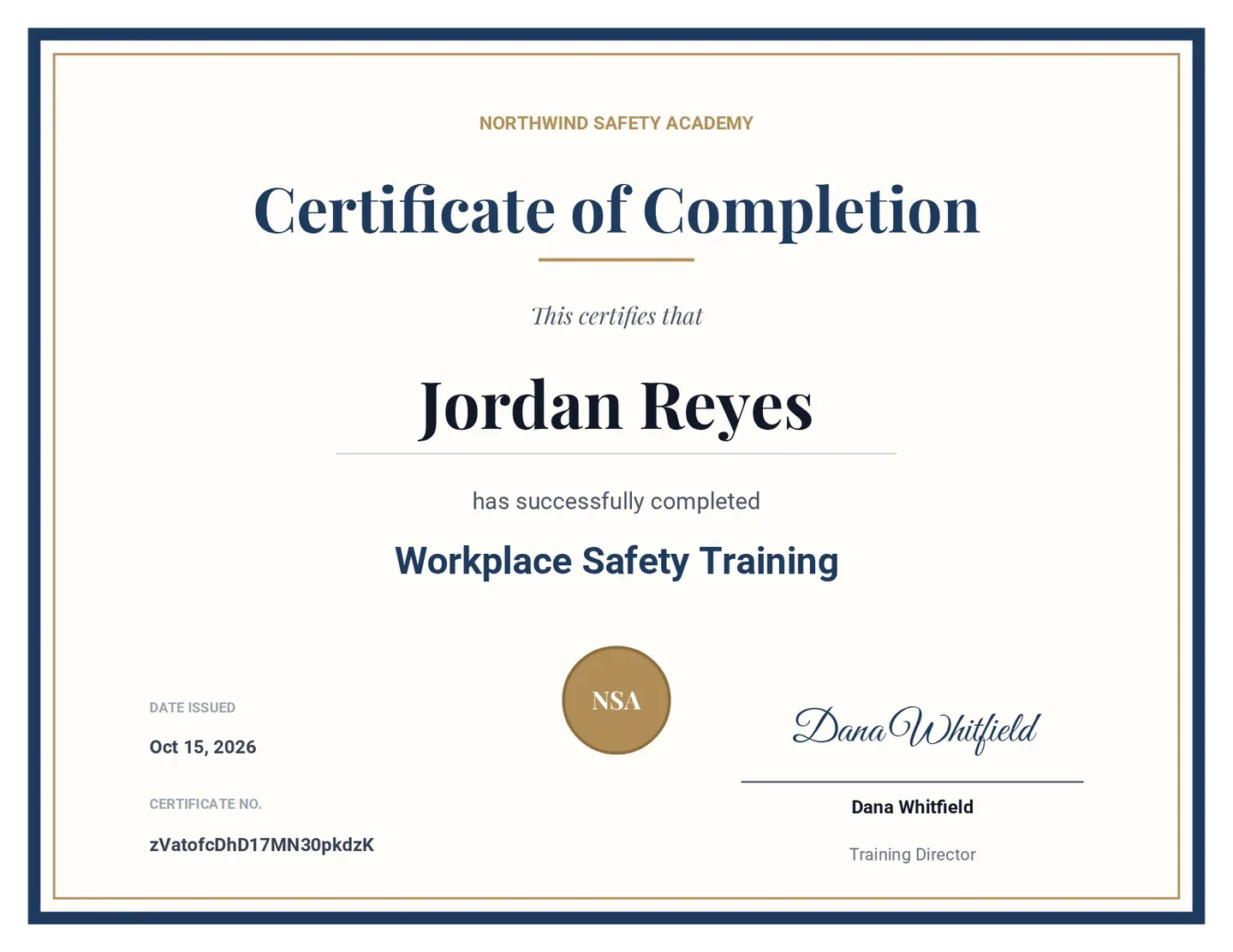
You run a course or a training session, and everyone who finishes expects a certificate. Making each one by hand means typing a name into a template, saving a PDF and emailing it, one person at a time. A form can do all of that for you. When someone submits it, their certificate is filled with their name, course and date and sent to their inbox.
This guide shows how to auto-generate certificates from a form with Formester, including how to send them only to people who pass a quiz. The form works as your automatic certificate generator: the questions, the certificate design and the email live in one place, so there is no spreadsheet or add-on to connect.
Quick answer
- Build a form that asks for each person's name, email and course.
- Design the certificate once in the PDF Editor and add the name, course and date with @.
- Turn on an autoresponder that attaches the certificate PDF to its email.
- Optional: add a rule so only people who pass your quiz get one.
Certificate PDFs are part of the Business plan.
What your form needs to auto-generate certificates
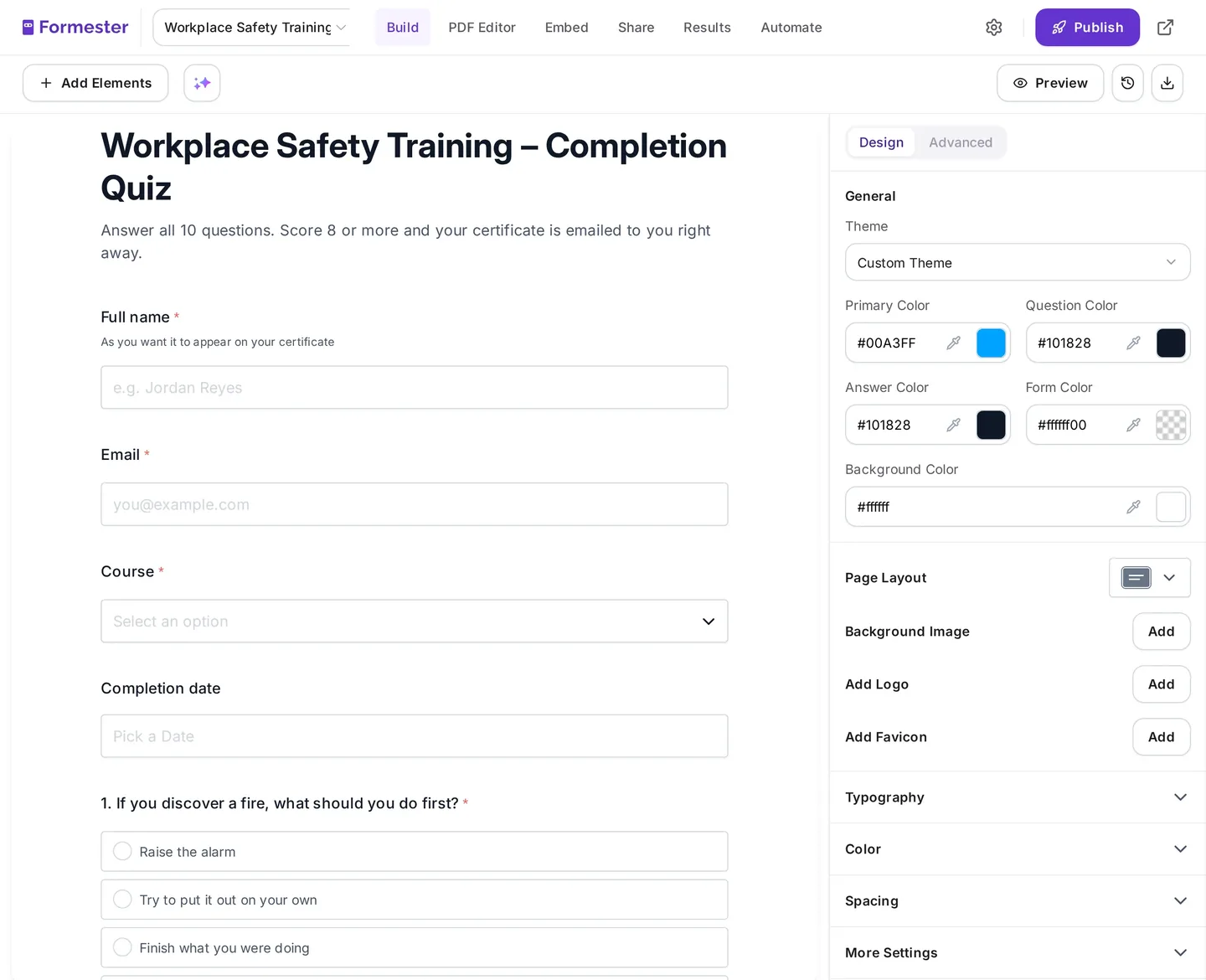
A certificate can only show what your form collects, so decide on the fields before you design anything. Put yourself in the attendee's shoes: they type their name once and expect it to print correctly.
- Full name: add help text asking for the name as it should appear on the certificate.
- Email: the certificate is sent to this address.
- Course, session or event: a dropdown keeps the spelling the same for everyone. You can also pre-fill it.
- Optional extras: organization, job title or hours completed.
You don't need fields for the issue date or a certificate number. Both come from the submission itself.
Step 1: Build the form or quiz
Starting from a form close to what you need, like a certificate of completion form for a course, means you only adjust fields instead of building from zero.
- Pick a template, like the course evaluation form, the employee training quiz or the training webinar form. You can also describe your form to the AI form generator.
- Add the name, email and course fields from the list above.
- If people must pass a test to earn the certificate, make it a scored quiz and give each question points.
Step 2: Design the certificate in the PDF Editor
You design the certificate once. After that, every submission gets its own copy with that person's details filled in. It's the same PDF Editor Formester uses to generate PDFs from form submissions like contracts and invoices.
Start from your own design or a blank page
If you already have a certificate design from Canva, Word or a designer, keep it. Export it as a PDF, or as a PNG or JPG image.
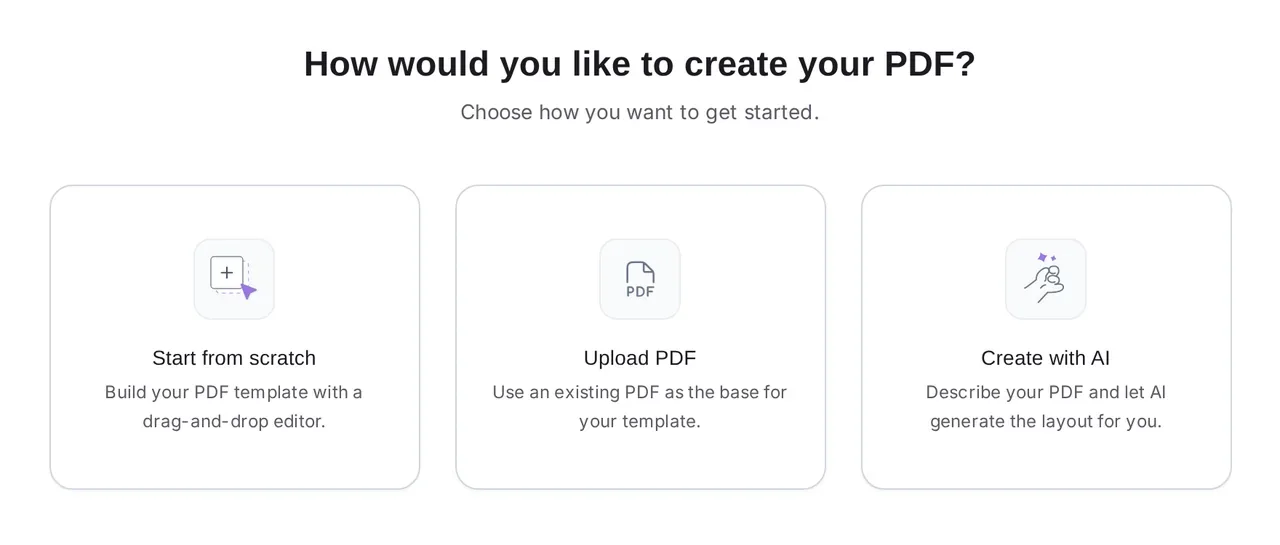
- Open the PDF Editor tab on your form.
- Choose Upload PDF to use your certificate PDF as the page, or start from scratch for a blank page.
- If you started blank and your design is an image, you'll add it as the background in the next step.
Set the page to landscape
Most certificates are wider than they are tall, so set up the page before you place anything. An uploaded PDF keeps its own page size, so you can skip this if you uploaded one.
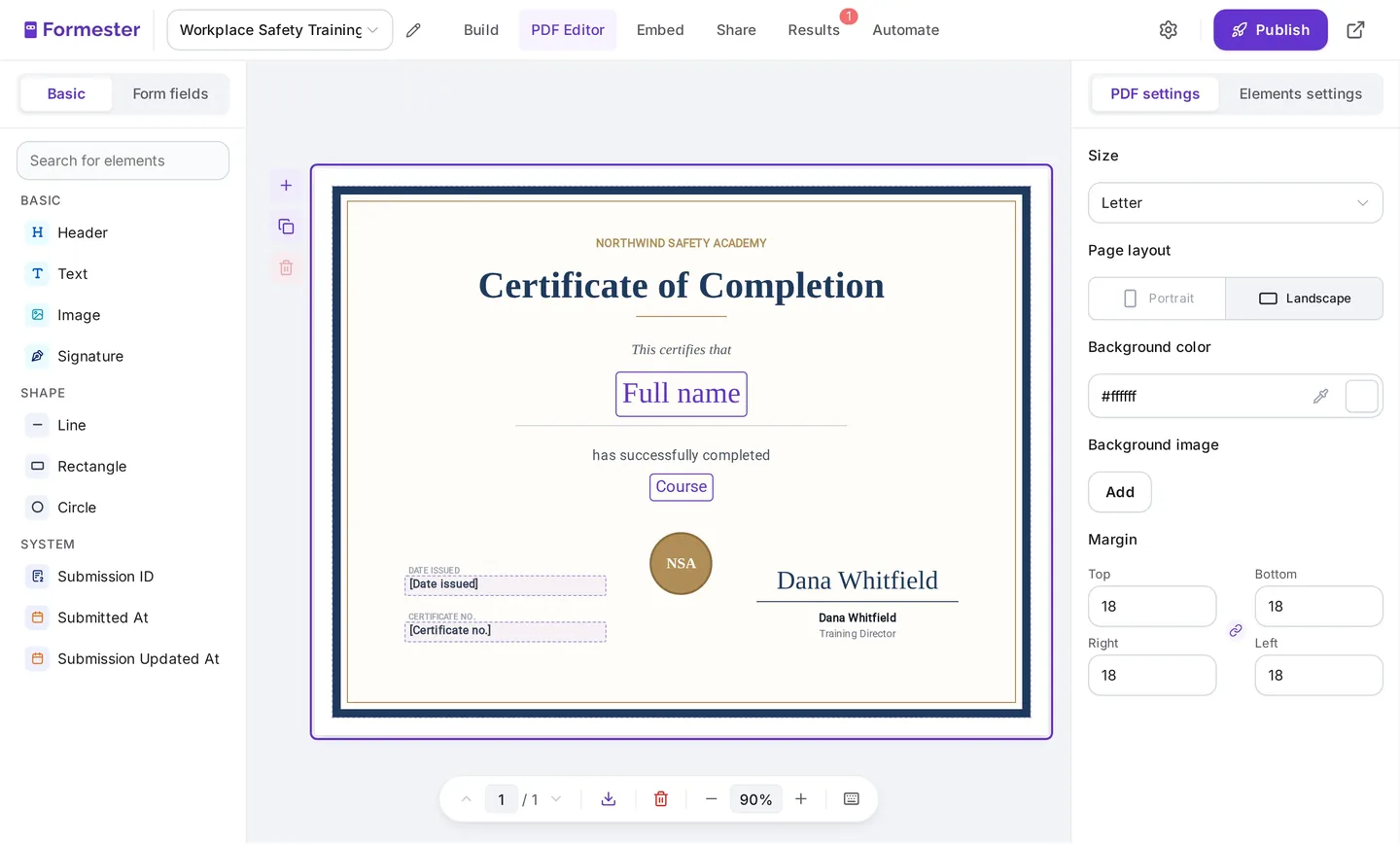
- Open PDF settings.
- Pick a Size: Letter, A4 or A5.
- Set Page layout to Landscape.
- Upload your artwork under Background image, or pick a Background color. Adjust the margins so text stays inside the border.
Add each person's name, course and date
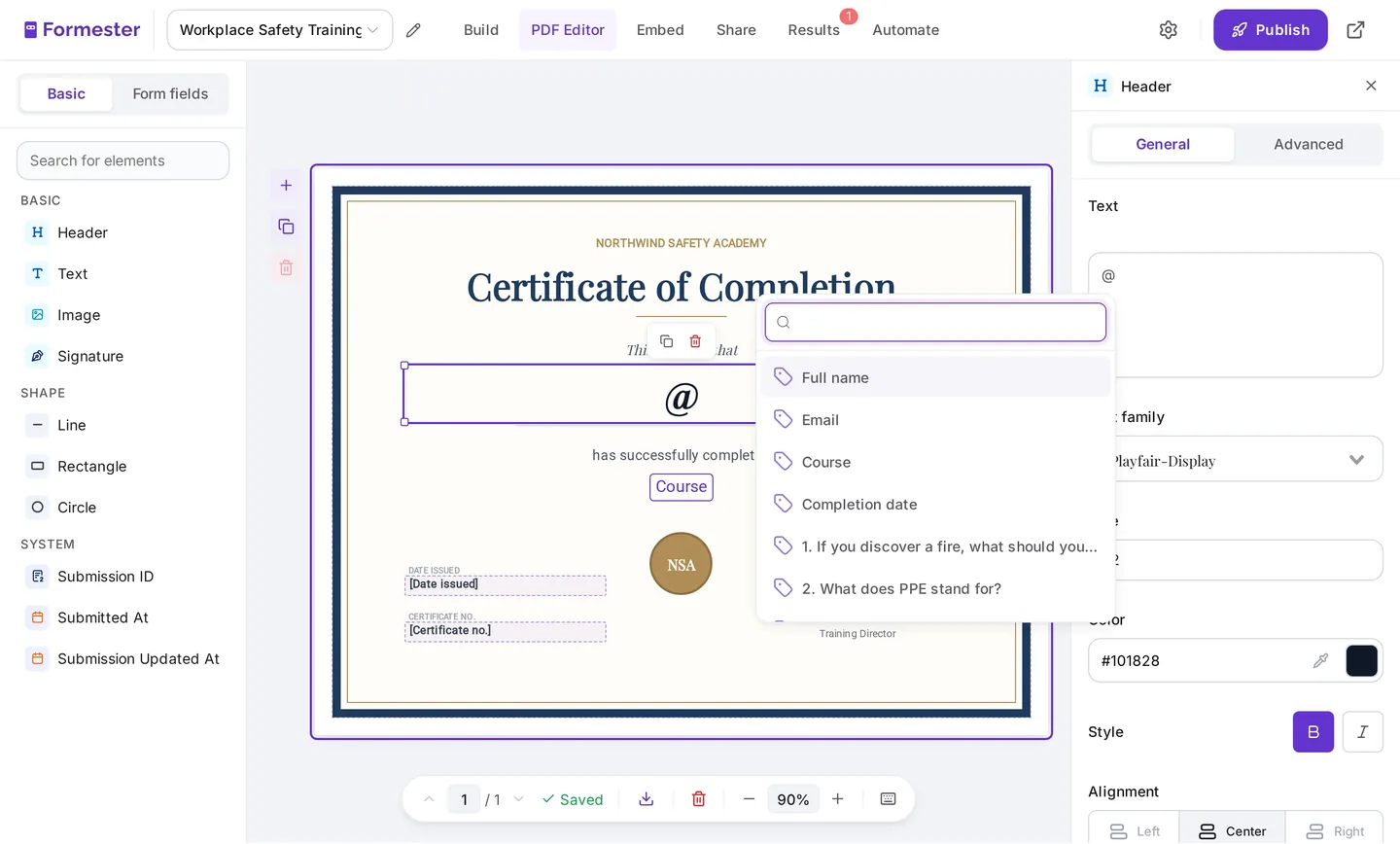
Type @ in a text element to insert an answer from the form. Each certificate then shows that person's answer in its place. This is called @ recall.
- Add a Text element, type @ and pick Full name. Make it large, choose a serif font and center it.
- Add a second text element with the words for completing, followed by @ and your course field.
- For the issue date, add a text element, type @ and pick Submitted At.
- For a certificate number, do the same with Submission ID. Every submission has its own ID, so no two certificates share a number. It's a long ID, so give it a wide text box.
- Add your logo and a signature image as Image elements.
Step 3: Email each certificate automatically
People expect their certificate right after they finish, so send it automatically. An autoresponder emails it the moment the form is submitted. You need at least one submission before you can add an autoresponder, so submit a test entry first.
- Open the Automate tab, choose Autoresponder and click Add Autoresponder.
- Set Email Field to the email question on your form.
- Write the Email Subject and Email Body. Type @ to add the person's name and course.
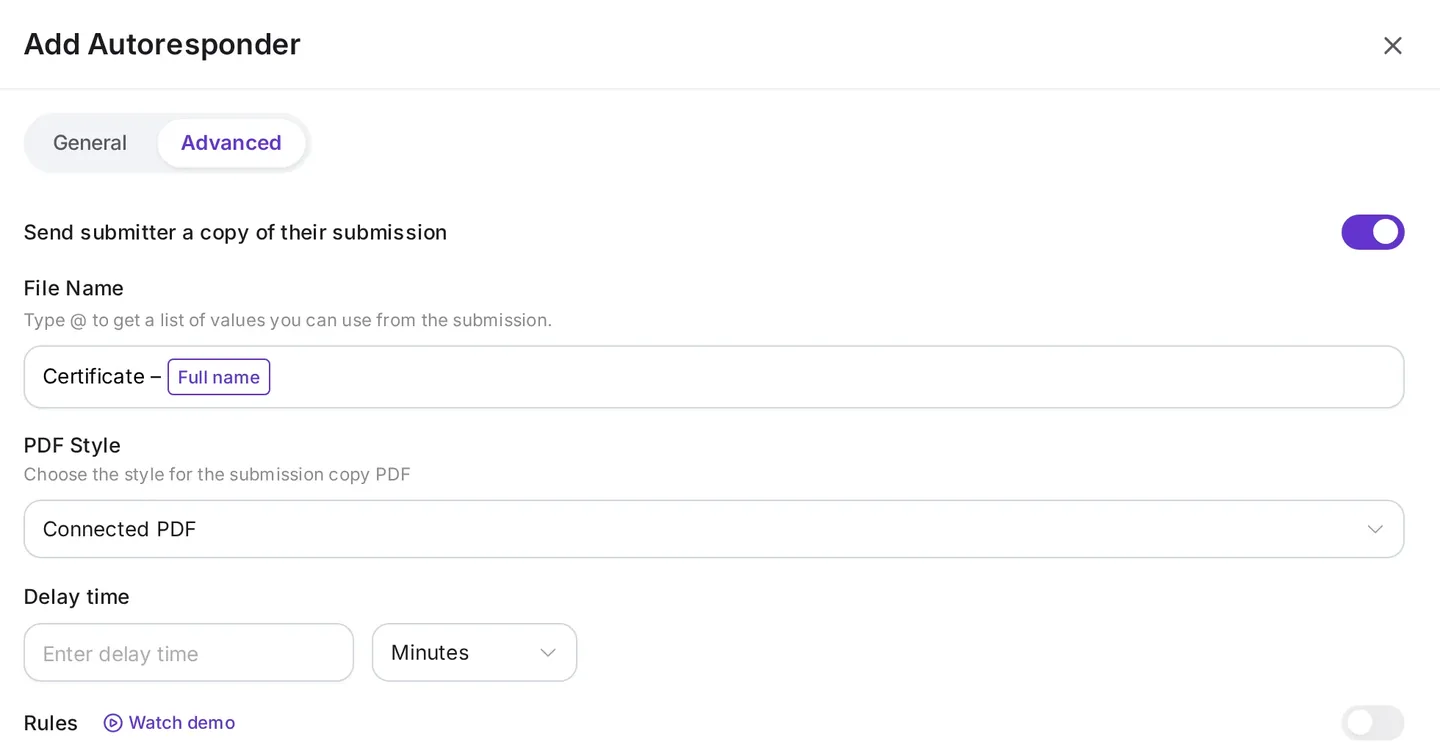
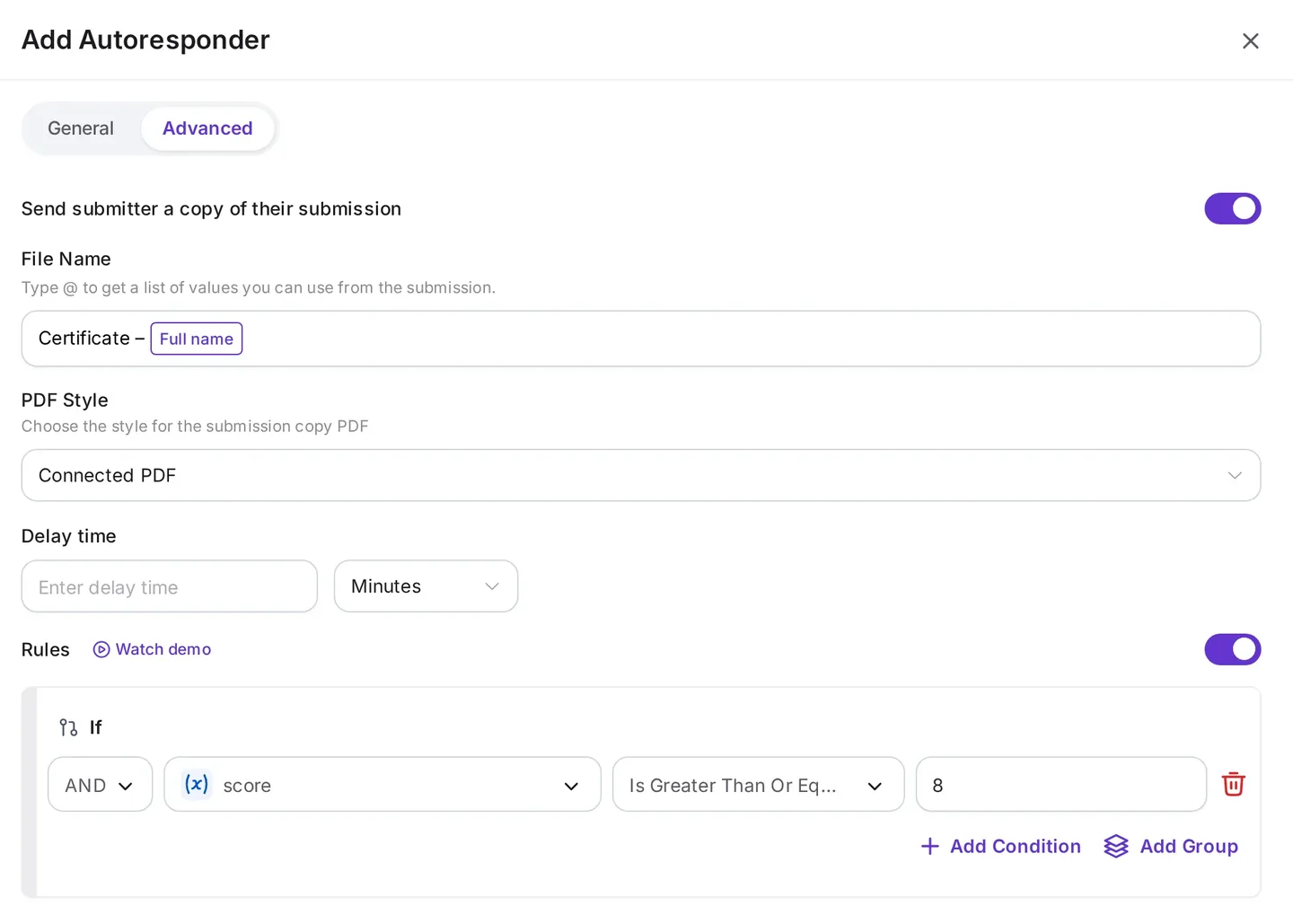
- Turn on Send submitter a copy of their submission.
- Set PDF Style to your certificate.
- Under File Name, type Certificate and then @ with the name field, so each file is named after the person.
You can also:
- Keep a copy of every certificate: save each one to Google Drive.
- Download certificates later: open Results to download one person's certificate or all of them at once. Form to PDF shows every place the PDF can go.
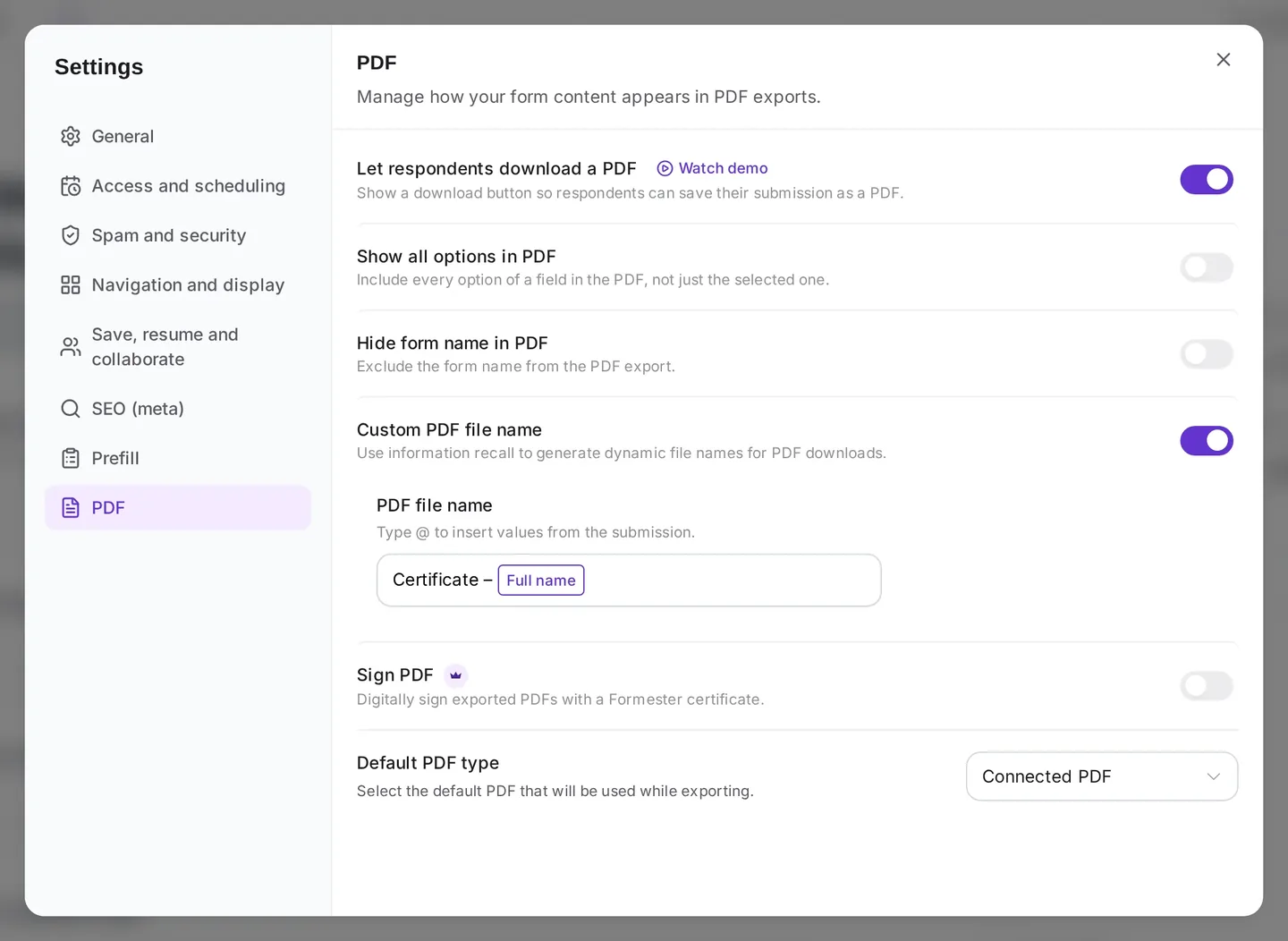
- Show the file came from you: in Form settings, open PDF and turn on Sign PDF. It adds a Formester digital signature, so anyone who opens the file can see where it came from.
Step 4 (optional): Send certificates only to people who pass
For compliance or safety training, a certificate should mean the person passed. Without a check, everyone who submits the quiz gets one. Autoresponder Rules let you send the email only when every condition is met, such as a minimum quiz score.
- Open the certificate autoresponder and turn on Rules.
- Pick the quiz score and set it to greater than or equal to 8 (on a 10-point quiz). If your quiz uses outcomes, check for your passing outcome instead.
- Save. People who score 8 or more get the certificate, and people below 8 don't.
- Optional: add a second autoresponder with the opposite rule (score less than 8) and a link back to the quiz, so people can try again.
You can type @ in the email body to include the person's score in the message. The certificate itself shows their name, course, date and certificate number.
Step 5: Test, publish and re-send when needed
Check one certificate yourself before anyone else gets one. A name that runs off the edge is easy to fix now and awkward after it's sent.
- Submit the form with your own name and email. If you added a rule, pass the quiz.
- Open the email and the PDF. Check that the name and ID fit, the date reads correctly and nothing overlaps the artwork.
- Move or resize any text in the PDF Editor, then publish the form.
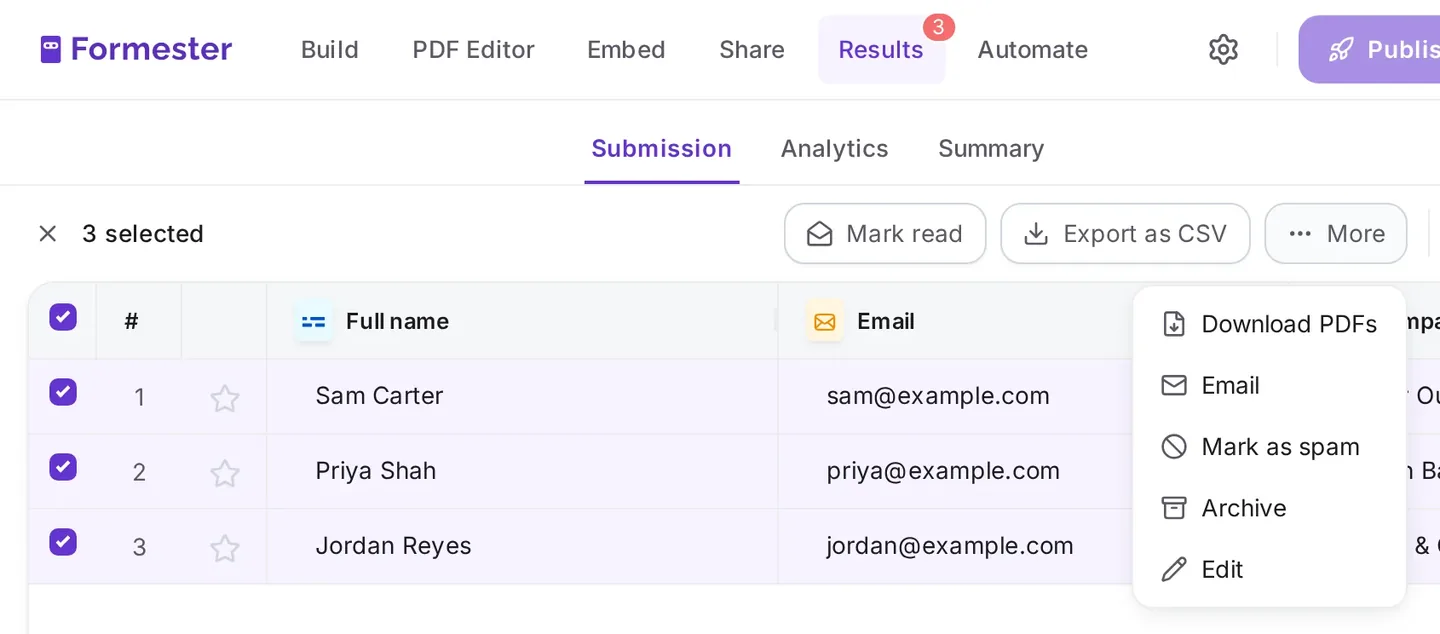
If someone loses their certificate later, open Results, select their submission, open More and choose Download PDFs. If they misspelled their name, choose Edit to fix the submission first. The PDF is created from the current answers each time you download it, so the new copy has the corrected name.
Pre-fill names and course details
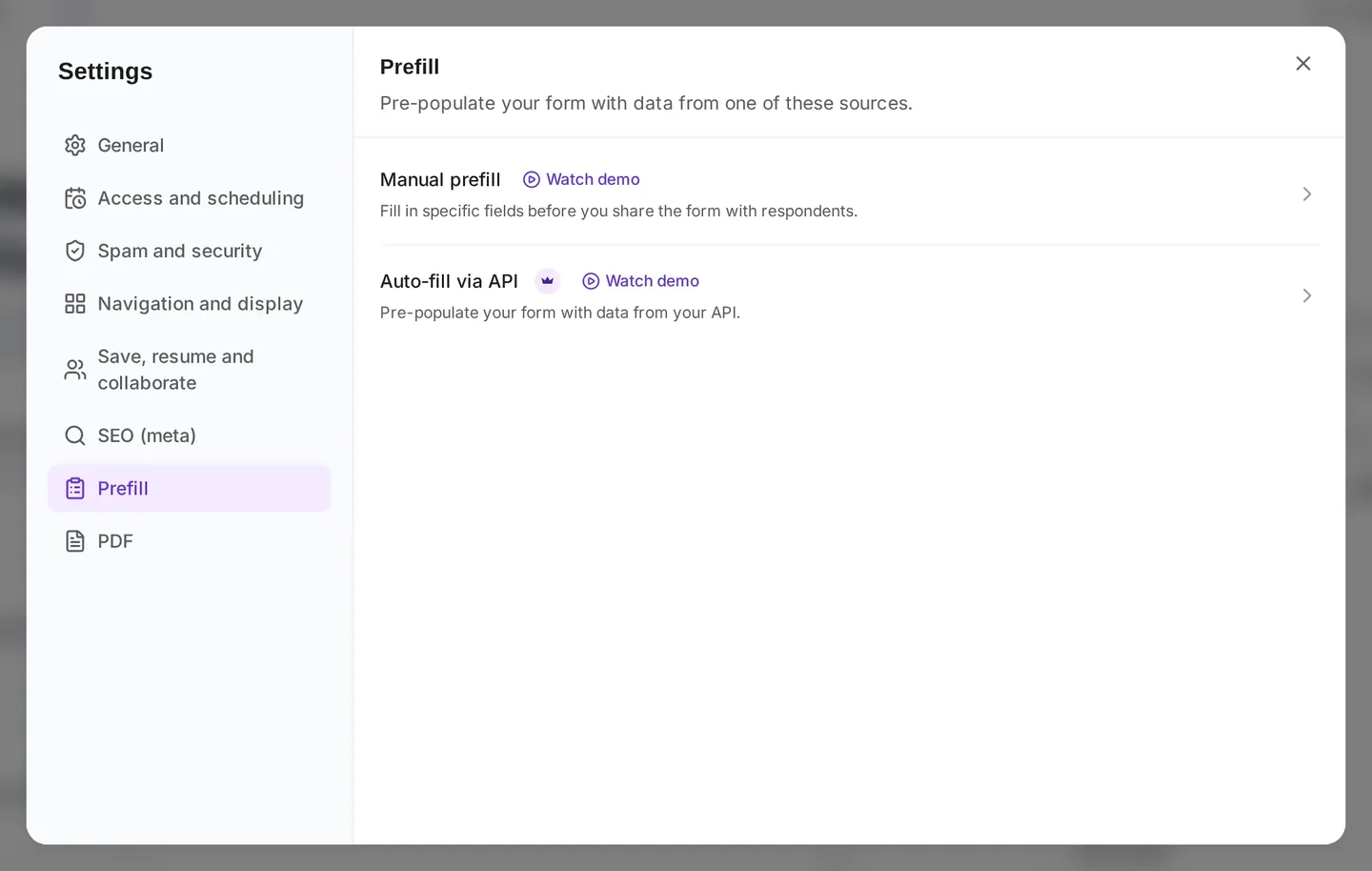
If you already have a list of attendees, pre-filling form fields keeps each certificate matching your records and saves people some typing. Open the gear icon for Form settings and choose Prefill.
- Manual prefill: fill in fields, like the course name, before you share the form. Everyone who opens the link sees them already filled in. To give each attendee a link with their own name and email, pre-fill fields with URL parameters.
- Auto-fill via API: pull details from your CRM or another system when the form opens. See auto-fill forms with external data.
Certificates you can issue this way
Each submission creates its own certificate, so one form can issue certificates to everyone who completes it, whether that's a class of ten or a webinar audience of hundreds.
- Course or training completion: sent when a learner submits the final form or quiz.
- Webinar attendance: share a short form at the end of the webinar that asks for name and email.
- Event participation: add it to your event feedback form, so people get their certificate when they share feedback.
- Compliance and safety training: send it only to people who reach the passing score.
- Workshop or CPD hours: pre-fill the hours or ask for them, and print them on the certificate with @.
- Volunteer recognition: a thank-you certificate for everyone who logs their volunteer hours.
Doing this in Google Forms instead?
Google Forms doesn't have a built-in certificate generator. If your quiz already lives there, people usually choose one of these routes:
- A quiz certificate add-on such as Certify'em, which emails a PDF certificate after someone takes the quiz.
- A template merge: responses go to Google Sheets, and an add-on like Autocrat or Form Publisher fills a Google Docs or Slides template for each response and sends it.
The template-merge route compared with Formester:
| Google Forms with a merge add-on | Formester | |
|---|---|---|
| Tools involved | Google Forms, Google Sheets, a Docs or Slides template and an add-on | One form |
| Where the certificate design lives | A separate Docs or Slides file | The form's PDF Editor |
| Send only to people who pass | Depends on the add-on | Yes, with a rule on the quiz score |
| Certificate number | You add a column for it | Submission ID, added for you |
| Download a copy later | From the files saved in Google Drive | From Results, at any time |
If your Google Forms setup already works, there's no need to change it. If you'd rather manage one tool than four, build the form in Formester and keep the form, the certificate and the email together.
Send your next certificate automatically
Design the certificate once, and everyone who completes your form gets their own copy by email. Certificate PDFs are part of the Business plan.
Build your certificate formForms are free · Certificate PDFs on Business, $45/mo billed yearly