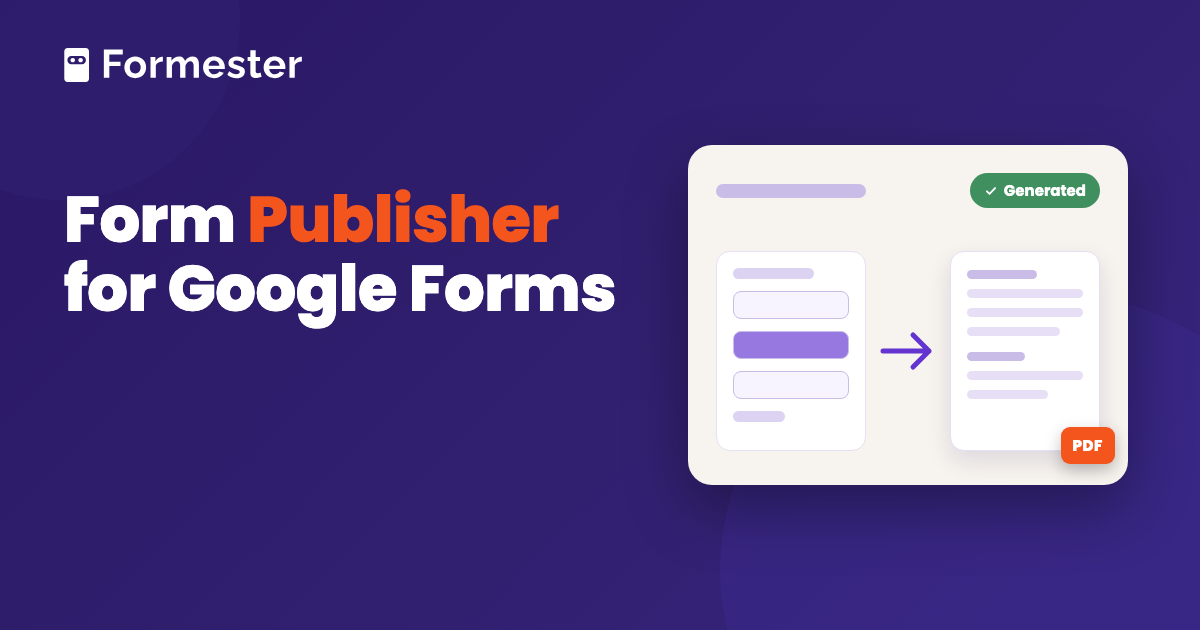
Form Publisher for Google Forms is an add-on that turns each response into a document. You design a template in Google Docs (Sheets and Slides work too). Every time someone submits the form, Form Publisher fills the template with their answers and saves the file to Google Drive. It can also email the document out. It is free for 20 submissions a month and paid after that.
Quick answer
- You want a PDF or Doc for every response: install Form Publisher from the Google Workspace Marketplace and build a template with a marker for each question. Each submission produces a document in Drive in the format you pick.
- You want to know what it costs: free for 20 submissions a month with the add-on's branding on emails. $99 a year for unlimited submissions and one user. $690 a year for unlimited users in one Google Workspace domain.
- You want the same result without an add-on: a form builder with PDF export built in does it from the results screen, with no template markers to maintain.
How Form Publisher for Google Forms works
Google Forms stores answers in its Responses tab and, if you link one, a spreadsheet. It has no way to hand a respondent a formatted document, which is what you need when a response has to become a quote or a signed waiver. Form Publisher builds that document for you.
You create a template as a Google Doc (or a Sheet or a Slide) and add a marker wherever an answer should go. When a response arrives, the add-on copies the template and replaces the markers with the answers. It saves the result to a Drive folder. The Marketplace listing gives seven output formats. They are PDF, Google Docs, Sheets and Slides, plus Microsoft Word, Excel and PowerPoint.
The document can then be emailed to the respondent or to anyone you list, with the sharing permissions you set. You can add an approval step so a manager signs off before the document goes out. You can also add a signature request so the respondent signs it. A separate Google Sheets version of the add-on generates documents in bulk from spreadsheet rows, which is the route when the data already sits in a sheet.
How much does Form Publisher cost?
Form Publisher is free for 20 submissions a month, $99 a year for one user with unlimited submissions, or $690 a year for a team. The vendor's pricing page lists the three plans. All three include every feature, and the differences are in the table below.
| Free | Individual | Business | |
|---|---|---|---|
| Price | $0 | $99 a year (shown as $8.25 a month, billed annually) | $690 a year (shown as $57.5 a month, billed annually) |
| Submissions or rows a month | 20 | Unlimited | Unlimited |
| Users who can configure it | 1 | 1 | Unlimited (within one Google Workspace domain) |
| Approvers | Unlimited | Unlimited | Unlimited |
| Email notifications | Branded | Unbranded | Unbranded |
| Support | Best effort | Priority | Priority |
A user, in the vendor's definition, is someone who can configure document generation and workflows on Google Forms. People who only approve documents do not count. Prices are from the vendor's pricing page and can change.
How to set up Form Publisher on a Google Form
Build the form first, then the template. The template needs a marker for every answer you want in the document, so the questions should be final before you start.
-
Install the add-on
Open the Form Publisher page on the Google Workspace Marketplace and click Install. The vendor's install guide says to click Next and then Complete additional setup when the install finishes. The add-on asks for access to the form, Drive and email when it installs. Read the list of permissions before you accept.
-
Open Form Publisher from the form
In the form editor, click the puzzle-piece Add-ons icon in the top bar and choose Form Publisher. A sidebar opens on the right. Everything else happens there.
-
Choose a template and add the markers
Pick a Google Doc (or a Sheet or a Slide) as the template. Add a marker for each form question where its answer should appear in the document. Change fonts and add your logo, then lay the page out as you want the finished document to look.
-
Set the recipients
Choose who gets the document and in what format (PDF, say). The respondent's email can come from a form question. Add approvers here if a manager needs to sign off first. Turn on a signature request if the respondent has to sign.
-
Submit a test response
Fill in the form yourself. A document should appear in the Drive folder Form Publisher created. The email should arrive too. Check that every marker was replaced before you share the form.
Where Form Publisher stops
- The free plan covers 20 submissions a month. Past that, you need a paid plan to keep generating documents that month.
- One person configures it on the free and Individual plans. If a colleague also needs to change templates or workflows, you need the Business plan. Its unlimited users must be in the same Google Workspace domain.
- Free-plan emails carry the add-on's branding. Unbranded notifications start with the Individual plan.
- By default, documents sit in the installing account's Drive. Plan for what happens when that person leaves, or store them in a Shared Drive, which the add-on supports.
- The template is a second thing to maintain. Every time you add or rename a question, the markers in the template have to follow.
Which alternatives to Form Publisher exist?
Form Publisher is not the only way to get from a Google Form to a PDF for each response.
- Autocrat is a free Google Sheets add-on that merges spreadsheet rows into Docs or PDFs. It works from the response sheet rather than the form, so it suits people who already work in the sheet.
- Smart Form Publisher is another Marketplace add-on with a similar name and a similar job. Its listing has the current pricing.
- Apps Script can copy a Doc template and replace placeholders on form submit. It is free and flexible. It needs someone comfortable writing and maintaining a script.
- A form builder with PDF export built in removes the template step. The form itself is the document layout. Each submission can be downloaded or emailed as a PDF.
If what you want is the blank form as a PDF to print or share, none of these is the right tool. Our guide on saving a Google Form as a PDF covers that.
How to get a PDF per response without an add-on
Formester is a form builder with PDF export built in, so this route means building the form in Formester rather than Google Forms. It generates the PDF from the submission itself, so there is no template to build or keep in step with the questions.
On the Business plan, open Results, pick a submission and click the PDF icon to export it as a PDF, or select several submissions and export them together. Turn on Autoresponder under Automation and the PDF is attached to the respondent's confirmation email on its own.
For a branded document instead of a plain export, the PDF Editor lets you design the layout yourself, with your logo and colours, and every response fills it in. If the document needs a signature, a signature field on the form captures it before submission, so the signature is part of the submission you export. If you only want to send respondents a plain copy of what they submitted, Google Forms can do that itself. Our post on sending a copy of a Google Form response shows the setting.
A PDF for every submission, no add-on
Export one submission or all of them as formatted PDFs, or attach the PDF to the confirmation email automatically. Available on the Business plan.
Try Formester freeFree forever · No credit card · 56,000+ teams
Related reading
- Save a Google Form as a PDF, for the blank form rather than the responses.
- Send respondents a copy of their Google Form response, the built-in setting that needs no add-on.
- Link Google Sheets to Google Forms, which creates the response sheet that Autocrat and the Sheets add-on work from.