Google Forms has no Download as PDF button, so every Google Form to PDF route goes through a print dialog or an extra tool. Which one you need depends on what should be in the file: the blank questions, one person's answers, every response, or a fresh PDF each time someone submits.
Google Form to PDF: quick answer
- Blank form: in the form editor, open the three-dot menu, choose Print, then Save as PDF.
- One response: open Responses, then Individual, and click the print icon.
- All responses: open the Responses three-dot menu and choose Print all responses.
- Responses as a table: link the form to Google Sheets, then choose File, Download, PDF.
- A PDF for every new response: Google Forms can't do this alone. Use an add-on, a Zapier workflow, or a form builder that creates PDFs itself.
Which Google Form to PDF method fits?
Pick the row that matches the file you want, then jump to its steps.
| Method | What the PDF contains | Automatic? | One file per response? | Cost |
|---|---|---|---|---|
| 1. Print the blank form | The questions, no answers | No | Not applicable | Free |
| 2. Print one response | One person's answers | No | Yes, one at a time | Free |
| 3. Print all responses | Every response, or the summary charts | No | No, one long file | Free |
| 4. Download the response sheet | Responses as a table, one row each | No | No | Free |
| 5. Add-on or Zapier | Your Google Docs template, filled in | Yes | Yes | Add-on or Zapier plan |
| 5. Formester | A ready-made layout or your branded template | Yes | Yes | Business plan |
If you need a copy once in a while, printing is enough. If you send a receipt, certificate or signed application after every submission, go straight to method 5.
1. How to save a blank Google Form as a PDF
Use this when you want a paper version to hand out, or a record of the questions for your files.
Open the menu
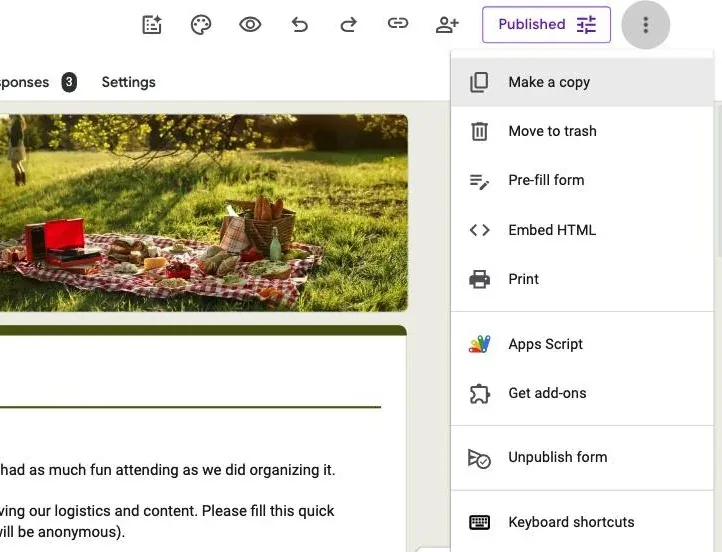
Open the form in the editor and click the three-dot menu at the top right.
Choose Print
Click Print. Google Forms opens your browser's print dialog.
Save as PDF
Set the destination to Save as PDF and click Save.
2. How to save one Google Form response as a PDF
Use this to send someone a copy of what they submitted, or to file a single application.
Open the Individual view
Open the Responses tab, then click Individual.
Find the response
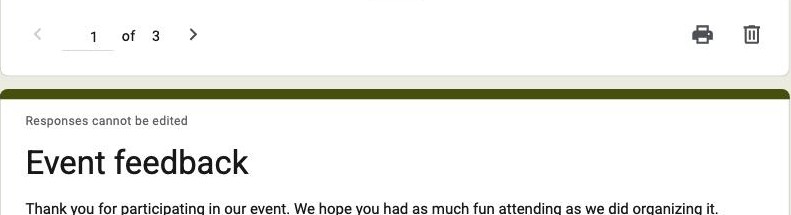
Use the arrows or the dropdown to reach the response you want.
Print it
Click the print icon next to the arrows, then choose Save as PDF.
On forms with more than 10,000 responses, Google hides the Individual view, so this method stops working.
3. How to save all Google Form responses as a PDF
Use this when you want every answer in a single file, for an archive or an audit.
Open the Responses menu
Open the Responses tab and click its three-dot menu.
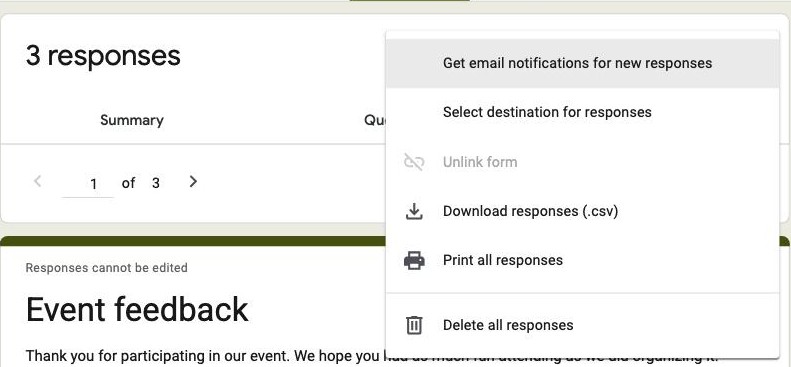
Print all responses
Choose Print all responses.
Save as PDF
Set the destination to Save as PDF and save the file.
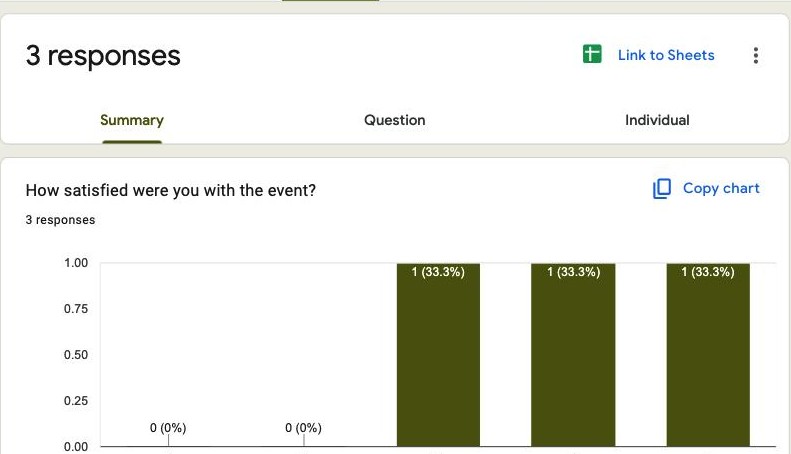
Every response goes into one long document, and you can't pick which ones are included. If you want the charts instead, stay on the Summary view of the Responses tab and print the page with Ctrl+P (Cmd+P on a Mac). The Question view works the same way for the answers to a single question. Google stops showing the Summary view above 50,000 responses.
4. How to download Google Form responses as a PDF from Google Sheets
Use this when you want the answers as a table, with columns you can trim first. It's the cleanest option for a long list of sign-ups or orders.
Link a spreadsheet
In the Responses tab, click Link to Sheets and create a new spreadsheet or choose an existing one.
Hide what you don't need
Hide columns such as the timestamp or email so the table fits the page.
Download as PDF
Click File, Download, then PDF. Choose landscape and Fit to width for wide forms, then click Export.
You get one row per response, not one page per person. If you only need the data for Excel, Download responses (.csv) in the Responses menu is quicker. Our guide to sending Google Forms responses to Google Sheets covers the linking options.
5. How to create a PDF for every new Google Form response
Every method above is manual. If each submission needs its own document, like a receipt, certificate or signed application, you need a PDF created automatically. Google Forms can't do that alone, so you add a tool.
Use a Google Workspace add-on
These add-ons fill a Google Docs template with each response and save it as a PDF:
- Form Publisher creates a document every time the form is submitted, as a PDF or another format. Our Form Publisher guide covers the setup.
- Autocrat merges each row of the response sheet into a template, runs on form submit, and can email the PDF.
- Document Studio generates documents such as invoices and certificates from Forms and Sheets.
- Portant connects a form to a Docs or Slides template and creates a new PDF each time someone submits.
Each one installs from the Google Workspace Marketplace. Check its listing for pricing and monthly limits before you depend on it.
Use Zapier
Zapier can start a workflow on each New Form Response and run the Google Docs action Create Document From Template, which fills the placeholders in your template and can export a PDF. It suits teams that also need the response sent on to another app, like a CRM.
Import the form into Formester
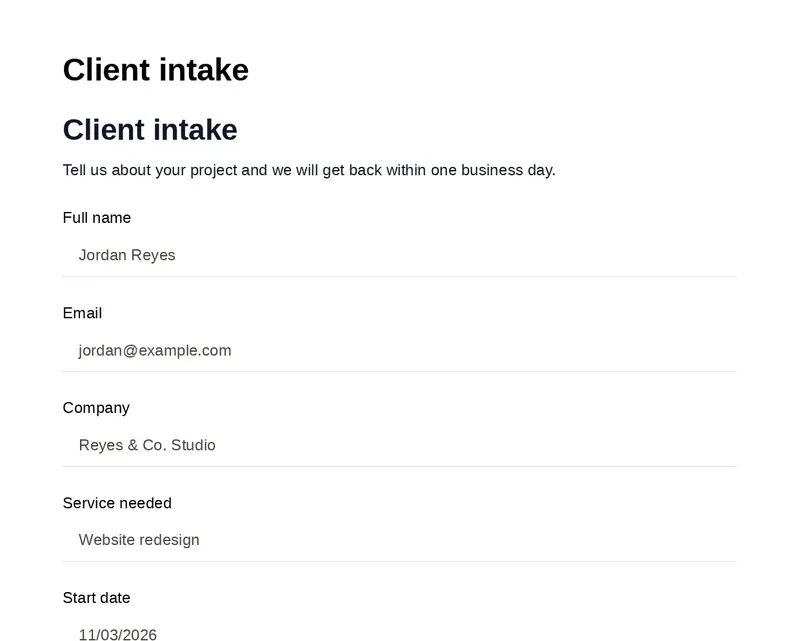
Formester creates a PDF from every submission with no template or add-on. Form to PDF lays out each response for you, and you choose where it goes: attached to your notification email, sent to the respondent with the autoresponder, saved to Google Drive, or offered as a download button after they submit. For a branded certificate or contract, design the layout once with document generation.
You don't need to rebuild your form. In Formester, choose Create, Import, then Import from Google Forms, and pick the form from your Google account. Questions, sections and logic come across. Past responses stay in Google Forms, so PDFs start with the first new submission. Importing is free, and PDFs are part of the Business plan.
Get a PDF from every response
Import your Google Form into Formester and each new submission becomes a PDF you can email, save to Google Drive, or let people download. PDFs are part of the Business plan.
Try Formester freeFree forever · No credit card · 56,000+ teams
Why your Google Form PDF looks different from the form
A Google Forms PDF is a printout of a web page, not an exported document. That causes a few common problems:
- Colors and images change. Theme colors and the header image can print lighter or in a different place.
- Page breaks split questions. A long list of options can run onto the next page.
- No branding. You can't add your own logo, header or footer.
Print from a computer for the most control. In Chrome, open More settings in the print dialog and turn on Background graphics to keep more of the color.
Can respondents get a PDF of their answers?
Not as a PDF. Google Forms can email respondents a copy of their answers: in Settings, turn on email collection, then set Send responders a copy of their response to Always or When requested. The copy arrives as an email, and Google's help page notes it can be caught by spam filters. To send a PDF instead, use one of the tools in method 5. Our guide on sending respondents a copy of their response has the full setup.
Related reading
- 5 ways to view responses in Google Forms, and which view to print from.
- Form Publisher for Google Forms, the add-on route in detail.
- Google Forms alternatives, for when the document matters as much as the answers.