
A CAPTCHA is the challenge that separates a person from a script before a form accepts the submission. People go looking for one on Google Forms after a public form starts filling with junk entries, usually a campaign form or an inbox that got shared further than intended. Google Forms has never had one, and the workarounds you will find recommended are considerably weaker than the pages recommending them tend to admit.
Key facts
Google Forms has no CAPTCHA setting and no way to add reCAPTCHA, because you never get access to the form's HTML. The real anti-spam options are restricting the form to signed-in users, a response-validation question that acts as a weak challenge, or moving the form to a builder that ships bot protection.
- CAPTCHA settings in Google Forms: none. Not in Settings, not in the question menu, not in Add-ons
- reCAPTCHA needs a site key in your page markup, which Google Forms does not expose (Google for Developers)
- The one real block: requiring sign-in, which every respondent must have a Google account for (Google Docs Editors Help)
- The popular workaround is response validation with a regular expression, a fixed question any determined script reads once (Google Docs Editors Help)
- The CAPTCHA you sometimes see on a Google Form is Google checking the visitor, not a setting you turned on
Can you add CAPTCHA to Google Forms?
No, and it helps to know why, because the reason rules out most of the suggestions you will find. reCAPTCHA works by putting a script and a site key into the HTML of the page holding the form, then verifying the token server-side. Google Forms gives you no access to either. Even embedding the form on your own site does not help, because what you embed is an iframe served by Google, and your page's scripts cannot reach inside it.
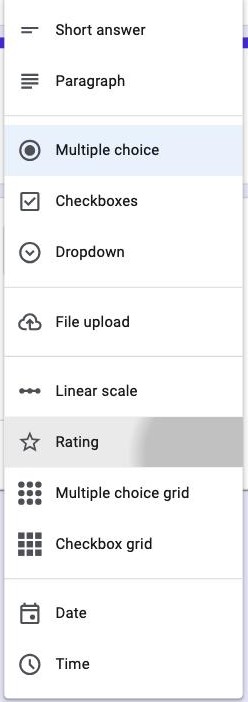
The question type list is the quickest way to see it for yourself. Twelve options, and nothing that challenges a bot.
So the question people are actually asking, once you strip out the impossible answer, is how to stop bots submitting a Google Form. That has real answers, they are just not CAPTCHA.
| Option | What it stops | What it costs you |
|---|---|---|
| Restrict to signed-in users | Almost all automated submissions | Anonymity, and anyone without a Google account |
| Response validation question | Naive scripts only | Friction for real people, and it is trivially readable |
| Spam-scoring add-on | Some junk, after the fact | The junk is already in your sheet, plus third-party access |
| Move to a builder with bot protection | Automated browsers, scripts and bursts | Rebuilding the form somewhere else |
How do you stop spam on a Google Form without CAPTCHA?
The one setting in Google Forms that meaningfully stops automated submissions is making people sign in, and it works for the obvious reason that a script now needs a Google account rather than just the form URL.
You can get there by restricting the form to users inside your organisation, or by turning on Limit to 1 response, which requires sign-in as a side effect. Google's documentation is direct about the consequence: to fill out the form, users must sign in to their Google Account.

This is a trade rather than a free win, because anyone without a Google account is now locked out entirely, and a form that demands a login before it will accept feedback reliably collects less of it. On an internal form that costs you nothing worth counting. On a public campaign form it can cost you most of your responses, which is usually a worse outcome than the spam you were trying to stop.
Does the response validation trick work as a CAPTCHA?
It works, though only just. The recommendation you will find on most pages is to add a short answer question, open response validation, set it to a regular expression, and ask something like "what is seven plus four". A bot that blindly fills fields fails. Here is how to set it up, and then why not to rely on it.
- Add a Short answer question with your challenge.
- Open the question's three-dot menu and pick Response validation.
- Choose Regular expression and then Matches, then enter the pattern for the right answer.
- Write custom error text, so a person who mistypes is not left guessing.
Its weakness is that the question never changes, where a real CAPTCHA generates a fresh challenge for every visitor and verifies it server-side. This is one fixed question sitting in the page, so anyone actually targeting your form solves it once and hardcodes the answer, and in the meantime you are taxing every honest respondent with arithmetic in order to filter out scripts that an invisible check would have caught without anyone noticing.
It is worth the five minutes as a speed bump on a low-stakes form, as long as nobody downstream mistakes it for protection.
Why does my Google Form show a CAPTCHA I did not add?
Because Google is checking the visitor, not the form. The challenge comes from Google's own abuse systems reacting to the browser session, the network or the traffic pattern, which is why it shows up for some respondents and not others and why nothing in your settings makes it go away.
This is also why the top result for this search is a support thread about removing it rather than adding it. Two different groups arrive at the same words: owners wanting protection they cannot get, and respondents hitting a check the owner never configured. If people report being blocked, there is no switch on your side to flip. Community threads like this one in the Docs Editors Community have been asking for the owner-facing version for years.
Getting hit right now? Formester has invisible reCAPTCHA and automatic AI spam checking as toggles, not workarounds.
Can an add-on add CAPTCHA to a Google Form?
Not the widget itself, no. Add-ons run against the form and its responses through Google's APIs, and none of them can inject a challenge into markup they do not control, so what some of them offer instead is scoring or filtering after the submission has already happened.
Read that carefully before installing one, because the sequence matters more than it first sounds: the bot still submits, the junk still lands in your responses and in your linked Sheet, and the add-on flags it after the fact. That tidies up your view without reducing anything you actually collected, and it holds standing access to every response for as long as it stays installed.
When should you move the form somewhere else?
When the form is public, attached to something that costs money, and being hit. A campaign landing form, a lead capture form, a contest entry: at that point Google Forms is asking you to choose between locking respondents behind a Google login and accepting whatever arrives.
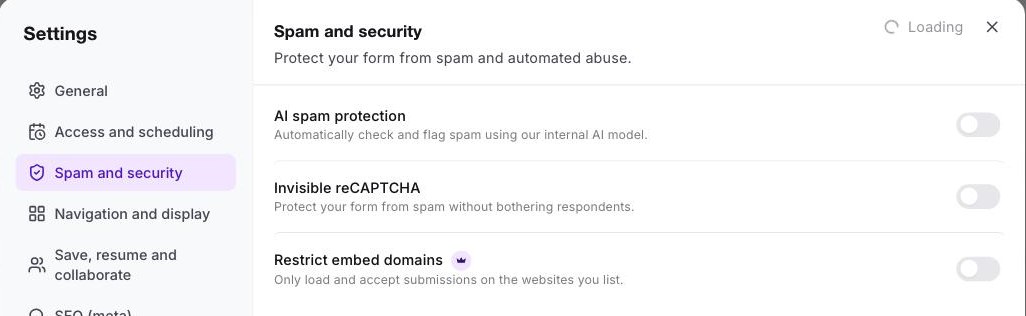
The alternative is a builder where bot protection is a setting rather than a workaround. On Formester it lives under Settings, then Spam and security, as three switches: invisible reCAPTCHA, AI spam protection that scores each submission, and a domain allowlist so the form only accepts submissions from pages you own. The honest note is that none of this is perfect either. Stacking a real challenge with automatic scoring is what moves the needle, rather than any single switch.
Why Formester's spam protection is the better choice
Three toggles in one panel, no arithmetic questions, no forced Google login.
- Invisible reCAPTCHA. A real challenge on the form, verified server-side, that respondents never see
- AI spam protection. Submissions are checked and flagged automatically by Formester's own model rather than by a question you wrote
- Restrict embed domains. The form only loads and accepts submissions on domains you list, which kills the copy-the-URL attack outright
- Anonymous submissions stay anonymous, because none of this requires a respondent account
Related reading
- What web form spam is and how to prevent it - the attack patterns behind the junk entries.
- Build a spam-free contact form - the same problem on your own site.
- Make an anonymous Google Form - the setting the sign-in workaround costs you.
- Google Forms webhooks - pushing responses out once you trust what is coming in.


