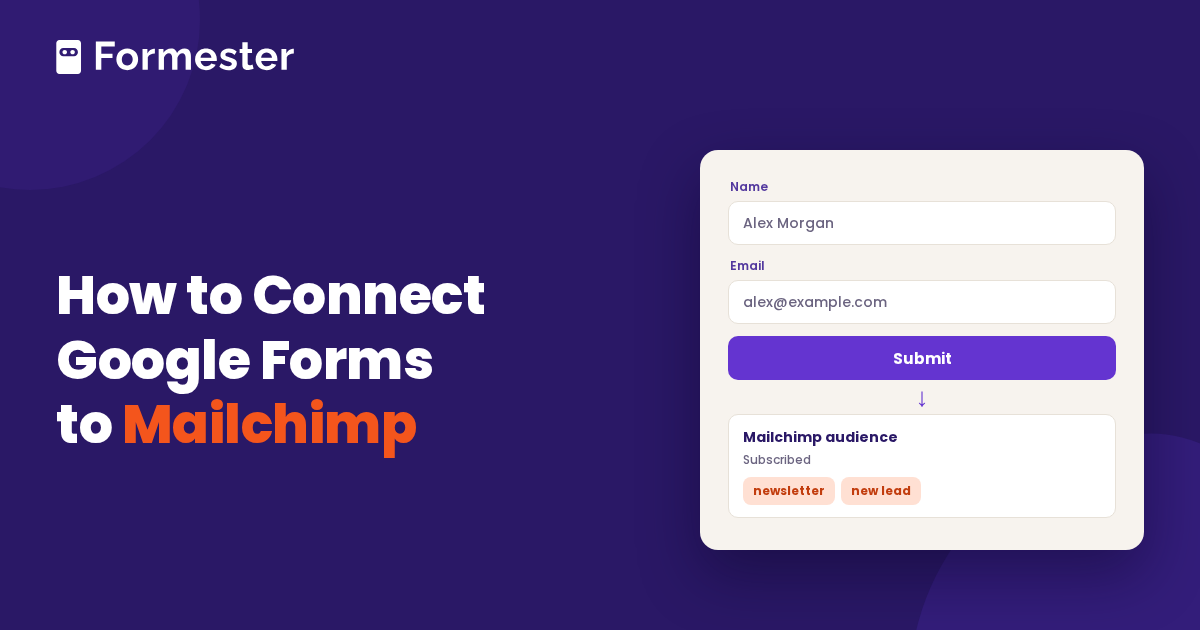
You have a Google Form collecting sign-ups, and you want those people in your Mailchimp audience. Google Forms has no Mailchimp setting, so the two tools do not talk to each other until you connect them yourself.
There are three ways to connect Google Forms to Mailchimp: a Marketplace add-on, a Zapier Zap, or a CSV import. They differ in cost, setup time, and whether new responses move over automatically.
Quick answer
- Add-on: The quickest automatic route. Form to Mailchimp (made by Dawent, not Google or Mailchimp) lists a free tier of 25 contacts per month.
- Zapier: Best if you want filters or other steps. A Google Forms trigger sends each new response to Mailchimp's Add/Update Subscriber action.
- CSV import: Free and works for a one-time list, but nothing is automatic.
- Formester: If you are starting a new sign-up form, its native Mailchimp integration removes the extra tool.
What to set up in your form first
Mailchimp creates a contact from an email address, so your form has to ask for one. If you have not added that question yet, this guide to collecting email addresses in Google Forms shows the options. Add first name and last name questions too if you want to use them in your emails.
Also decide how people consent. If you import or sync contacts as subscribed, Mailchimp expects that you have permission to email them. A short line on the form such as a checkbox to join the newsletter makes that clear.
Google Forms to Mailchimp: compared
| Method | Automatic? | Cost | Best for |
|---|---|---|---|
| Form to Mailchimp add-on | Yes | Free tier of 25 contacts per month, then paid (check current pricing) | One form, one audience, no extra accounts |
| Zapier | Yes | Free plan has 100 tasks per month and two-step Zaps (check current pricing) | Filters, extra steps, or sending data to more apps |
| CSV import | No | Free | A one-time list or an existing batch of responses |
Method 1: Connect Google Forms to Mailchimp with an add-on
An add-on lives inside the Google Forms editor, so you do not need a third account. The Marketplace listing for Form to Mailchimp says it creates or updates Mailchimp contacts when your form is submitted. It lists 25 contacts per month on the free tier, and paid features remove that cap, so the limit follows your Mailchimp plan. The listing does not give the paid price, so check it before you rely on the add-on.
Before you install, read the permissions it asks for. The listing shows access to your forms in Google Drive, permission to connect to an external service, permission to run when you are not present, and permission to send email as you. A form add-on made by an outside developer sees your respondents' data, so confirm that you are comfortable with that.
Install the add-on
Open your form, click Extensions, then Add-ons, then Get add-ons. Search for Form to Mailchimp and install it. Google's help page on installing Marketplace apps covers the install screens.
Open the add-on
After you approve the permissions, open it from the Extensions menu in your form.
Connect Mailchimp
Sign in with your Mailchimp account when the add-on asks. A reviewer on the listing describes connecting Mailchimp with login details and then choosing where each form field goes.
Pick an audience and map fields
Choose the Mailchimp audience, then match the email question to the email field. Match first name, last name, and any other answers to audience fields.
Submit a test response
Fill in your own form with a test email address, then look for the contact in Mailchimp under Audience. If it is missing, check the add-on's settings and the quotas in Google's Apps Script limits, which the listing points to.
The exact screens differ between add-on versions, so follow the add-on's own prompts where they differ from the list above.
Method 2: Send Google Forms responses to Mailchimp with Zapier
Zapier is an automation tool. A Zap has a trigger and an action, and you pick Google Forms for the first and Mailchimp for the second. Zapier lists a Google Forms trigger called New Form Response, marked as instant, and a Mailchimp action called Add/Update Subscriber, which can also update an existing subscriber. Its template, Create or update Mailchimp subscribers from new Google Forms submissions, is a ready starting point.
Zapier is worth the extra account when you want more than a straight copy. You can add a filter so only people who ticked a consent box go to Mailchimp, or send the same response to a spreadsheet or CRM too. Zapier's free plan has two-step Zaps and 100 tasks per month, and multi-step Zaps need a paid plan. See Zapier's pricing page for current plans.
Start from the template
Open the Zapier template above and sign in or create a free account.
Connect Google Forms
Choose the New Form Response trigger, sign in to Google, and select the form.
Connect Mailchimp
Choose the Add/Update Subscriber action, sign in to Mailchimp, and select your audience.
Map the fields
Match the email address from your form response to the email field in Mailchimp. Map names and other fields the same way.
Test and turn it on
Zapier asks you to test each step. Check that the test contact appears in Mailchimp, then publish the Zap.
Zapier counts tasks against your plan each month, so a busy form can use up the free 100 tasks quickly. Our guide on using Zapier to automate online forms explains how tasks and triggers work.
Method 3: Export Google Forms responses to Mailchimp as a CSV
This works when you already have a pile of responses, or when a form runs for a short time such as one event. Nothing syncs afterward. You repeat the import each time you want new people added.
Download the responses
Open your form and click Responses. Then click More and choose Download responses (.csv). If you link the form to a spreadsheet, you can also download the CSV from Google Sheets.
Prepare the file
Mailchimp requires a column labeled Email Address. Add columns labeled First Name and Last Name if you have them. Delete columns you do not want to import. Mailchimp's import guide covers the file format.
Start the import in Mailchimp
Go to Audience, click the Add contacts drop-down, choose Import contacts, then Upload a file.
Choose the audience and tags
Confirm the audience. Tick Update any existing contacts if some people are already in your list. Add tags if you want to mark everyone from this import, for example with the name of the form.
Match the columns
Match each column in your file to a field in the audience, then finish the import.
Mailchimp imports one contact status at a time, such as subscribed or unsubscribed, and it asks that you have permission to email subscribed contacts. Mailchimp's free plan includes up to 250 contacts, and an import that pushes you past your plan's limit can bring extra charges.
Where these methods fall short
Each method works, and each one adds something to maintain.
- The add-on is made by a third party. If the developer changes pricing or stops updating it, your sign-ups stop reaching Mailchimp.
- Zapier is another account and another bill, and its free plan caps how many responses you can send.
- The CSV import needs a person to remember to do it.
- Google Forms itself has no tag or double opt-in setting. Whether you get those options depends on the add-on or the Zap, so check before you commit.
Where Formester fits
If you are starting a new sign-up form, you can skip the connector. Formester is a form builder with a native Mailchimp integration inside the form editor. According to the integration page, it adds a new contact or updates the contact with the same email address from every submission, with no Zapier or code.
Here is what the setup looks like in Formester:
Add Mailchimp to your form
Open your form, go to Automate, then Integrations, then Mailchimp, and sign in with Mailchimp.
Choose the audience and map fields
Pick the audience and the email question. Map answers such as name, phone, or company to your audience fields, and choose the tags to apply.
Pick the opt-in and save
Choose immediate subscription or Mailchimp's double opt-in email. You can also turn on Sync existing submissions, then submit a test response.
Formester's integration can sync existing submissions too. A manual sync can send up to the latest 10,000 eligible submissions. For an existing contact, it updates the contact without silently resubscribing someone who opted out earlier.
This only covers forms built in Formester. It does not read from a Google Form, so you would rebuild the form first. That takes a few minutes with the newsletter sign-up template or the mailing list contact form template. If you are weighing whether to move at all, see our list of Google Forms alternatives. For other tools that connect forms to email platforms, read how to integrate online forms with an email marketing platform.
Send form sign-ups straight to Mailchimp
Build a sign-up form, connect your audience with Mailchimp OAuth, map your fields, and pick immediate subscription or double opt-in.
Try Formester freeFree forever · No credit card · 56,000+ teams