How to Create an Employee Timesheet and Automate Approvals?
In any growing team, employees spend a lot of time completing tasks, fixing issues, and keeping projects moving forward. This time is important for payroll, billing, performance reviews, and accountability.
But when time tracking is done manually, problems quickly appear. Employees may enter wrong hours, forget to mark billable work, submit timesheets too early, or miss overtime. Approvals also become slow and confusing.
This is where Formester makes timesheet management simple and reliable.
Why traditional timesheets fail
Most teams still rely on spreadsheets. This works at first, but quickly breaks as teams grow.
There is no daily visibility. Managers only see data after submission. Errors stay hidden until it is too late.
This leads to payroll mistakes, billing issues, and wasted time.
Creating a weekly timesheet in Formester
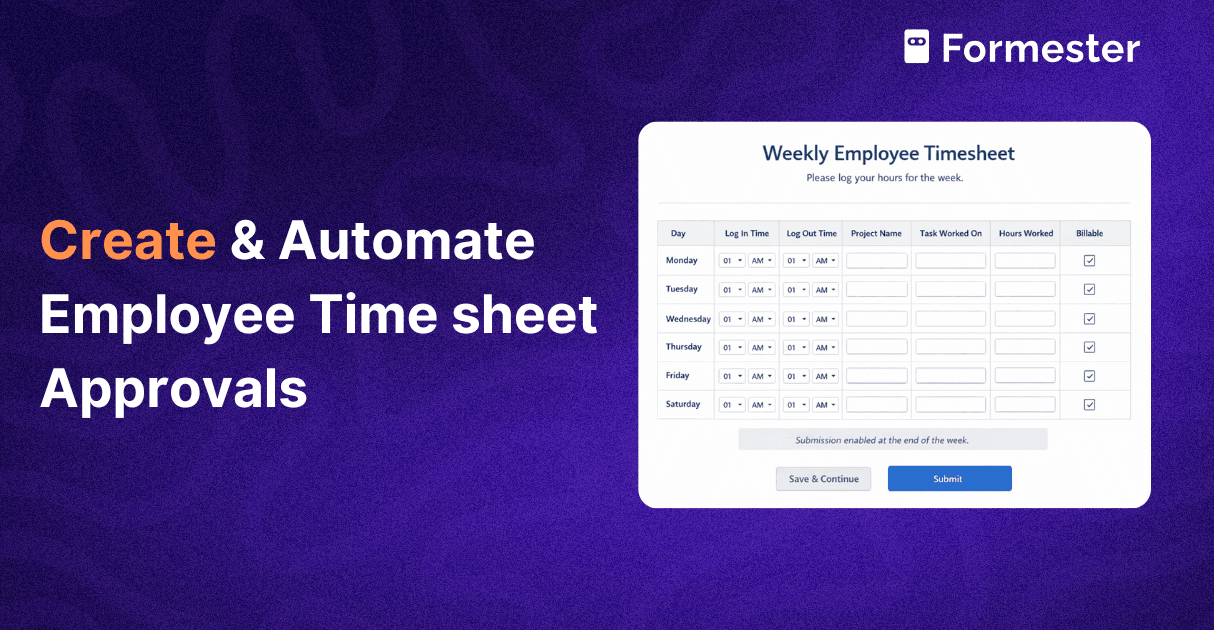
To fix this, start by creating a weekly timesheet in Formester. This timesheet captures work from Monday to Saturday.
It collects all the details needed to review employee work in one place. Project, task, hours, and billable status are clearly recorded.
This single form is used throughout the week.
How to create the weekly timesheet form
You can create the timesheet in two simple ways.
Option 1. Use the AI form generator
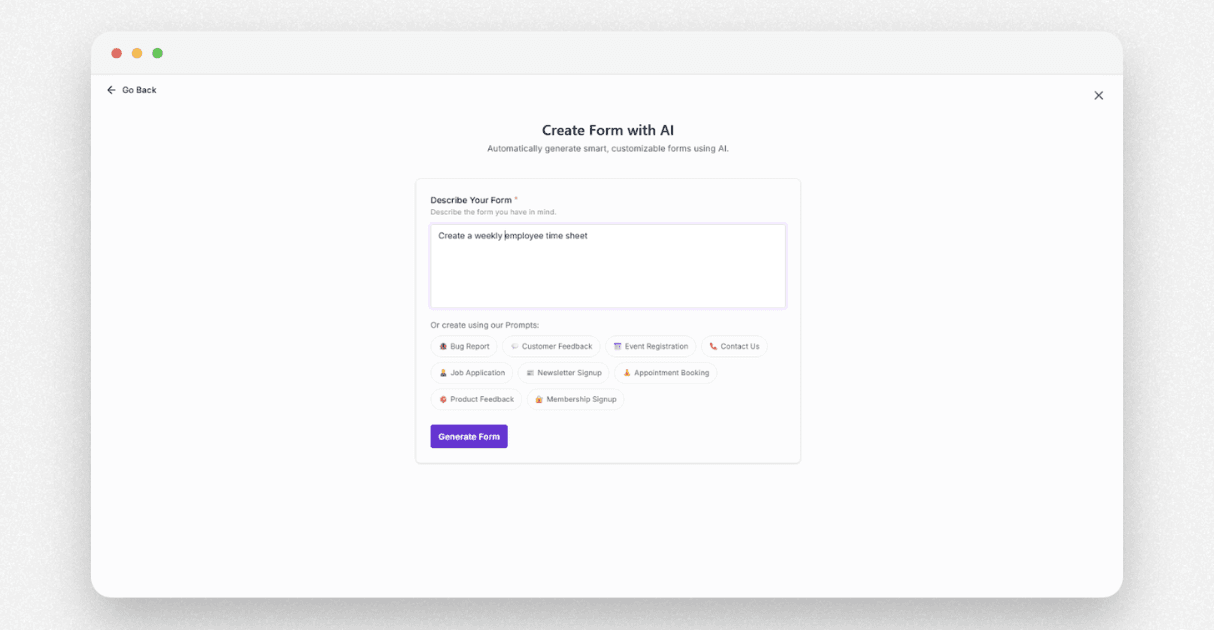
Formester comes with an AI form generator to save time.
Open the form builder and choose AI form generator.
Enter a simple prompt like create a weekly employee timesheet.
The AI will automatically create a structured timesheet form for you.
You can review the form and edit fields as needed.
Option 2. Create the form manually
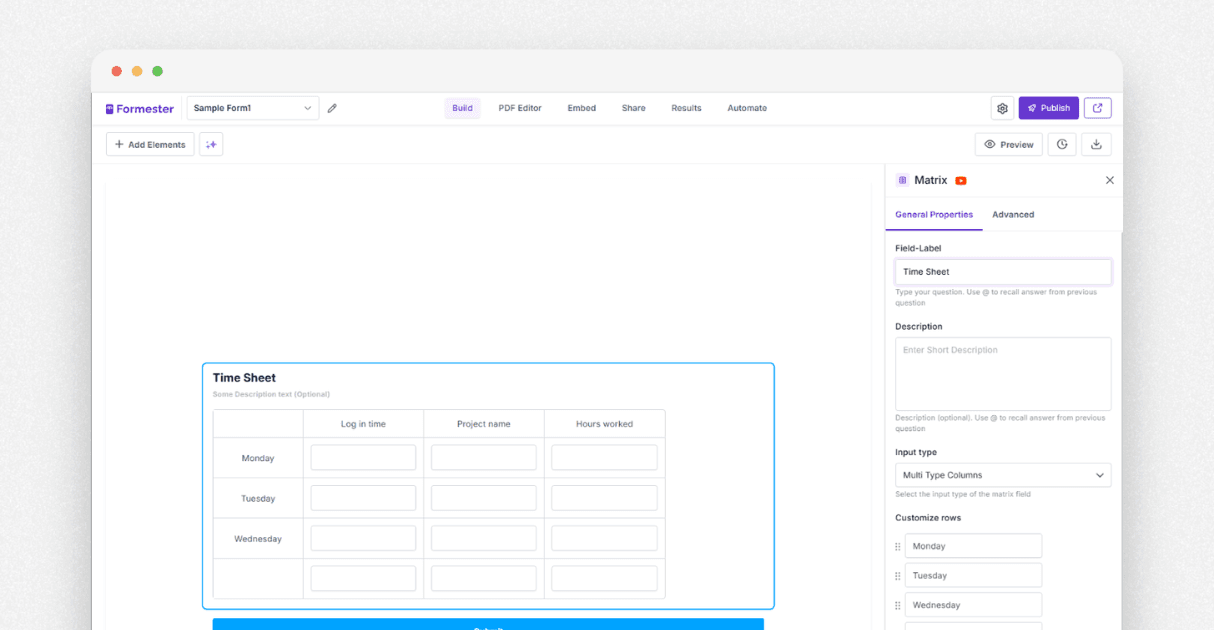
If you want full control, you can build the timesheet step by step.
Add a matrix element to your form.
Open the matrix properties.
Change the input type to multi type columns.
Add days of the week as rows. For example Monday to Saturday.
Add columns for time tracking details such as
Log in time
Log out time
Project name
Task worked on
Hours worked
Billable
Now customize each column input type.
Set project name and task worked on as text fields.
Set hours worked as a number field.
Set billable as a checkbox.
Set log in and log out time as time inputs if needed.
This setup allows employees to enter daily work in a clean table format.
Logging work daily without submission
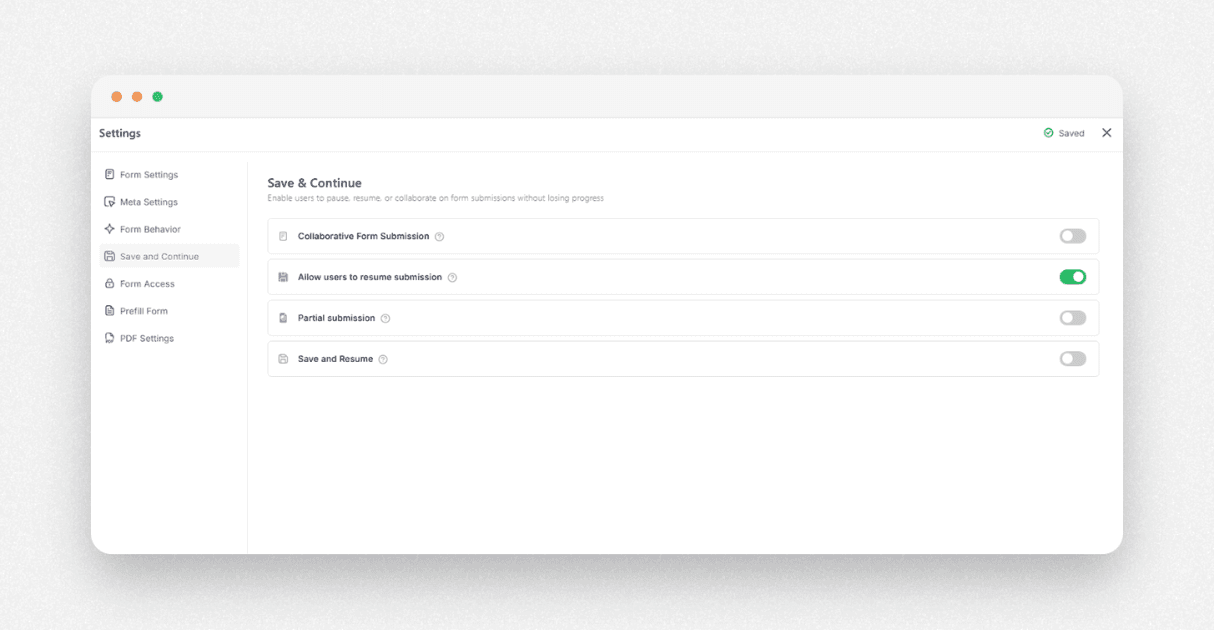
Employees update the same timesheet every day. Each row works like a daily time log. All rows together form one weekly timesheet. To support this, enable save and continue in the form settings. Employees can fill their work for the day, close the form, and return later. Their progress is saved automatically.
Tracking employee progress in real time
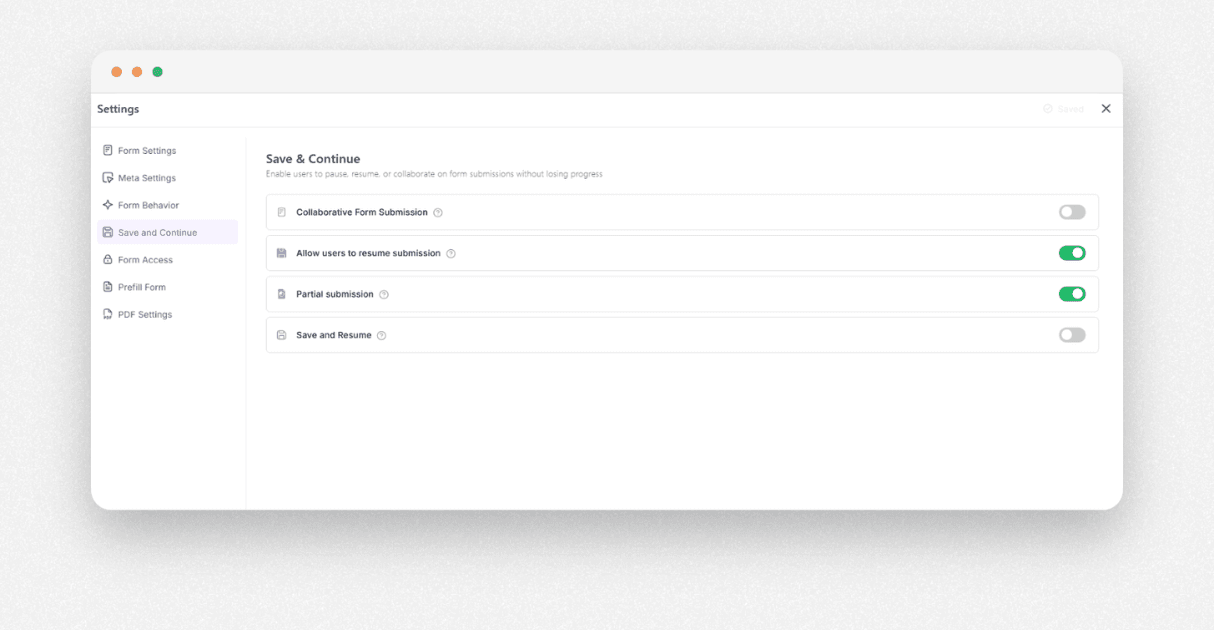
Enable partial submissions to track progress. This allows you to see who has started filling their timesheet and who has not updated their work. You get visibility during the week, not after it ends.
Preventing early timesheet submission
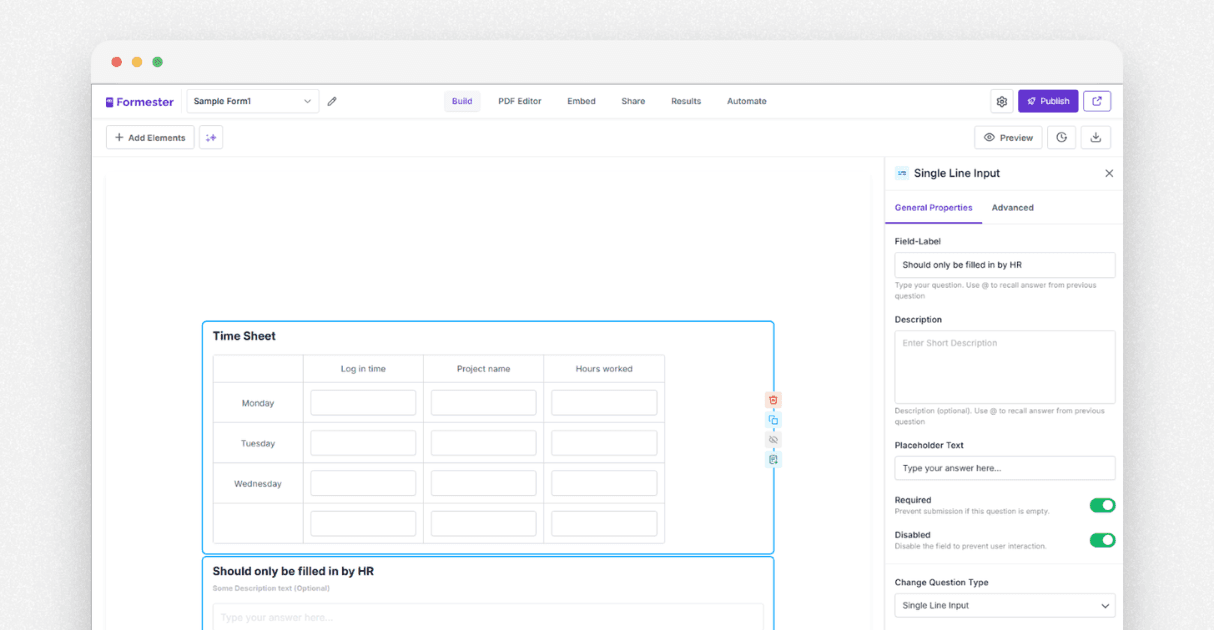
To stop early submissions, add a small text field before the submit button. Disable this field by default. As long as it is disabled, employees cannot submit the form. They can update daily, but submission stays under admin control.
Sending unique timesheet links to employees
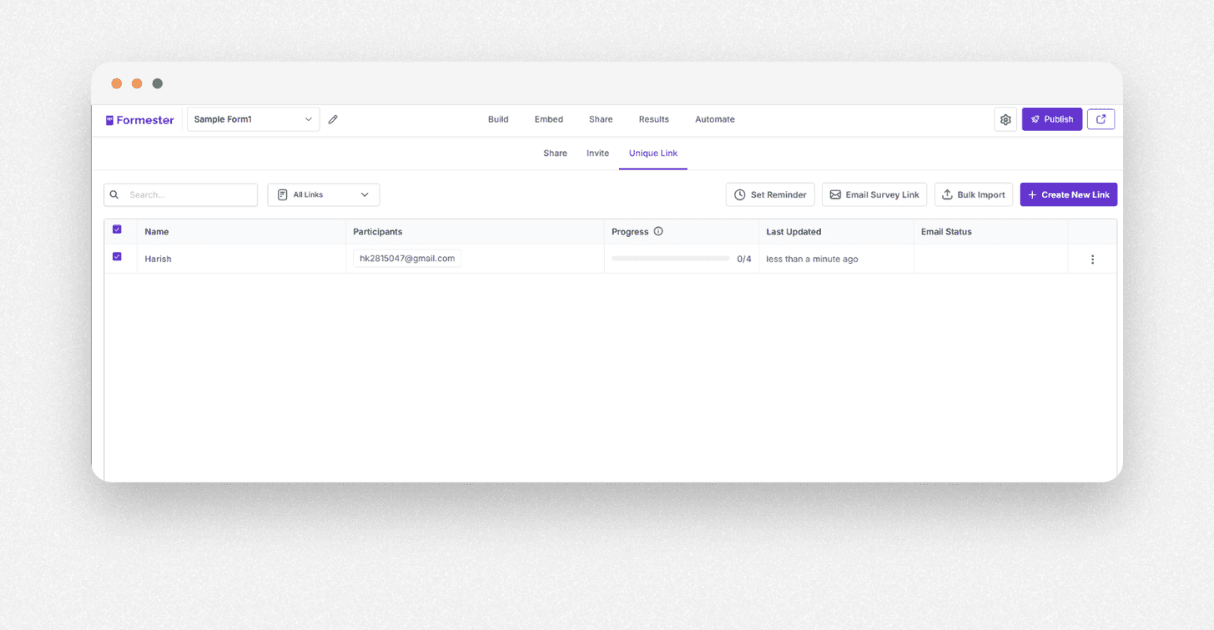
Avoid sharing one common link. Use Formester to create a unique URL for each employee.
Bulk import employee email addresses.
Generate private links automatically.
Send links using a custom email.
Each employee now has their own timesheet.
Enabling submission at the end of the week
At the end of the week, enable the disabled text field. Publish the form again. Employees can now submit their completed weekly timesheet in one click.
Reviewing timesheets in one place
Open the results section after submission. All timesheets appear in a single dashboard. Use filters to find missing entries, overtime, or unusual hours. This makes reviews fast and simple.
Sending timesheets for approval
If something looks off, mark it for review. Send selected submissions to managers for approval. You can also invite HR or finance teams into Formester and give them review access.
Preparing for the next week
Once the week ends, clone the timesheet. Rename it with the new date, make sure all settings remain enabled then repeat the same process for the following weeks.
Final thoughts
Managing employee timesheet approval does not need to be complicated. With Formester, you avoid errors, save time, and gain full visibility. If you manage payroll, billing, or performance tracking, Formester helps you keep everything simple, accurate, and transparent.