Automate Expense Reimbursement with Smart Online Forms
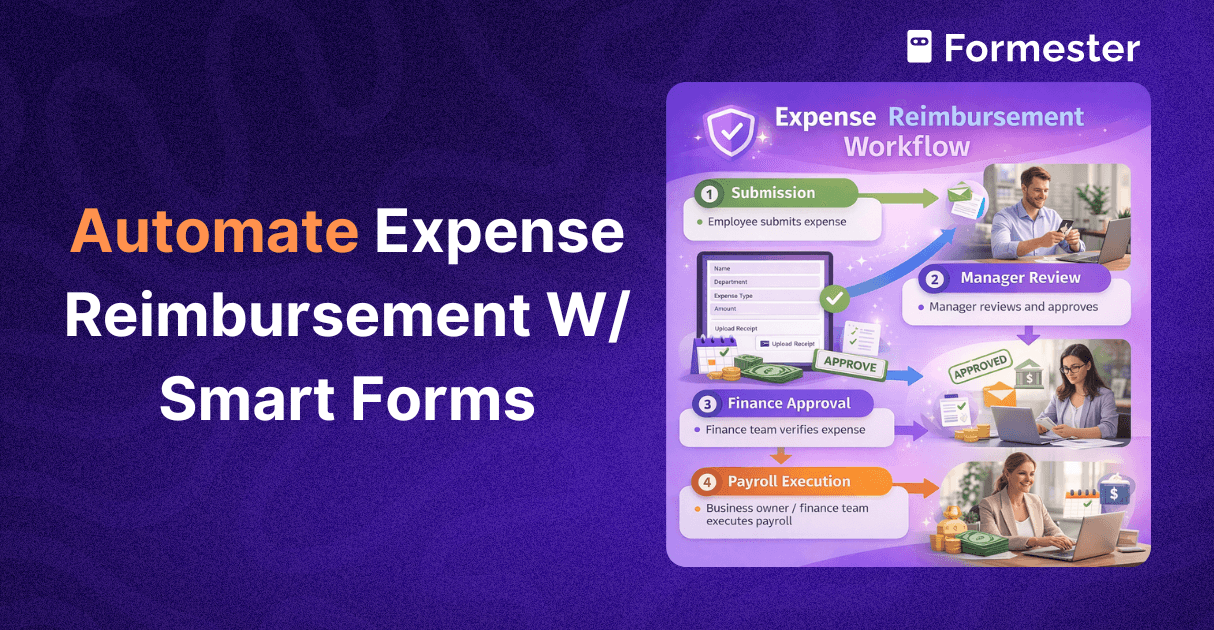 Expense reimbursement is an essential process for any organization, but it can be time-consuming and error-prone when handled manually. Employees submit paper forms or spreadsheets, managers follow up via emails, and finance teams struggle to track approvals and payments. Delays, lost receipts, and missed submissions are common problems.
Automated expense reimbursement forms solve these challenges. By digitizing the process and adding automation, you can streamline submissions, approvals, and tracking, making the workflow faster, more accurate, and fully transparent.
Manual vs Automated Expense Reimbursement
| Manual Reimbursement | Automated Forms |
|---|---|
| Involves paper or spreadsheet forms | Employees submit expenses online |
| Emailing or printing forms | Validation rules prevent errors |
| Waiting for managers and finance teams to review | Notifications alert managers and finance teams |
| Lost or unclear receipts | Automatic receipt verification / clarity checks |
| Delayed approvals | Instant manager notifications upon submission |
| Confusion over submission status | Real-time status tracking for submissions |
| Difficulty tracking workflow progress | Partial submission tracking for progress monitoring |
Creating the Expense Reimbursement Form
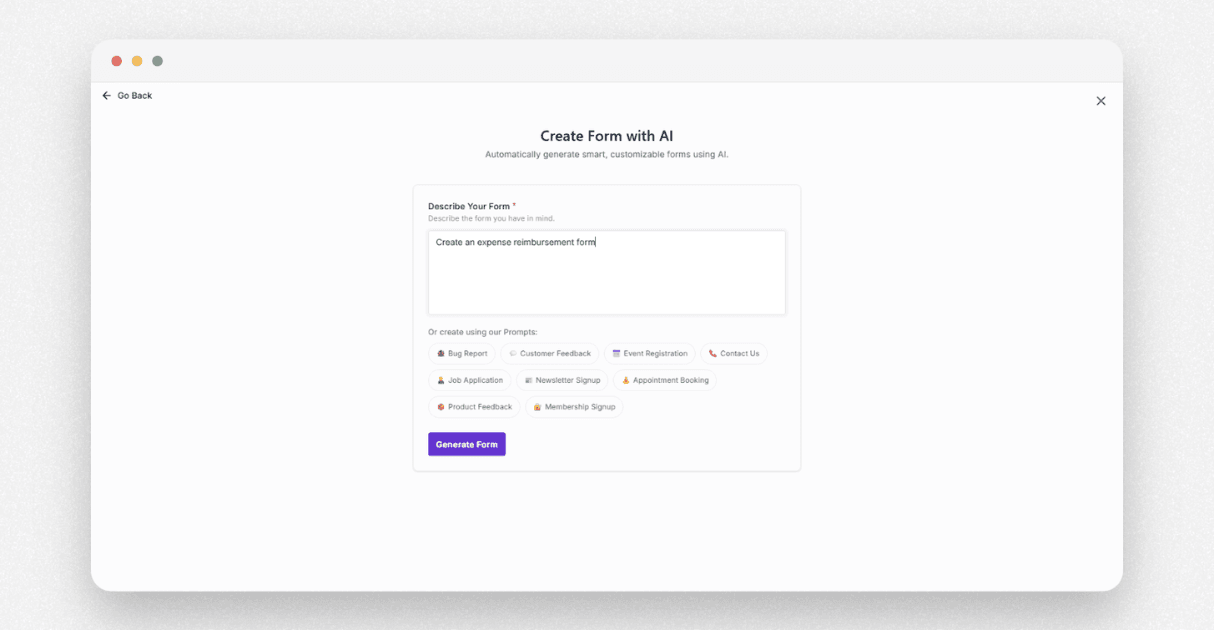
Start by building your form. Using Formester’s AI Form Generator, you can quickly create a professional expense reimbursement form.
Important steps:
Add essential fields: employee name, department, expense date, expense type, amount, payment method, and receipt upload.
Set up validation rules: mark fields as required, and set amount limits.
Configure email validation so employees enter correct addresses for notifications.
Test the form to ensure all fields and validations work as expected.
With these steps, your form is ready for employees to submit expense requests confidently.
Sharing or Embedding the Form
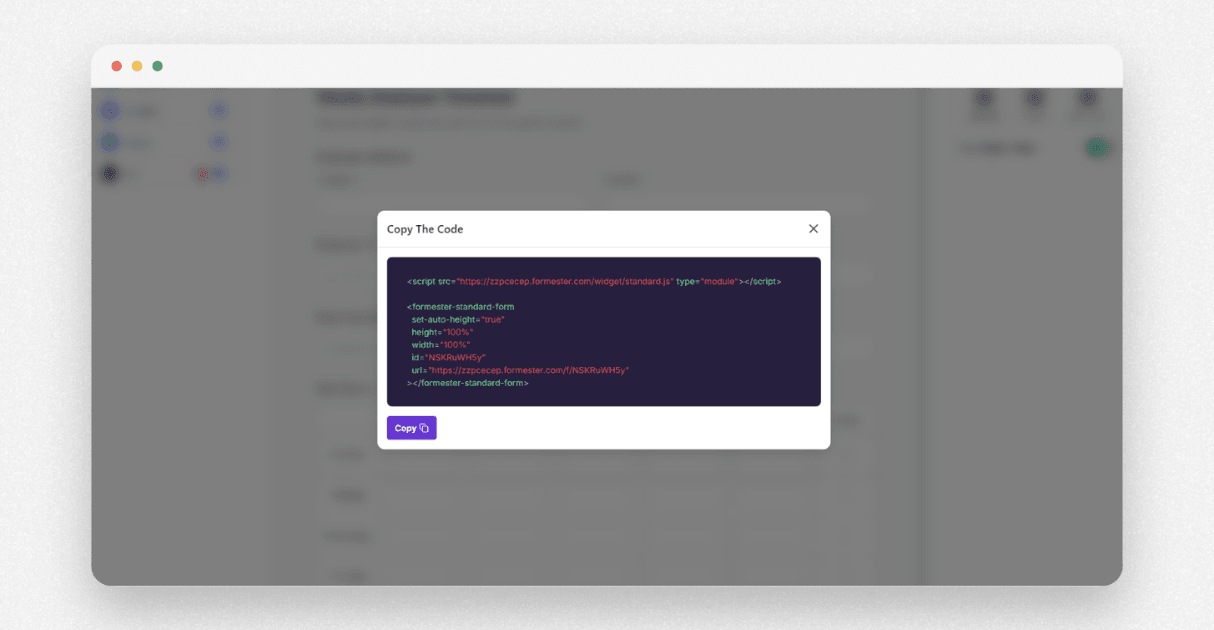 Once your form is ready, share it with employees effectively:
Generate a unique submission URL for each employee to track submissions individually.
Partial submission tracking lets you monitor progress, so you know who has started, completed, or abandoned a request.
Embed the form on an internal portal or intranet for easy access.
This ensures that managers and finance teams can view submission progress without sending constant reminders.
Manager Approval
Manager review is the first approval stage in the workflow. This is wow the automation will work:
When a new submission is created, managers receive a notification automatically.
After reviewing the submission, managers can update the form inline to approve or request corrections.
How to set this up in Make:
Open Make and create a new scenario.
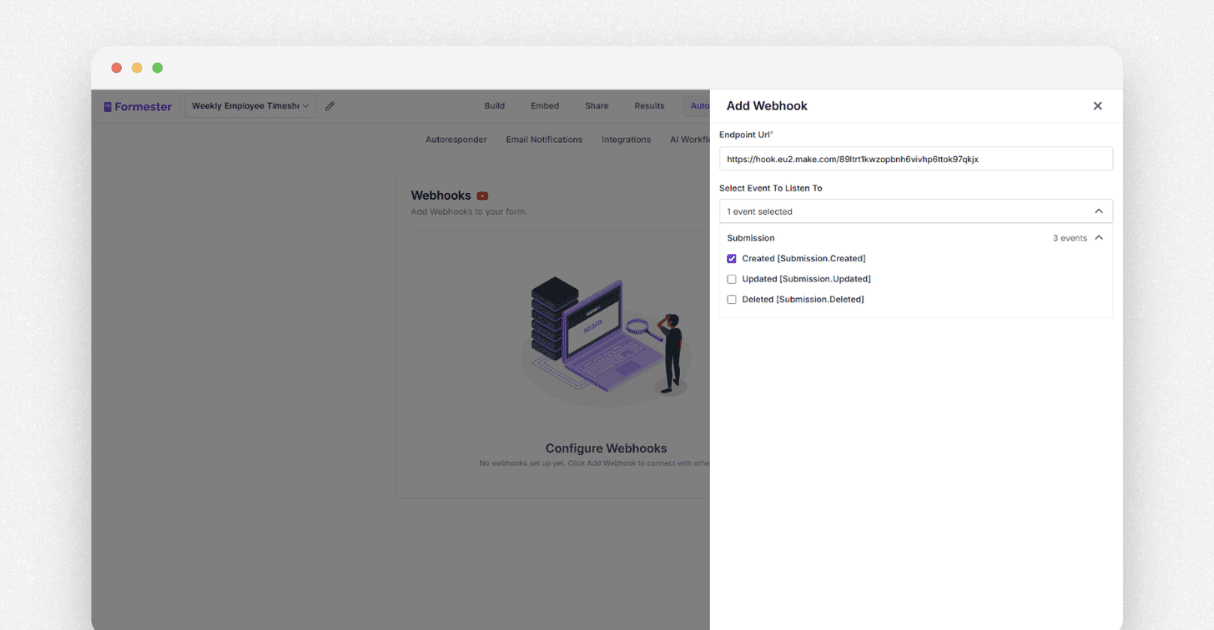
Add a webhook module, copy the webhook URL.
Go back to Formester → Automate → Webhooks, create a new webhook, paste the URL, and select submission created. Save it.
Submit a test submission in Formester.
Go back to Make, add Gmail or Slack as a new app, and configure the notification to managers. Add recipients as needed.
To allow managers to approve, invite them as team members in Formester: go to Teams → Send Invite. Managers can now access the organization and approve submissions. This will make sure that the manager approval process is fast, traceable, and fully automated.
Finance Team Approval
Once the manager approves, the finance team needs to verify and process the reimbursement. This is how the automation will work:
Upon an update from the manager, the finance team receives a notification.
Finance verifies receipts, checks tax and budget compliance, and marks the expense ready for payroll.
How to set this up in Make:
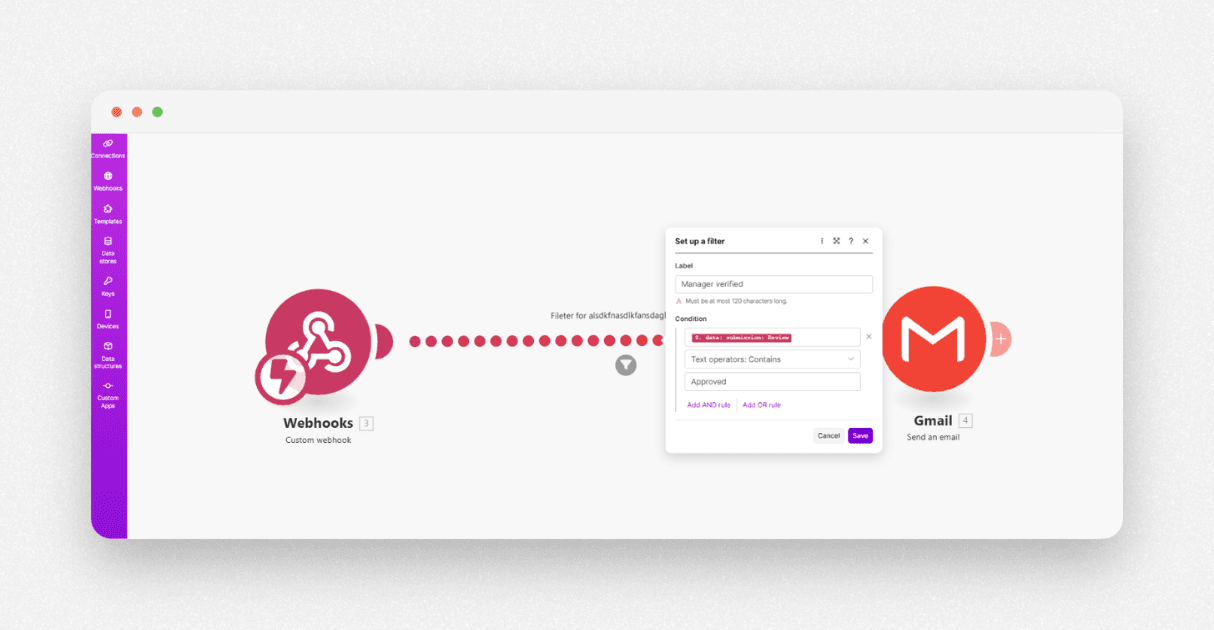
Create a new webhook in Make and copy the URL.
In Formester, create a new webhook, paste the URL, and select submission.updated. Save it.
Make an edit to the test submission to trigger the workflow.
In Make, add Gmail or Slack as the notification app.
Add a filter between the webhook and notification module.
Condition: Manager Review column contains verified. This ensures finance is notified only when the manager has approved.
To prevent multiple notifications for the same submission, add a Sleep (delay) module after the filter. Set the delay to 300 seconds (5 minutes). You can clone this delay if needed for further staging. This setup will make sure that the finance team is notified only when necessary and prevents duplicate alerts.
Conclusion
By automating expense reimbursement:
Approvals happen faster at both the manager and finance levels.
Errors and lost receipts are minimized.
Submission progress is tracked in real time.
Manual follow-ups are eliminated, saving time and effort.
Next steps:
Implement automated expense forms using Formester.
Configure Make to handle manager and finance notifications and approvals.
Monitor and optimize workflow rules to ensure smooth reimbursement processes.
Automation transforms expense reimbursement into a transparent, efficient, and reliable workflow for employees, managers, and finance teams.


