Google Forms does save your progress, but only when you are signed in to a Google account. Google keeps a draft of your answers for 30 days and puts them back when you reopen the form. If you made the form, autosave is on by default and you can turn it off. You cannot see anyone's draft until they submit.
Quick answer
- You are filling in someone's form: your answers are saved for 30 days if you are signed in to Google and online. Reopen the same link in the same account to carry on. If you are signed out, closing the tab loses them.
- You made the form: autosave is on unless you turned it off under Settings, Presentation, Restrictions. You only see a response once someone submits it.
- You need people to save and come back without a Google account: Google Forms cannot do that. A form builder with a resume link can.
When does Google Forms save your progress?
Google's own page, Autosave your response progress on a Google Form, sets out the rules. A draft is kept when all of these are true:
- You are signed in to a Google account. The draft is stored in your account, which is why it is there on another device.
- You have an internet connection. Google says plainly that if you are offline, autosave does not work.
- It is within 30 days of your last edit. The 30 days restart each time you change an answer. Submitting the form ends the draft for good.
- The form owner has not turned it off. If they have, the form shows Saving disabled at the top.
- You still have access to the form. Lose access and you lose the draft with it.
- The owner has not deleted the question or changed the option you picked. A deleted question takes your answer with it, and a changed option comes back unselected. Rewording the question itself leaves your answer alone.
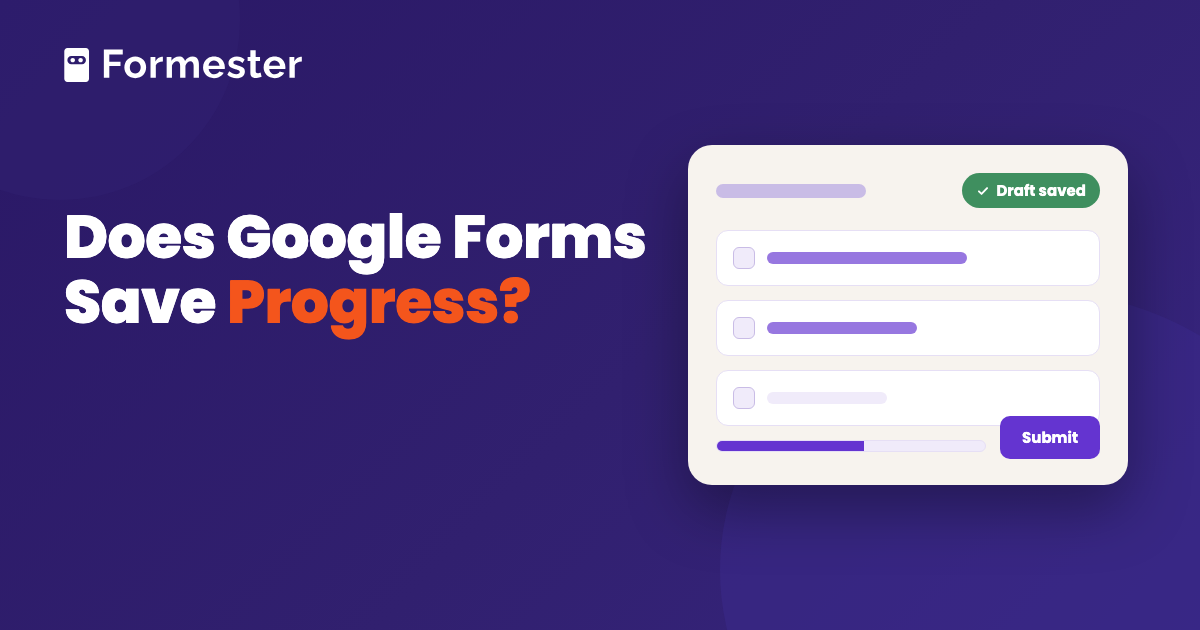
When the draft is being kept, Draft saved shows at the top of the form. If you do not see it, one of the conditions above is not met.
How do you get back to a saved Google Form draft?
Open the same form link again, signed in to the same Google account. Your answers are filled in where you left them. It works on a different device too, because the draft belongs to the account rather than the browser. Google does not show you a list of your drafts, so keep the form link. Your browser history or the message you got it in will take you back.
To throw the draft away and start again, scroll to the bottom of the form and click Clear form.
Why is Google Forms not saving your progress?
Work through these in order. The first one that applies is usually the cause.
- You are not signed in to Google. Without an account there is no draft. Sign in and start the form again.
- You have no internet connection. The draft only updates while the form can reach Google.
- The form shows Saving disabled. The owner turned autosave off. Only they can turn it back on.
- More than 30 days passed since your last edit. Google has already discarded the draft.
- You opened the link in a different Google account. Drafts do not move between accounts. Switch to the one you started in.
- The owner changed the form. A deleted question or a changed option drops that answer from your draft, and a change to the form's branching can hide pages you had reached.
How do you turn autosave off for your Google Form?
Autosave is on for every form by default, personal and Workspace alike. There is no admin setting that turns it off for a whole organization. Each form's owner or editors decide per form.
-
Open Settings
Open the form in the editor and click Settings at the top.
-
Expand Presentation
Click Presentation to open its options, then find the Restrictions group.
-
Turn on Disable autosave for all respondents
Switch it on. From then on, people who open this form see Saving disabled at the top, and nothing they type is kept if they leave.
Google's launch note says turning it off makes sense for forms used for repeated data entry and for forms on shared devices such as registration kiosks. It also names forms embedded in websites. On a shared device, a saved draft would show the next person the previous person's answers.
Can the form owner see a respondent's saved progress?
No. The draft is stored in the respondent's Google account, not in the form. The Responses tab shows submitted responses only, so a form that many people opened and nobody finished shows nothing at all. There is no report of started-but-abandoned forms in Google Forms.
Where Google's autosave stops
- Signed-out respondents get nothing. Autosave depends on the person being signed in, not on how the form is set up. Anyone who opens a form signed out gets no draft.
- There is no resume link. A respondent cannot be sent back to their draft. They have to find the original form link and sign in to the same account.
- The owner sees no partial answers. You cannot tell where people give up or what they had typed.
- Drafts expire 30 days after your last edit. There is no setting that keeps them longer.
This matters most on anonymous forms. An anonymous form still saves a draft for someone who is signed in, and the owner still does not learn who they are. But anyone who fills it in signed out gets no draft, so they have to finish a long survey in one sitting.
Where Formester fits
Formester's save and continue works the other way round. Respondents can pause and resume whenever they need to, with no account required. They get a resume link and pick up exactly where they left off, with every answer preserved. The link can be emailed to them, so they do not need to keep the original form link.
On the owner's side, partial submissions show what a respondent entered before they stopped. Open Results and then Submissions. The unfinished entries are there, so you can see which question people give up on. Both features are on the Business plan.
Let people save and come back, no account needed
A resume link that keeps every answer, and a view of what people entered before they stopped.
Try Formester freeFree forever · No credit card · 56,000+ teams
Related reading
- View responses in Google Forms, for what the owner can see once a form is submitted.
- Partial submissions, for seeing unfinished entries in Formester.
- Save a Google Form as a PDF, if you meant saving a copy of the form rather than your progress.