You send a client a contract PDF, they print it, fill it in, sign it and scan it back, or you retype their answers into the PDF yourself. An auto-fill PDF setup removes that loop. The client fills in a short online form and signs on screen, and your PDF is filled in and signed for them.
This guide shows how to auto-fill a PDF from form answers with Formester, including the signature, and where the finished copy goes. If you want to fill your own details into a PDF faster, the table below points you to the right tool instead.
Quick answer
- Build a form with a field for each blank on your PDF and a signature field.
- Upload your PDF in the form's PDF Editor and drag each answer and the signature into place.
- Publish the form. Every submission creates a filled, signed PDF you can email, save to Google Drive or let people download.
Ways to auto-fill a PDF
People mean different jobs when they say auto-fill a PDF. Find yours first, because each one needs a different tool.
| Your situation | Whose details | Needs fillable fields? | Signature? | Best tool |
|---|---|---|---|---|
| You fill the same kind of PDF often | Yours | Yes | You add it | Your PDF reader or browser autofill |
| You have a spreadsheet and need one PDF per row | Already in a sheet | Usually | No | A mail merge or bulk-fill tool |
| Clients, staff or students give you their details | Theirs, collected in a form | No | Yes, drawn on the form | A form connected to your PDF (this guide) |
How to auto-fill a PDF from a form
You set this up once per document. After that, every response fills a fresh copy, so nobody retypes anything.
Build the form
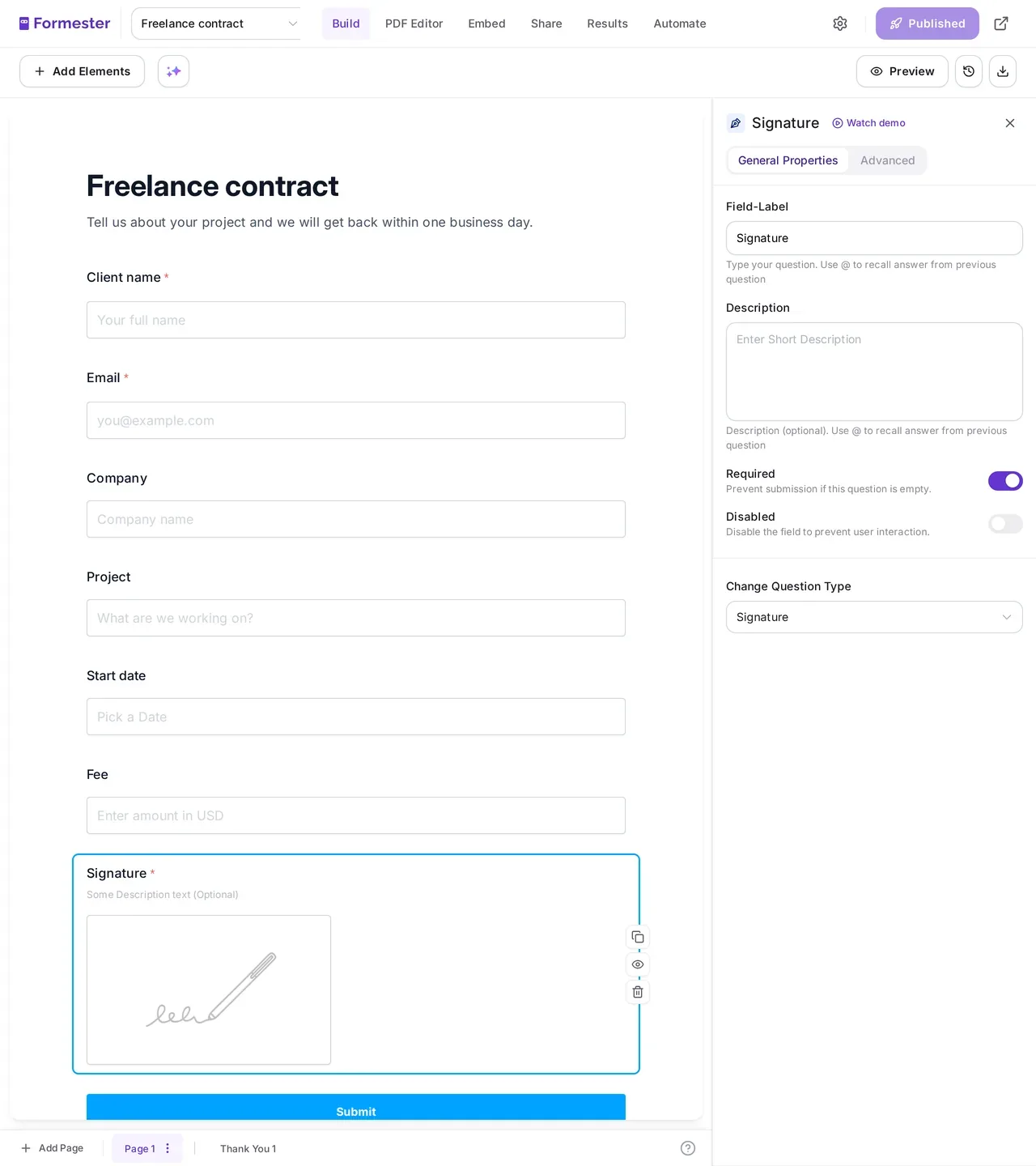
Add a field for every blank on your PDF, plus a Signature field. For a freelance contract that means client name, email, company, project, start date and fee. The signature field lets people draw their signature with a mouse, trackpad or finger.
Upload your PDF
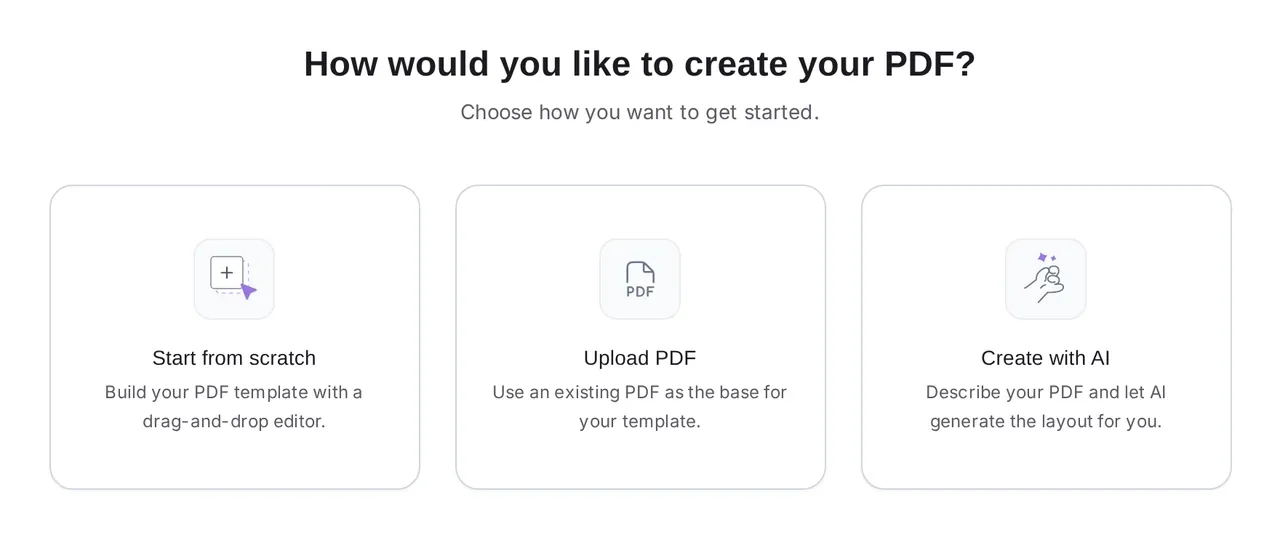
Open the PDF Editor tab on the form and choose Upload PDF. Every page of your file is kept at its own size. You can also start from scratch or describe the document and let AI draft it.
Place each answer
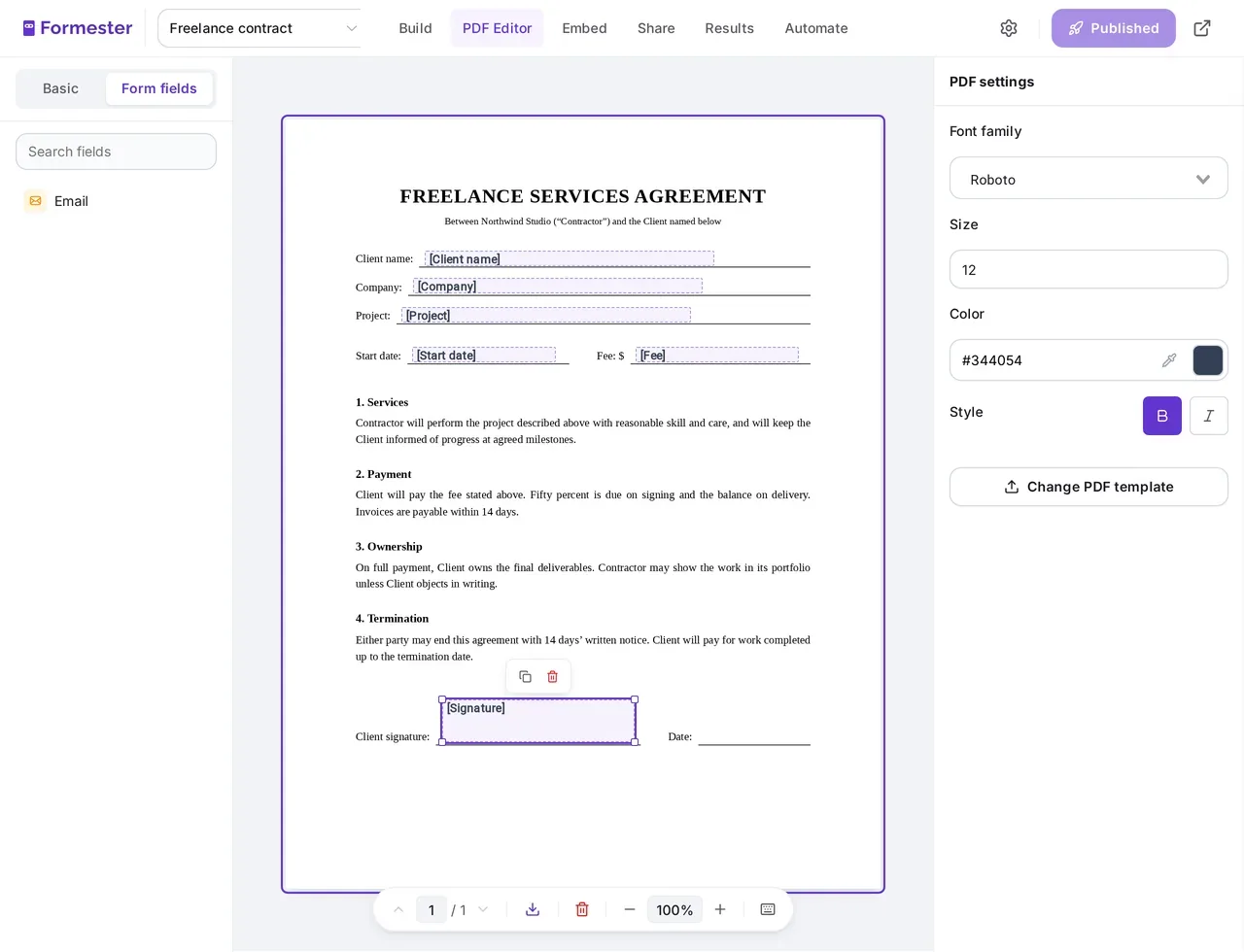
Open the Form fields tab and drag each field onto the line where its answer belongs. For text you write yourself, add a text box and type @ to insert an answer inside a sentence, like a greeting with the client's name.
Place the signature
Drag the Signature field onto the signature line and size the box. Each person's drawn signature is printed inside it.
Test it
Submit a test response, then use Download PDF and choose With submission to see a filled copy. Move any box that sits off its line, then publish the form.
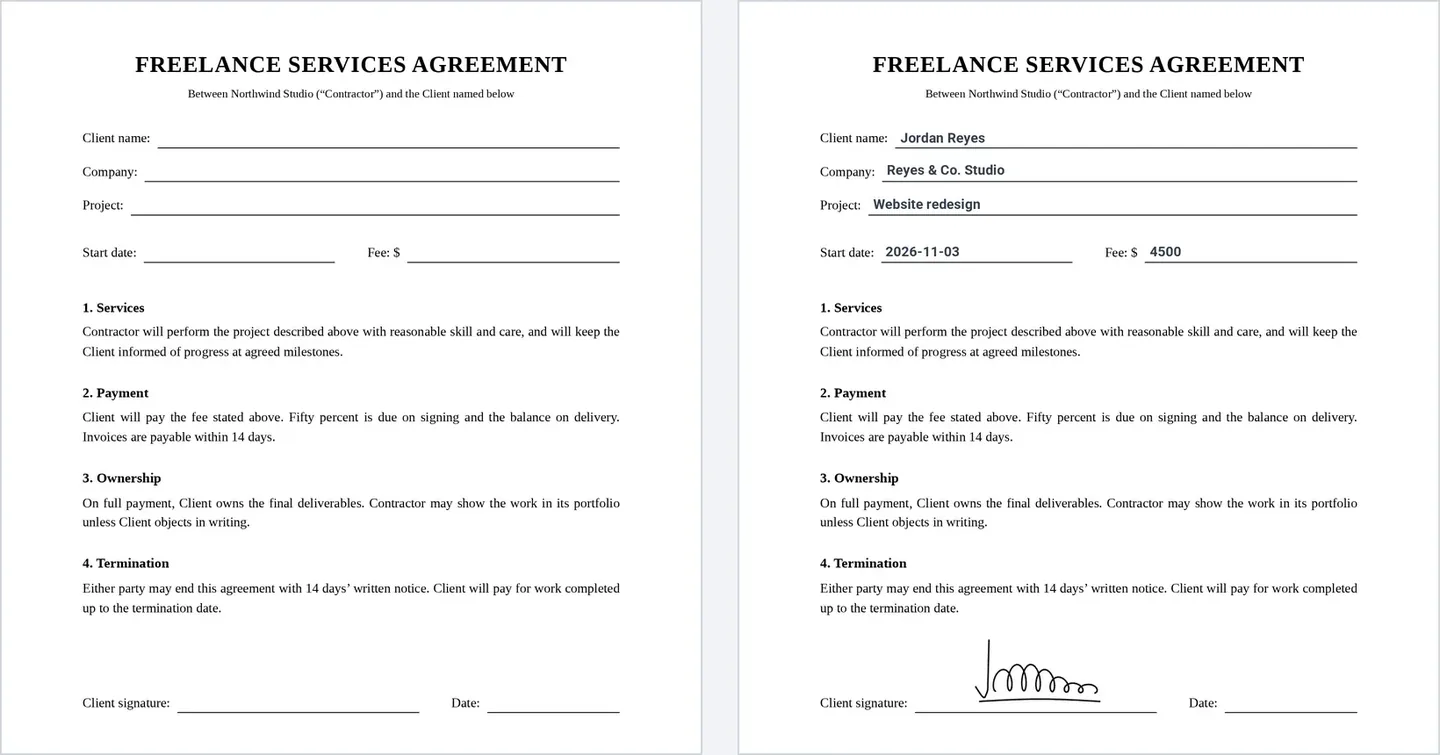
Your PDF doesn't need fillable fields. It works as the background, and the answers are printed on top where you placed them, so a flat or scanned PDF works too. Any fillable fields already in the file are not filled for you, so place the answers over them.
What the PDF can include
Most answers from the form can go onto the PDF:
- Text answers: names, emails, addresses, numbers, dates and calculated totals.
- Choices: as text, or as a tick in each option's box on your PDF.
- Tables: repeating rows, like line items, and grid questions.
- Uploads: photos or images people attach to the form.
- Signature: the drawn signature, inside the box you placed.
- Submission details: the submission ID and the date it was sent.
Where the filled PDF goes
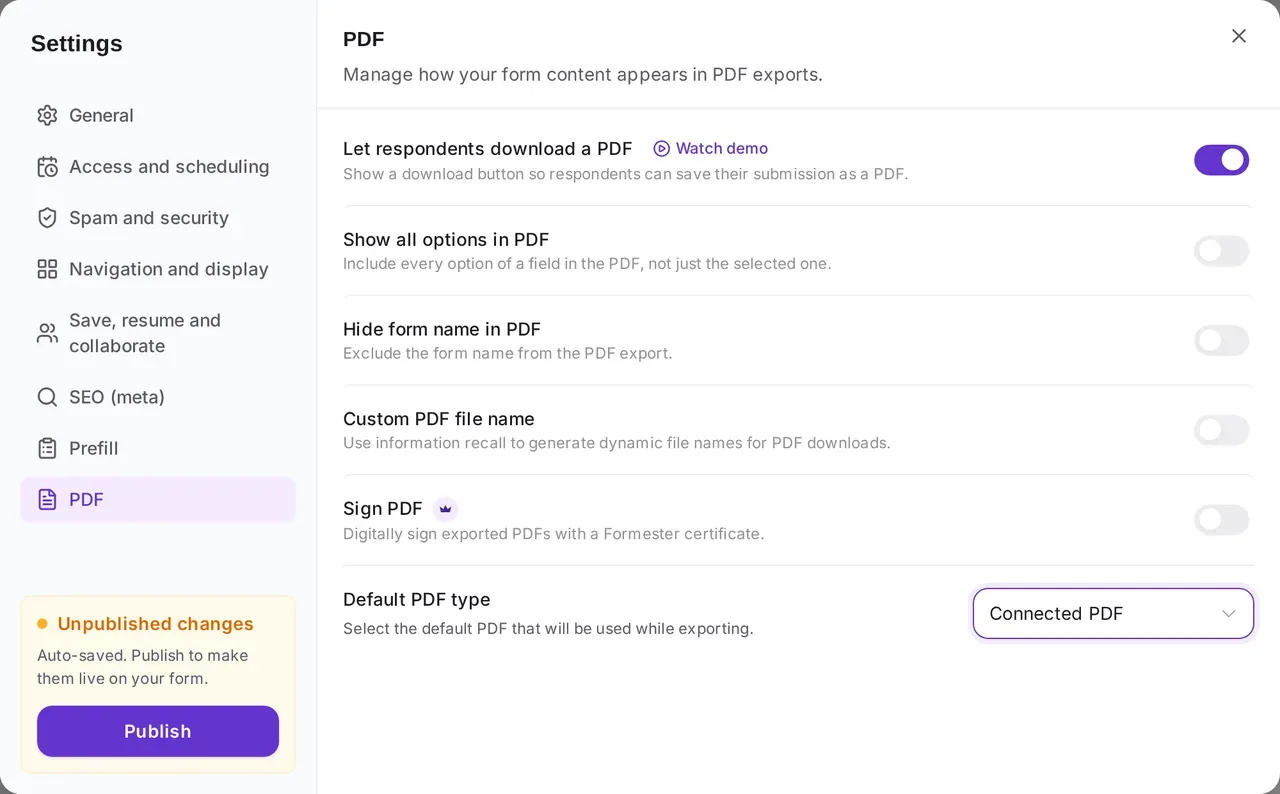
A filled PDF is only useful if it reaches the right person. Pick one or more of these in the form's settings:
- To the signer: attach it to the autoresponder email, so they get their signed copy right away.
- To you: attach it to your submission notification.
- To your files: save each one to Google Drive, named with answers like the client's name.
- As a download: show a download button after the person submits.
- To other apps: include a link to the PDF in workflow emails or webhooks. Webhook links work for 7 days.
- All at once: select submissions in Results and download their PDFs together.
If you don't need your own layout, Form to PDF gives you a ready-made layout of every answer with no setup.
Already have the details? Pre-fill the form
Sometimes you already know most of the answers, like a client's name and the agreed fee. You can pre-fill those fields through the form link, so the client only checks them and signs. Our guide to pre-filling fields with URL parameters shows how. The PDF still fills from the submission, one copy per person.
About the signature
The signer draws their signature on the signature field, and it is printed on the PDF with the rest of their answers. Electronic signatures like this are accepted for many everyday agreements, for example under the US ESIGN Act and the EU eIDAS regulation. Rules depend on the document and the country, so check with a lawyer for anything high stakes.
On the Business plan you can also turn on Sign PDF in the form's PDF settings. It adds a Formester digital certificate to the file, so people who open it can see where it came from.
What teams auto-fill this way
- Client contracts: start from the freelance contract template, which comes with its PDF connected, or use the contract generator to build a contract form with AI.
- NDAs: the NDA agreement template comes with its PDF connected too.
- Onboarding and HR forms: offer letters, policy acknowledgements and employee agreements, signed before the first day.
- Intake and consent: clinic intake, waivers and consent forms that need a signed copy on file.
More are in the contract templates. For branded documents like certificates and quotes, see document generation.
Stop retyping answers into PDFs
Upload your PDF, place each answer and the signature once, and every submission creates a filled, signed copy. The PDF Editor is part of the Business plan.
Try Formester freeFree forever · No credit card · 56,000+ teams
Related reading
- How to add fillable fields to a PDF, if you want people to type into the PDF itself.
- Free fillable PDF creator, to add fields to a PDF in your browser.
- How to add a signature in Google Forms, and what to use when Google Forms can't.
- 10 best document generation software, to compare tools for contracts, quotes and other documents.