
You just wrapped up a training session, a course, or a review cycle. Now you need feedback you can act on, not hallway comments you forget by Friday.
A Google Forms evaluation is the quickest free way to collect it. You build the form once, share a link, and every response is stored in one place. This guide walks you through the setup, the right question types, scored evaluations with quiz mode, and ready-to-use questions for employee, course, teacher, and event evaluations.
You will also see where Google Forms falls short for evaluations, and what to use when it does.
Quick answer
- Go to forms.google.com and start a blank form, or use the built-in Course Evaluation template.
- Add linear scale questions for ratings and a multiple choice grid to rate several items at once.
- Add one or two open-ended questions for the feedback that ratings miss.
- In Settings, make key questions required and decide if responses should be anonymous.
- Share by link or email. Responses collect in the Responses tab and can sync to Google Sheets.
- For scored evaluations, turn on quiz mode and assign points per question.
What is an evaluation form?
An evaluation form is a structured way to judge how something went. A manager rates an employee's quarter. Students rate a course. Attendees rate an event. The form asks the same questions of everyone, so you can compare answers instead of guessing from scattered opinions.
A good one mixes rating questions with open questions. Rating questions, like a 1 to 5 rating of the trainer's clarity, give you numbers you can chart. Open questions, like asking what should change next time, give you the reasons behind the numbers. Ratings without comments tell you something is wrong but not what. Comments without ratings can't be compared. You need both.
How to create an evaluation form in Google Forms
The build takes about ten minutes. You need a Google account and a clear idea of what you're evaluating.
-
Start a new form
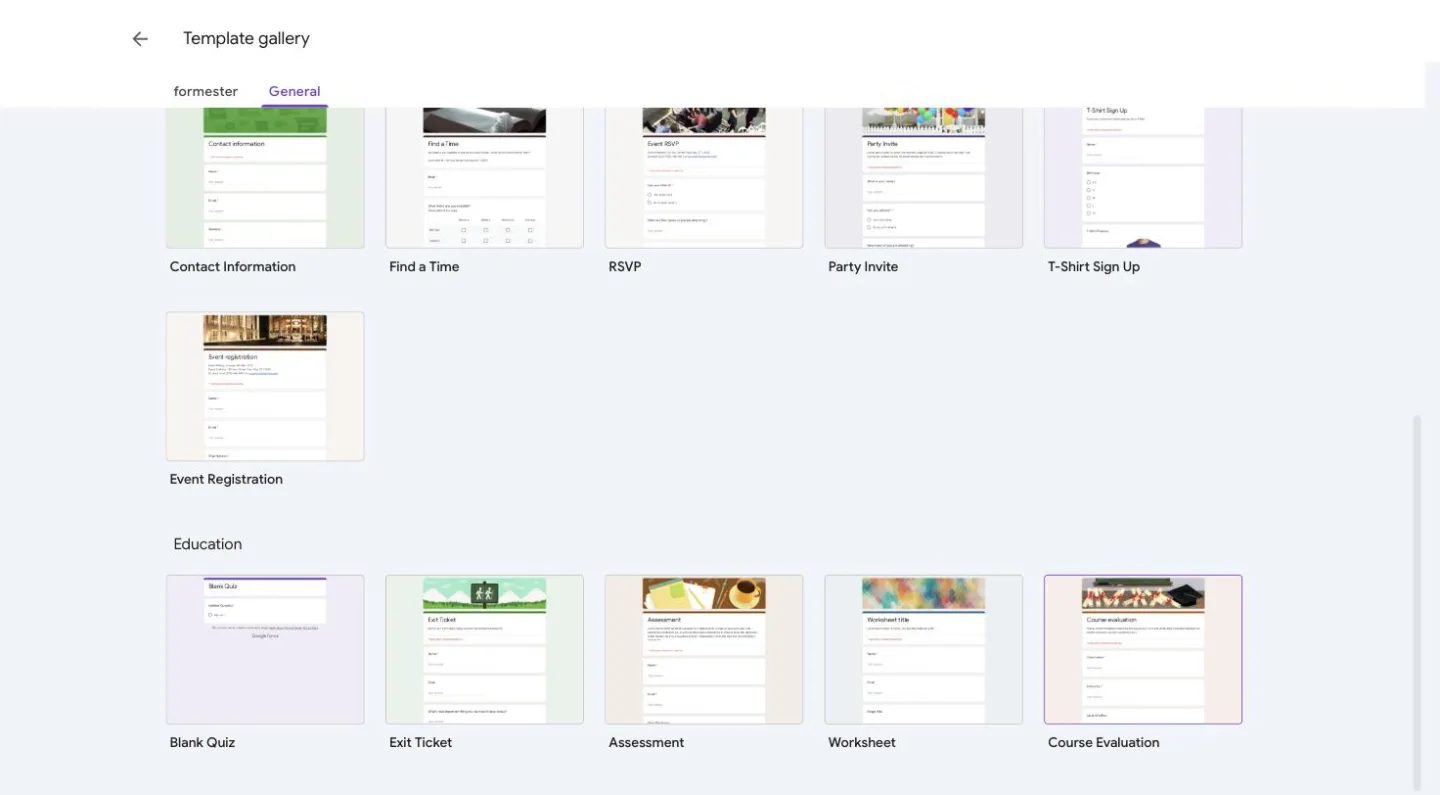
Go to forms.google.com and click Blank form, or open the template gallery and pick Course Evaluation. The template ships with rating grids and comment fields already in place, so it's a faster start even if you're evaluating something other than a course. Swap the wording and most of the structure still fits.
-
Add a title, description, and respondent details
Name the form after the thing being evaluated, like Q3 Sales Training Evaluation. Use the description to say what the feedback is for and who sees it. People give better answers when they know where their words go.
Then decide which details you need about the respondent. For an employee evaluation, add fields for the employee's name, the reviewer, and the review period. For an anonymous course evaluation, skip names entirely and ask only for the section or class.
-
Add rating questions
Ratings are the core of an evaluation, because they turn opinions into numbers you can compare. In Google Forms, that means the linear scale and the multiple choice grid:
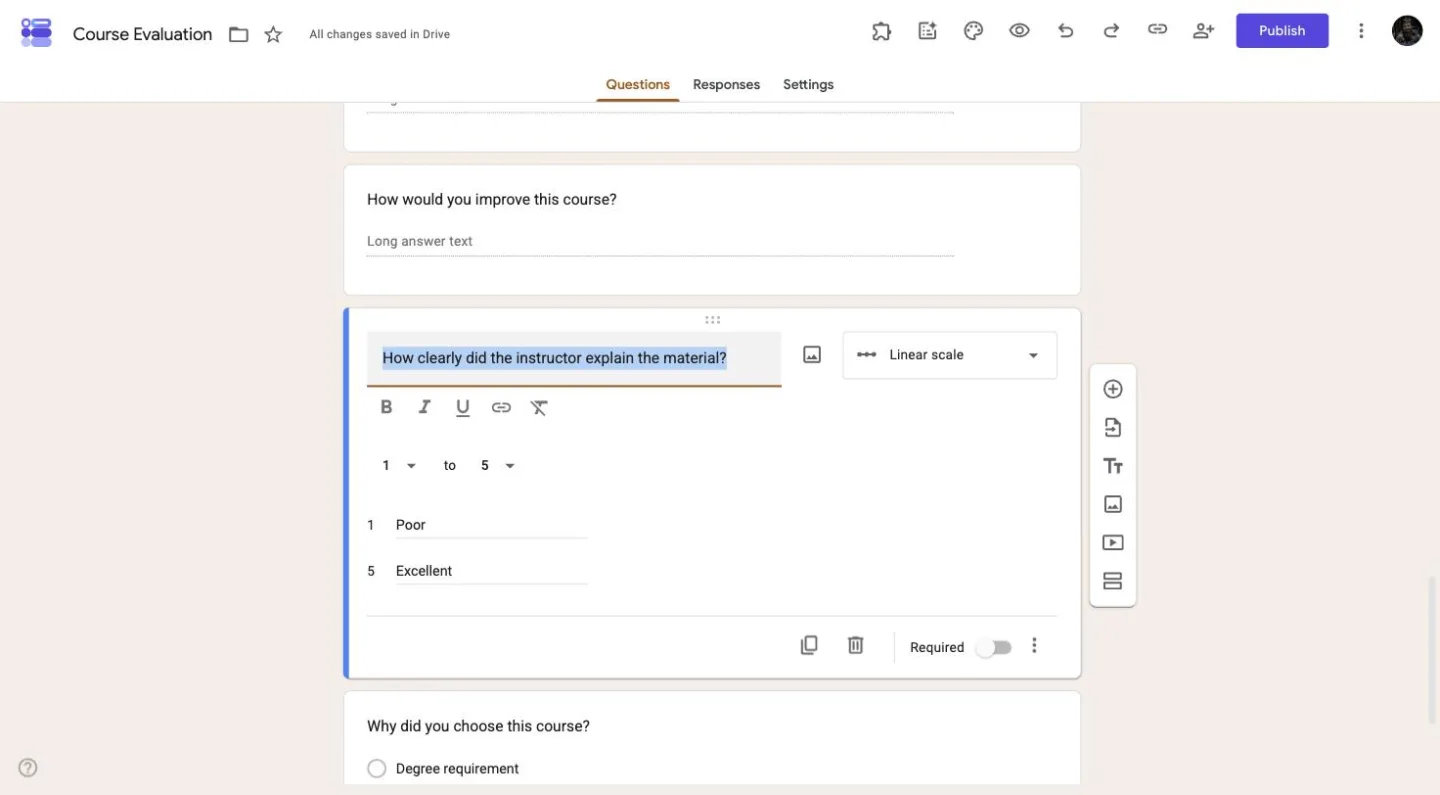
Linear scale asks for one rating. The scale can start at 0 or 1 and end at any whole number from 2 to 10, so set the common 1 to 5 range yourself. Label both ends, like 1 = Poor and 5 = Excellent, so everyone reads the scale the same way. Here's a full guide on linear scale questions in Google Forms.
Multiple choice grid rates several items against the same scale in one question. One grid can cover content, pace, materials, and instructor as rows with a Poor-to-Excellent scale as columns. That's four questions' worth of feedback in one compact block.
-
Add open-ended questions
Ratings tell you what people think. Open questions tell you why. Add one or two Paragraph questions at the end, asking what worked well and what should change. Keep it to two. Every extra open question lowers your completion rate, and tired respondents write one-word answers anyway.
-
Configure the settings
Open the Settings tab before you share and check these:
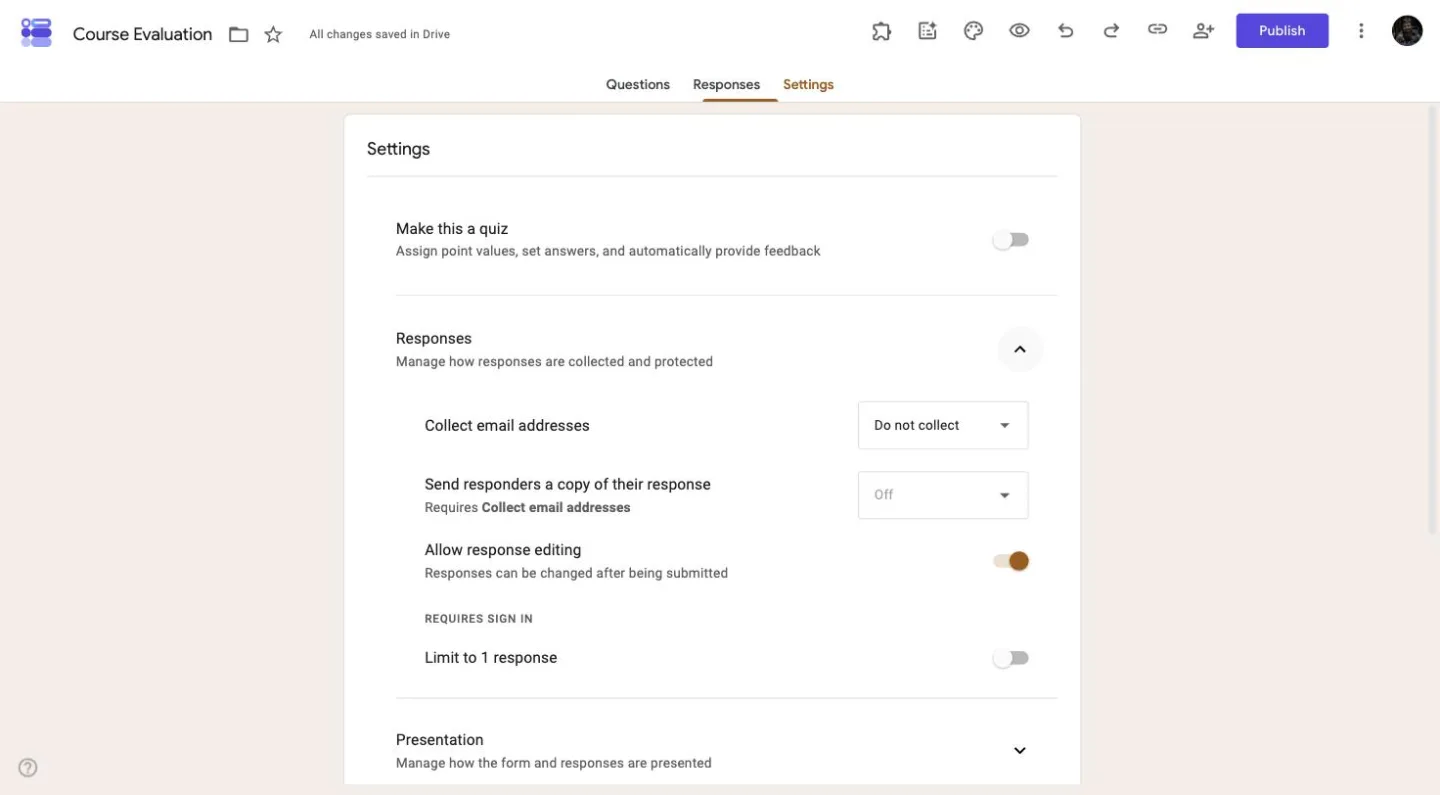
Required questions. Mark the rating questions as required so you never get a half-filled evaluation. Leave the open questions optional.
Anonymity. Turn off Collect email addresses if the evaluation is about a person, like a teacher or manager. People answer more freely when their name isn't attached. Here's how to make a Google Form fully anonymous.
One response per person. Turning on Limit to 1 response stops duplicates, but it forces respondents to sign in to Google. This creates a real trade-off for evaluations: you can have anonymity, or one response per person, but not both. With Collect email addresses off, Google at least doesn't record the usernames of people who sign in. But anyone without a Google account can't respond at all, which matters for parent or client evaluations. For small anonymous groups, most teams accept the small risk of a duplicate.
-
Share the form and collect responses
Click Publish, then copy the responder link to share it by email or chat, or embed the form on a page. For in-person sessions, a QR code on the last slide gets far more responses than a link sent the next day, because people answer while the session is still fresh.
Send the form fast. An average evaluation form sent within an hour of the session gets more and better responses than a perfect one sent next week.
Turn on quiz mode for scored evaluations
Rating forms measure opinions. But some evaluations measure performance against right answers, like a post-training knowledge check or a skills assessment. For those, use quiz mode.
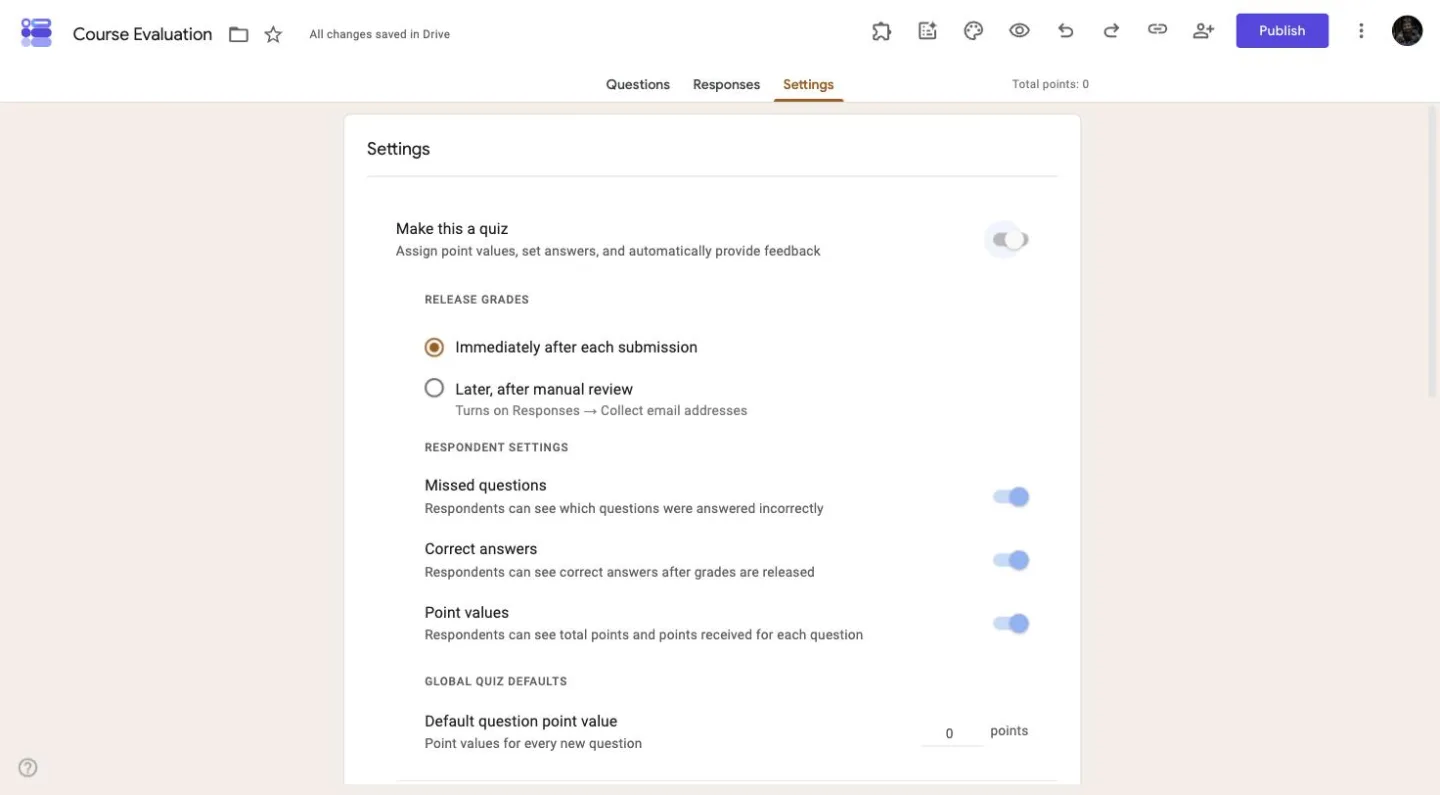
Go to Settings and toggle on Make this a quiz. Now every question can carry a point value and a correct answer. Google Forms grades each response automatically and shows you totals, averages, and the questions people missed most.
For a training evaluation, this is the difference between knowing people liked the training and knowing they learned from it. Ask both: run a short scored section for the material, then a rating section for the delivery. Here's how to view and release scores in Google Forms once responses come in.
Evaluation question examples by type
The build steps are the same for every evaluation. The questions are not. Use these as a starting point:
| Evaluation type | Questions to ask |
|---|---|
| Employee | Rate the quality and accuracy of this employee's work (1 to 5). Does the employee meet deadlines consistently? How well do they communicate with the team? What is one strength to recognize this period? What is the single most important area to improve? |
| Course / training | Rate the course content, pace, and materials (grid). How clearly did the instructor explain the material (1 to 5)? Which topics need more time? Would you recommend this course to a colleague? What should change in the next session? |
| Teacher | The teacher explains concepts clearly (1 to 5). The teacher is well prepared for class (1 to 5). How comfortable do you feel asking questions? What does this teacher do well? What could make the class better? |
| Event | Rate the venue, schedule, and speakers (grid). How useful was the event for your work (1 to 5)? Which session was most valuable? How did you hear about the event? Would you attend again? |
Whatever the type, keep the same scale direction everywhere, so 5 always means best. And put yourself in the respondent's shoes: every question should be answerable in under ten seconds, or it gets skipped.
Looking for a Google Forms teacher evaluation template? There isn't a dedicated one in the gallery. Start from the Course Evaluation template and swap in the teacher questions above.
How to analyze evaluation responses
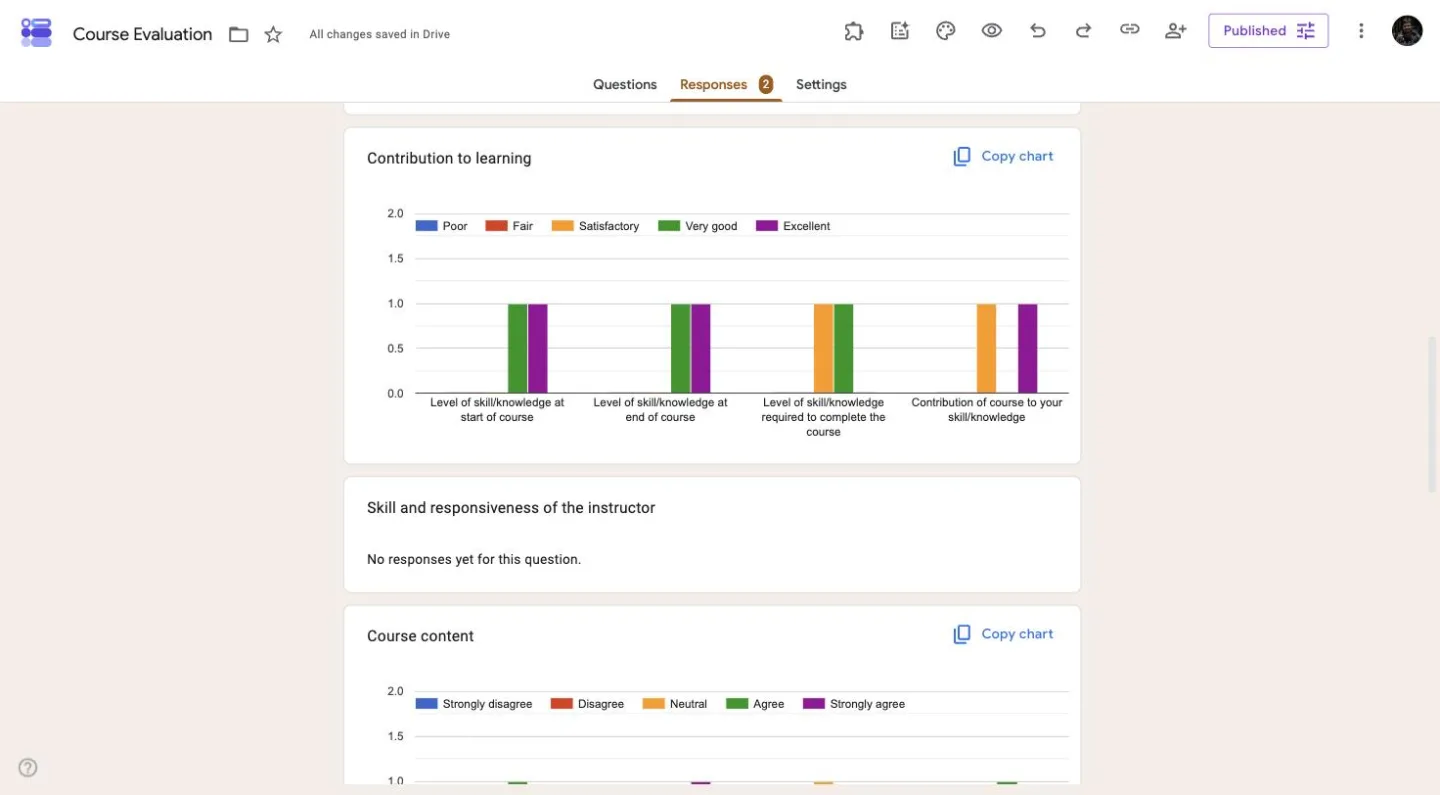
Once responses come in, open the Responses tab. It has a summary view with a chart per question, a per-question breakdown, and individual responses.
The summary view answers most questions on its own. Linear scale questions show as bar charts, so a weak average jumps out immediately.
For anything deeper, click the Sheets icon to send all responses to a spreadsheet. In Sheets you can average ratings per category, filter by session or department, and compare this cycle against the last one. That last part matters most: a 3.8 rating means little until you know last quarter was a 3.2.
How to weight evaluation criteria in Google Sheets
In most evaluations, some criteria matter more than others. Accuracy might count three times as much as tidiness. Google Forms has no way to express that, so the weighting happens in the linked Sheet.
Link your form to a Sheet and each answer gets its own column. Row 1 holds the question headers, so put your weights in empty columns to the right of the responses, say I1 to L1. If the ratings sit in columns D to G:
| What you want | Formula |
|---|---|
| Weighted total | =SUMPRODUCT(D2:G2,$I$1:$L$1) |
| Weighted average out of 5 | =SUMPRODUCT(D2:G2,$I$1:$L$1)/SUM($I$1:$L$1) |
| Flat average, no weighting | =AVERAGE(D2:G2) |
Grid answers can arrive as text labels rather than numbers, so name your rating options in a way that converts cleanly, like plain 1 to 5. New responses append below the old ones, and SUMPRODUCT works one row at a time, so copy the formula down as responses arrive. If you want it fully automatic, use a spilling version that multiplies each rating column by its weight: =ARRAYFORMULA(IF(LEN(D2:D), D2:D*$I$1+E2:E*$J$1+F2:F*$K$1+G2:G*$L$1, )).
One more thing worth doing: write the weights down somewhere outside the spreadsheet. If the person who owns the Sheet leaves, the scoring rules should not leave with them.
Decide what a 3 means before you share the form
The build is the easy part of an evaluation. The hard part is agreeing on what the ratings mean. Ask ten managers to rate communication from 1 to 5 and you will get ten different ideas of what a 3 is.
The results still look clean in a spreadsheet. You can average them, chart them, and compute a weighted score. That doesn't make the score useful, because a rating scale measures how each person interpreted the scale, not performance itself.
The fix costs ten minutes. Before you share the form, write down what a 3 looks like for each criterion, then paste that description into the question's help text. It does more for the quality of your results than any tool choice.
Where Google Forms falls short for evaluations
Google Forms works well for a quick, free evaluation. But teams that run evaluations every cycle keep hitting the same problems:
No real scoring outside quiz mode. Quiz mode only grades right-or-wrong answers. It can't weight categories, average rating sections, or compute an overall performance score. You export to Sheets and build that math yourself, every cycle.
Everything looks like Google. You can change the header image, the color, and the font, and that's about it. An evaluation sent to clients or parents carries Google's look, not yours.
No PDF of the completed evaluation. HR usually needs a signed record of a performance review in the employee's file. Google Forms gives you a spreadsheet row.
Unreliable saving for long reviews. Google Forms autosaves drafts only for respondents signed in to a Google account. On an anonymous form, or for anyone signed out, closing the tab halfway through a long review loses everything typed.
If none of these affect you, stay with Google Forms. If they do, it's worth comparing the best Google Forms alternatives.
Evaluation forms without the workarounds: Formester
Formester covers the same ten-minute build, then handles the parts Google Forms leaves to you:
| Capability | Google Forms | Formester |
|---|---|---|
| Rating scales and grids | Yes | Yes |
| Weighted scores from ratings | No, manual in Sheets | Yes, calculating fields |
| Your branding, no vendor look | Header image and color only | Full branding kit |
| PDF record per evaluation | No | Yes, auto-generated per submission |
| Save and continue later | Only for signed-in Google users | Yes, for everyone |
| Response analytics built in | Basic summary charts | Completion and drop-off analytics |
The scoring gap matters most for evaluations. Formester's calculating fields turn ratings into a weighted overall score on the form itself, so a performance review computes its own result instead of waiting for spreadsheet work. The duplicate problem has a cleaner answer too: send each respondent a unique one-time submission link and nobody needs a Google account to respond exactly once. You also don't have to start from a blank form: the Formester template gallery has ready-made evaluation forms for employees, peers, and events. And form analytics shows which page of the form people abandon, so you know where your evaluation is losing respondents.
Teams already run their evaluation and feedback loops this way. Bogdan Arsenie, CTO at Rumie, uses Formester to collect feedback from educators and volunteers: "It's intuitive, fast and easy to share."
Build an evaluation form that scores itself
Calculating fields turn ratings into a weighted score on the form itself. No spreadsheet formulas, and no sign-in wall for your respondents.
Try Formester freeFree forever · No credit card · 56,000+ teams


