How to Create, Share & Track Video Based Training
Training your team or students becomes easier when you use the right system. Many companies still struggle with manual tracking, scattered files, and unclear learning paths. This slows everyone down.
Formester removes these problems. You create video lessons, add assessments, set simple rules, and track progress in real time. You guide each trainee step by step without extra work.
This guide shows you how to collect trainee details, build lessons, add scoring, share unique links, and track progress from start to finish.
Why Use Video Based Training in Formester
Video makes learning faster. People understand better when they watch and listen at the same time. Short quizzes after each lesson also help them remember the content.
Formester gives you a simple builder, smart question tools, strong scoring rules, and clean tracking. You build one clear training flow that runs smoothly for every trainee. You do not need technical skills.
You also get live progress updates. This helps you see who is doing well and who needs more support. The entire training process becomes more structured and predictable.
Step 1. Create a Registration Form
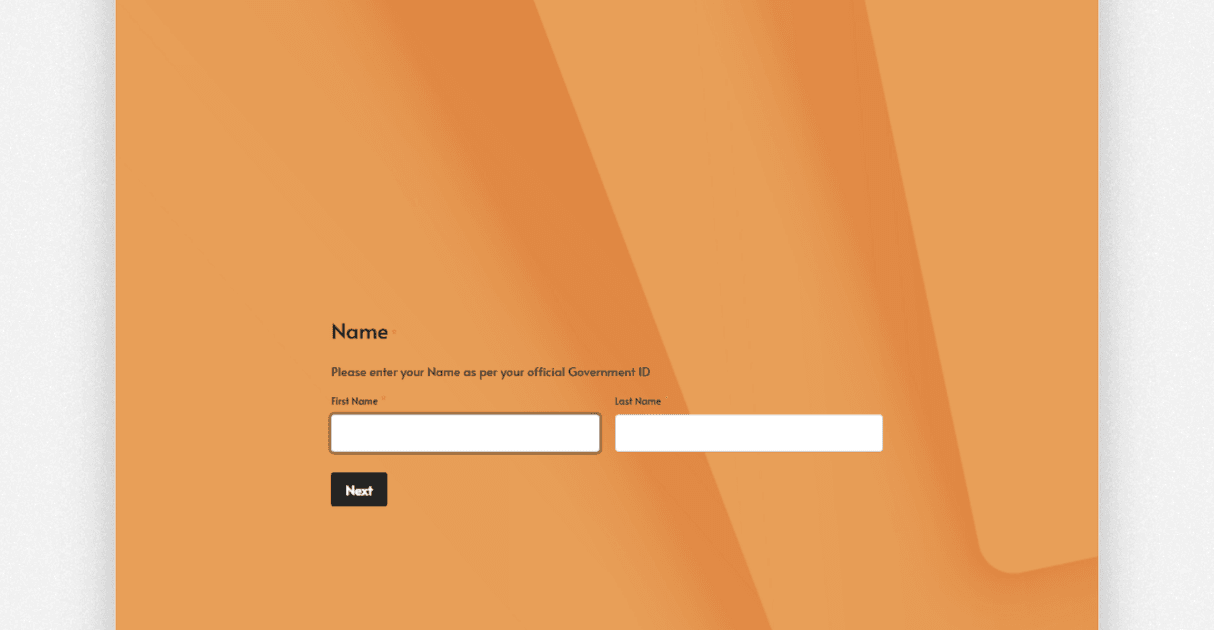
Start with a registration form. This form collects the trainee email address. Email is important because Formester uses it to create a unique link for each trainee.
Open your dashboard and click create new form. Choose start from scratch. Add a heading and ask for trainee name and email. Publish the form and share it with your learners.
Step 2. Create the Main Training Course
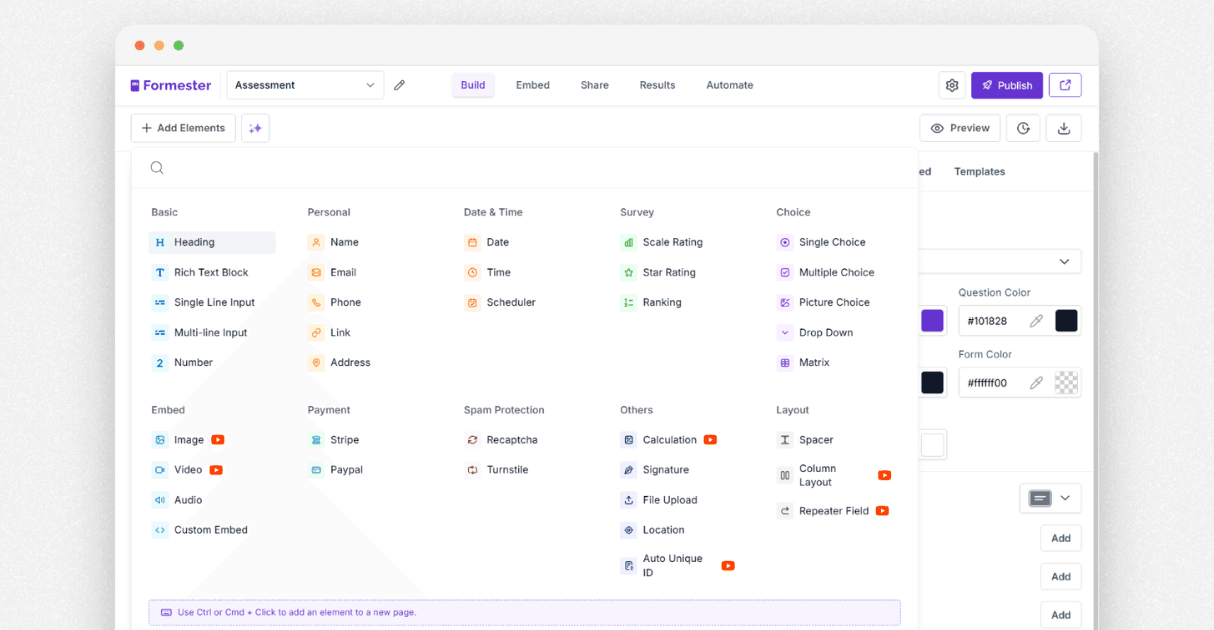
Now create the actual course. Go back to the dashboard and click create new form again. Choose start from scratch.
You will see a blank page. This becomes your first lesson page. Add a title using the heading element. If you want to explain the lesson, use the rich text block.
Add a hidden field with the trainee email or a unique ID. This keeps your tracking clean and accurate. Keep this page simple. The trainee should see the lesson title and understand the purpose right away.
Step 3. Add the Video Lesson
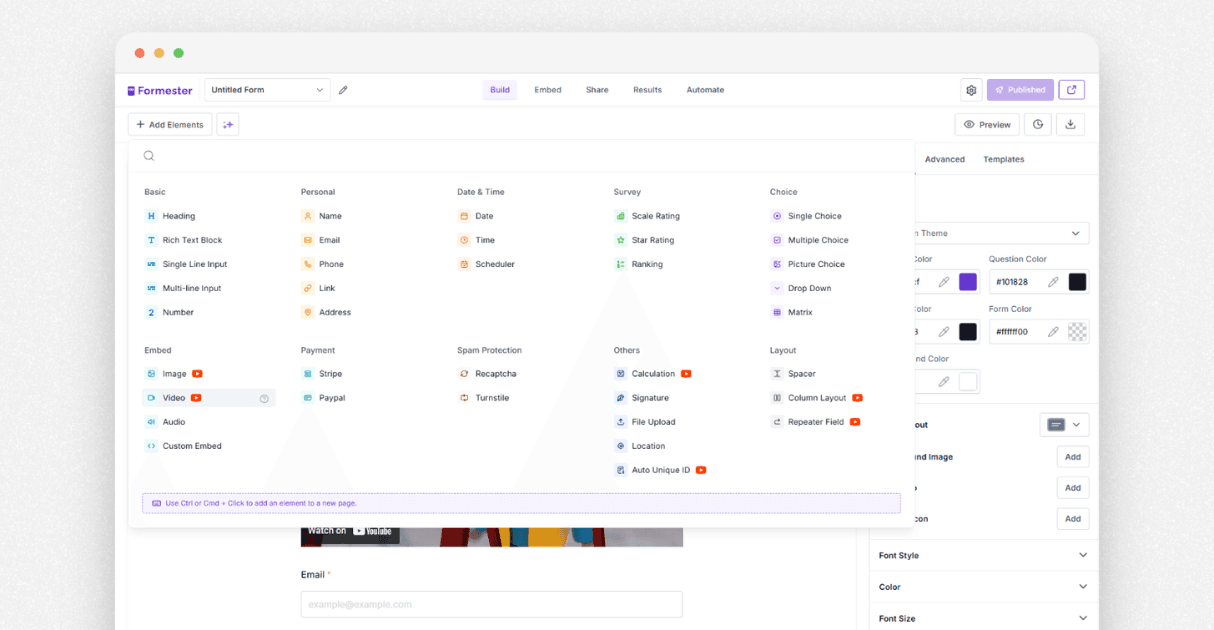 Click add elements. Go to the embed section and choose video. Upload from your device or paste a YouTube share link. The video will appear on the page. Make your lesson video short and clear. This improves trainee attention and understanding.
Step 4. Add an Assessment Page
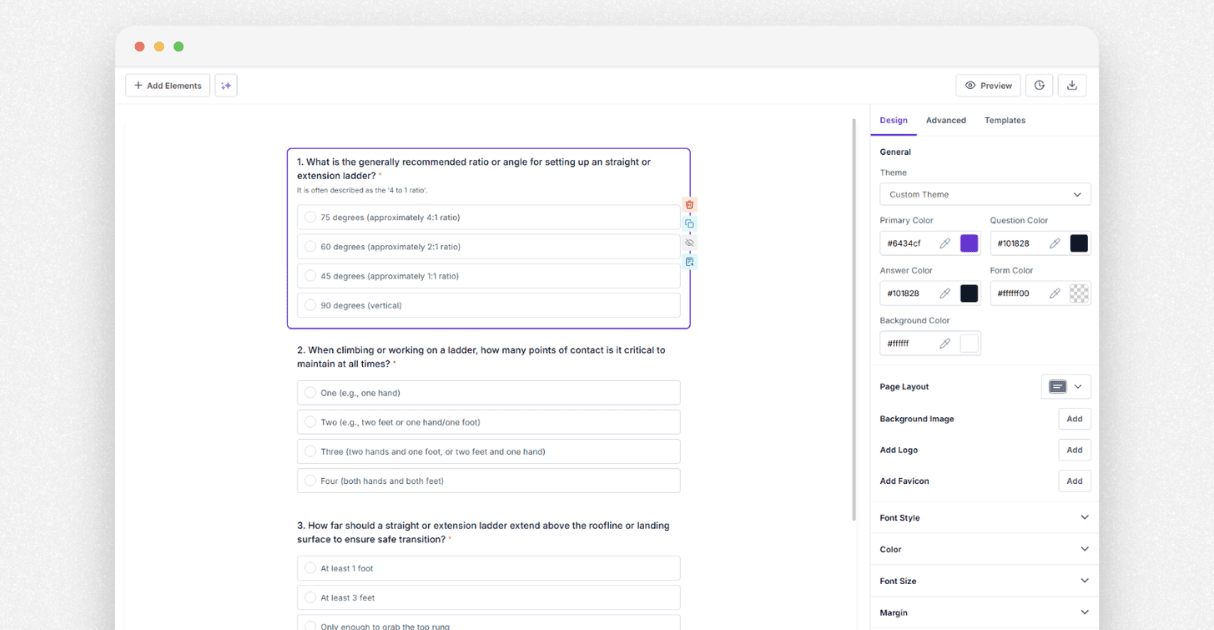
After each lesson, add a quick assessment. This checks if the trainee understood the video. Click add page to create a new blank page. If you already have questions, open the AI editor in the top left corner. Paste your questions into the prompt and click add questions. Formester will place them for you. Keep your questions simple and connected to the lesson. Repeat this process for all lessons. Create a video page, then an assessment page, until your course is complete.
Step 5. Set Up Scoring
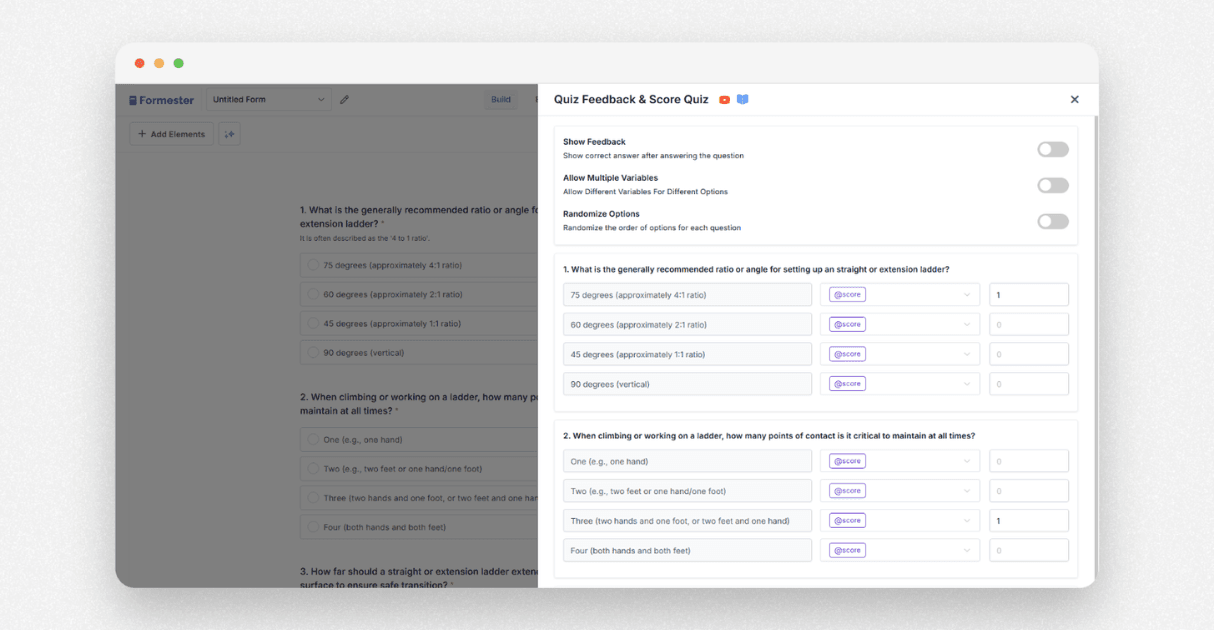
Now set up scoring. This helps you control how trainees move forward. Go to advanced and select score quiz. You will see all the questions and a field called variable. Leave it as score. Set the value of one for each correct answer.
If you want to give feedback after each question, set it here. The scoring system adds structure to your training. It helps you guide trainees based on their performance.
Step 6. Add Rules for Lesson Flow
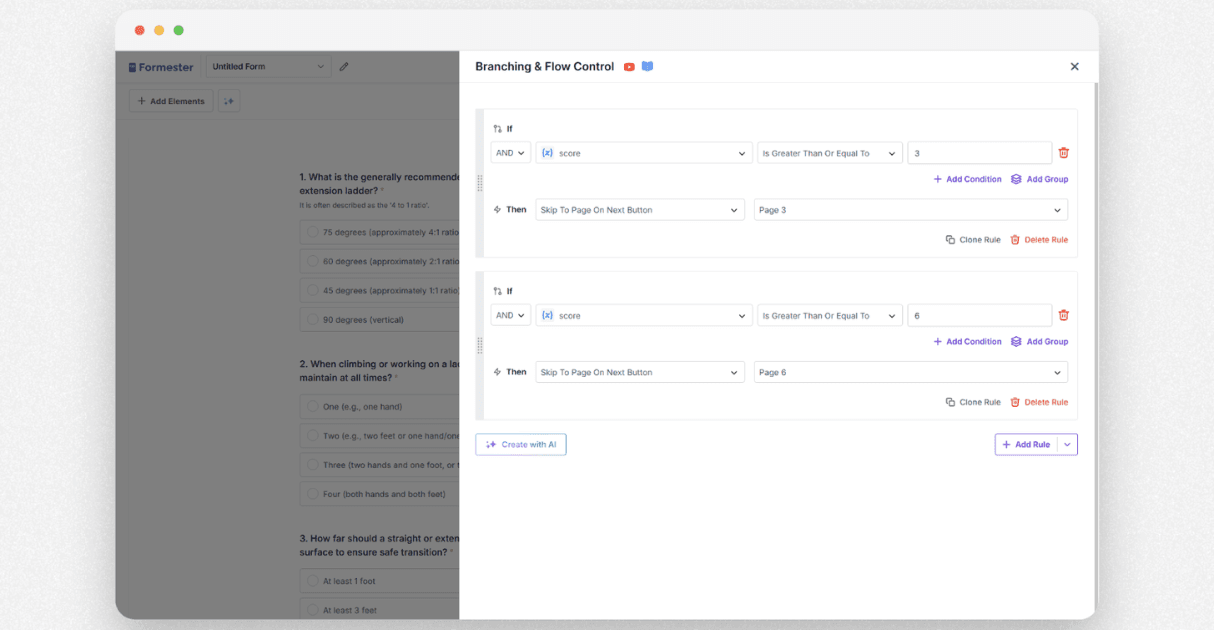
Now add rules that decide what happens next.
Go to advanced and click rules. Click add rule and then add condition.
Set a rule like this: If score is greater than or equal to seven then skip to page on next button and select the page with lesson two.
This means the trainee must score seventy percent or more to move ahead. If they score less, you can redirect them to a page that asks them to review the lesson.
Clone this rule for every lesson. Keep the same score requirement. This creates a clean flow where only trainees who understand the content move to the next lesson.
Step 7. Share Unique Training Links
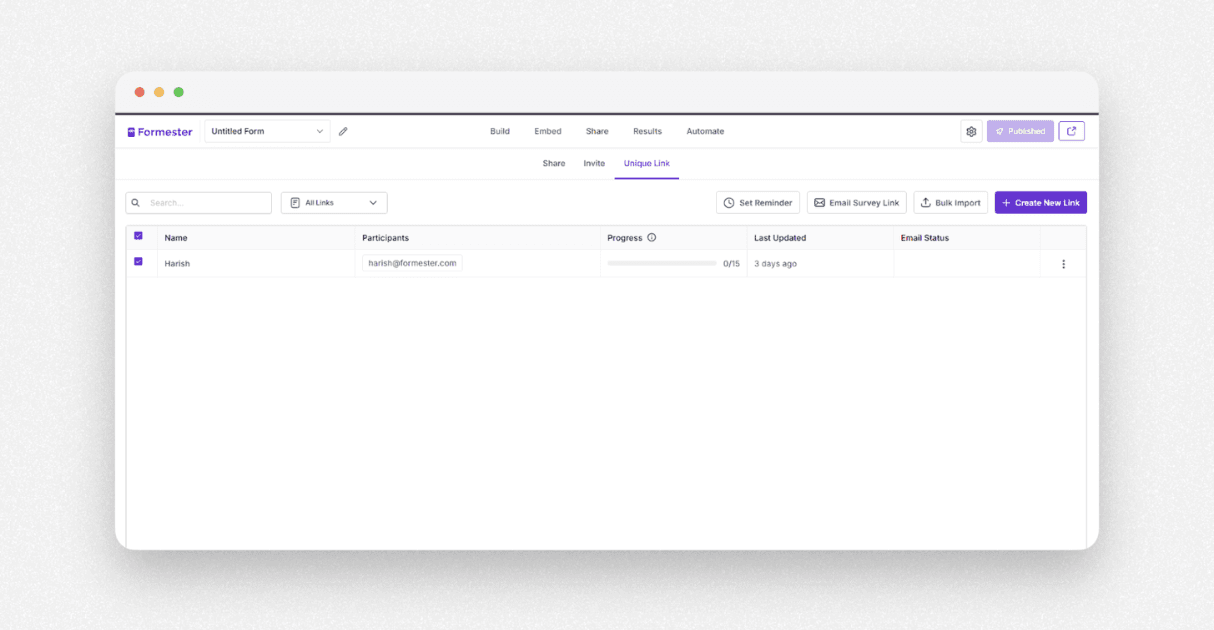
Now share the training with your learners.
Go to the share tab. Open unique link.
Create a new link or bulk import the email addresses you collected earlier. Formester will generate a unique link for each trainee. If you want to see live progress, enable partial submission. This shows you every step a trainee takes inside the course.
Step 8. Track Progress and Send Emails
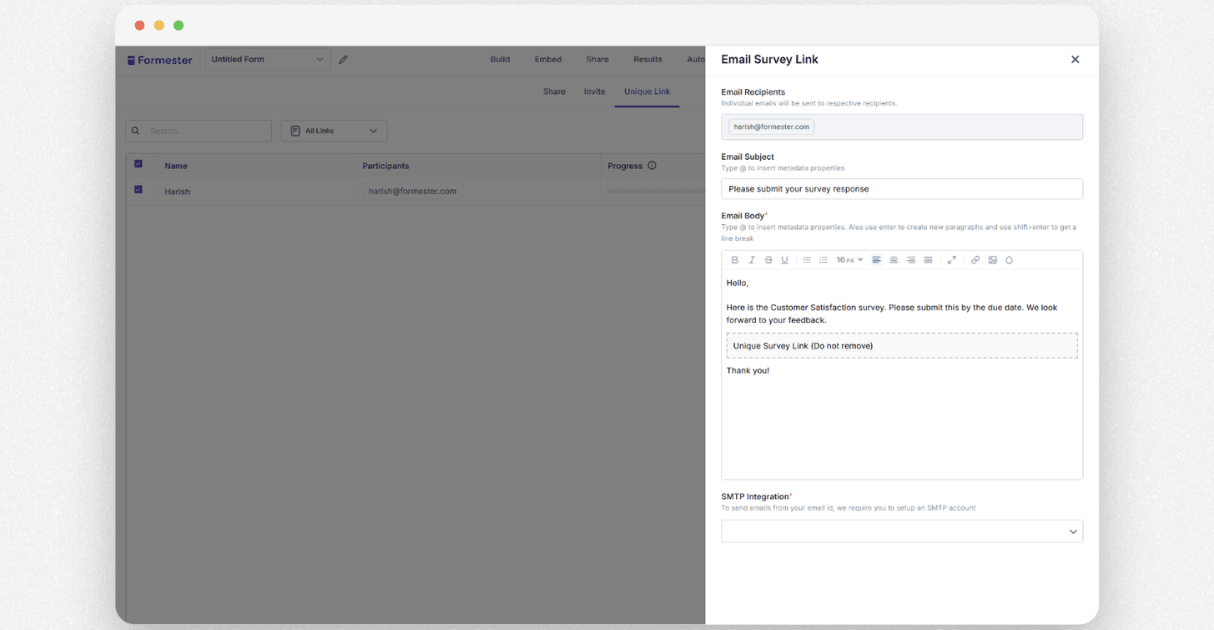 Open the results tab to see trainee progress. You can view every answer, score, and attempt.
After a trainee completes the course, send a final email. You can congratulate them, share next steps, or offer more training. This completes the full training cycle inside Formester.
Conclusion
Formester gives you a simple and powerful system to build video based training. You add lessons, create quizzes, control movement with rules, and track every trainee in real time.
Once you create your first course, you can reuse the structure for future programs. This saves time and gives your team or students a better learning experience.
With Formester, you deliver a clean, guided, and effective training journey from start to finish.