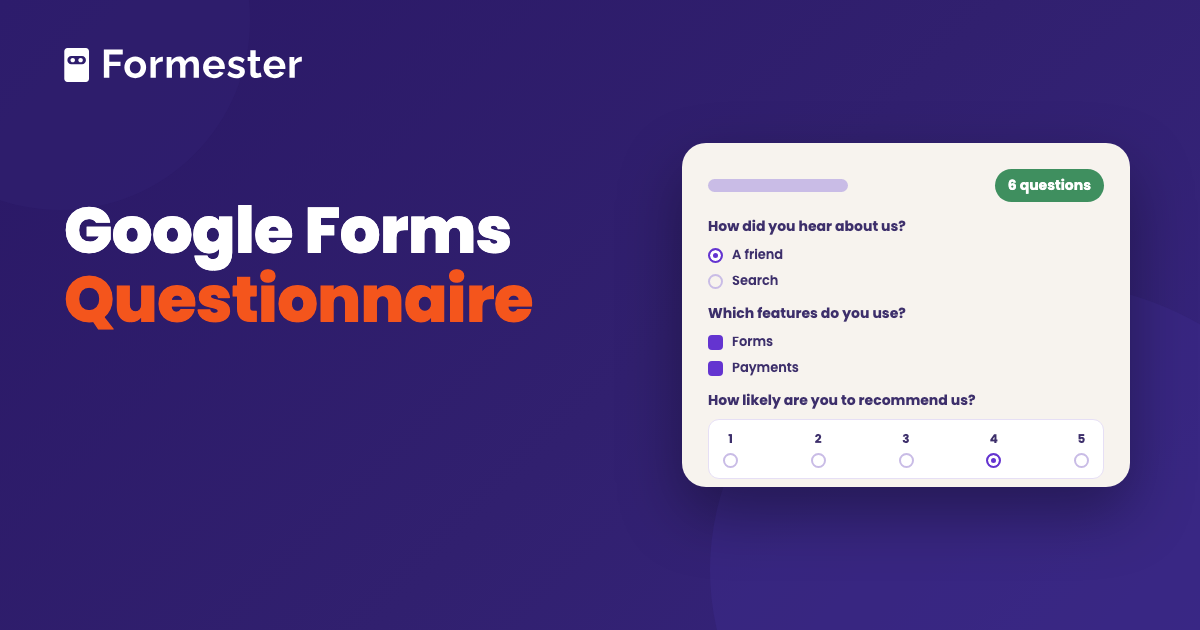
To make a questionnaire in Google Forms, start a blank form, add one question per thing you want to know, and give each question the type that fits its answer, so one pick is Multiple choice, several picks are Checkboxes, a rating is Linear scale and an explanation is Paragraph. Publish, copy the link and the answers collect in the Responses tab.
That is the whole build, and it takes about fifteen minutes for ten questions. A survey is the same thing built for a crowd, so the steps below cover both, with the settings that change when you want honest answers from strangers.
Quick answer
- The six steps: blank form or template, title and description, questions typed to their answers, sections for anything longer than ten questions, settings, then Publish.
- The type rule: one answer takes Multiple choice and several take Checkboxes. A number takes Linear scale and stars take Rating. Several statements on one scale take a Multiple choice grid, and an explanation takes Paragraph.
- Questionnaire or survey: a questionnaire is the set of questions. A survey is a questionnaire sent to a group so you can add up the answers. In Google Forms they are the same form with different settings.
How do you make a questionnaire in Google Forms?
-
Start blank or from a template
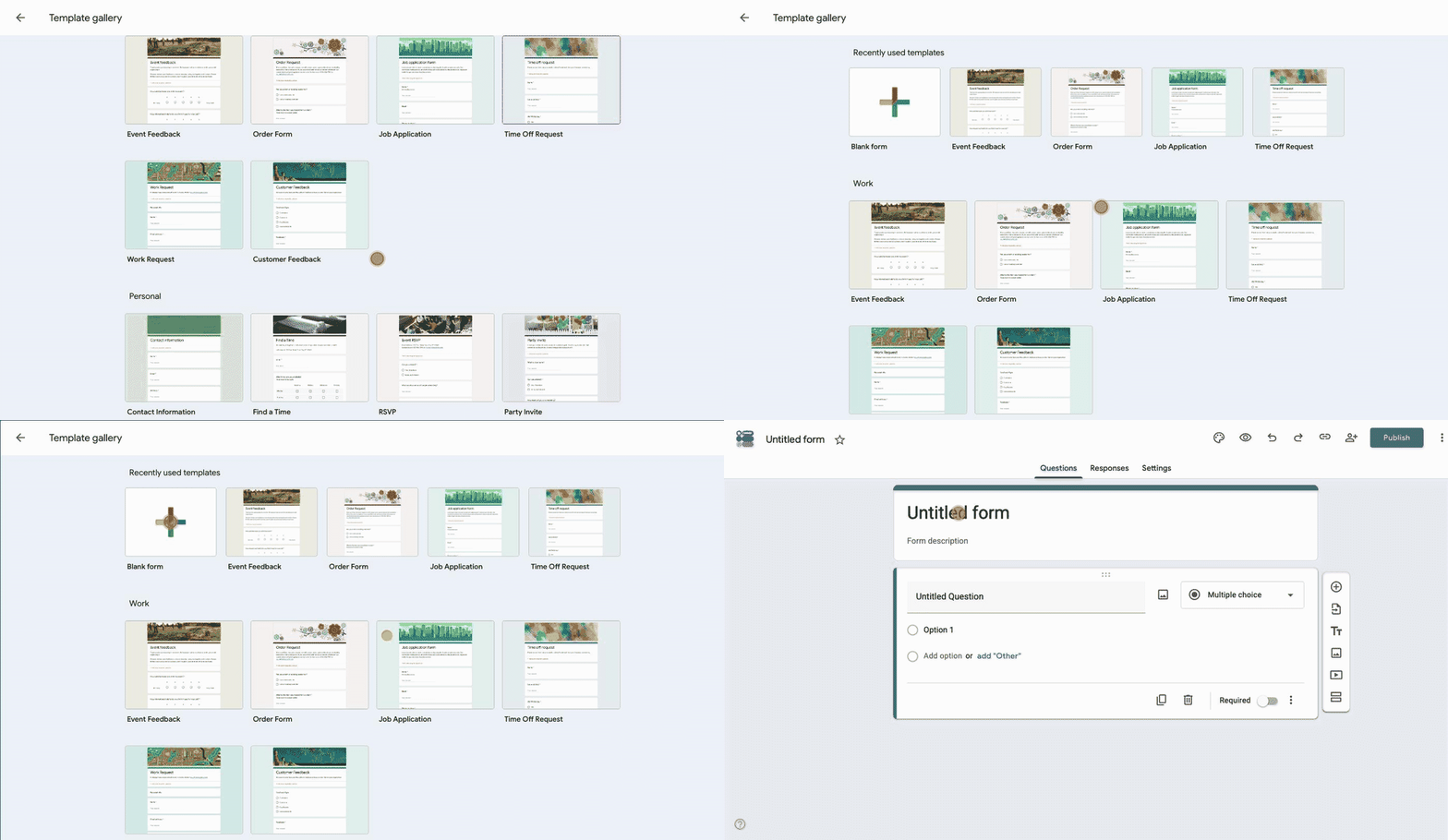
Open forms.google.com. Blank form gives you one empty question. The gallery next to it has feedback and survey templates such as Event Feedback, which are worth opening once to see how Google structures a short one.
-
Write the title and the description
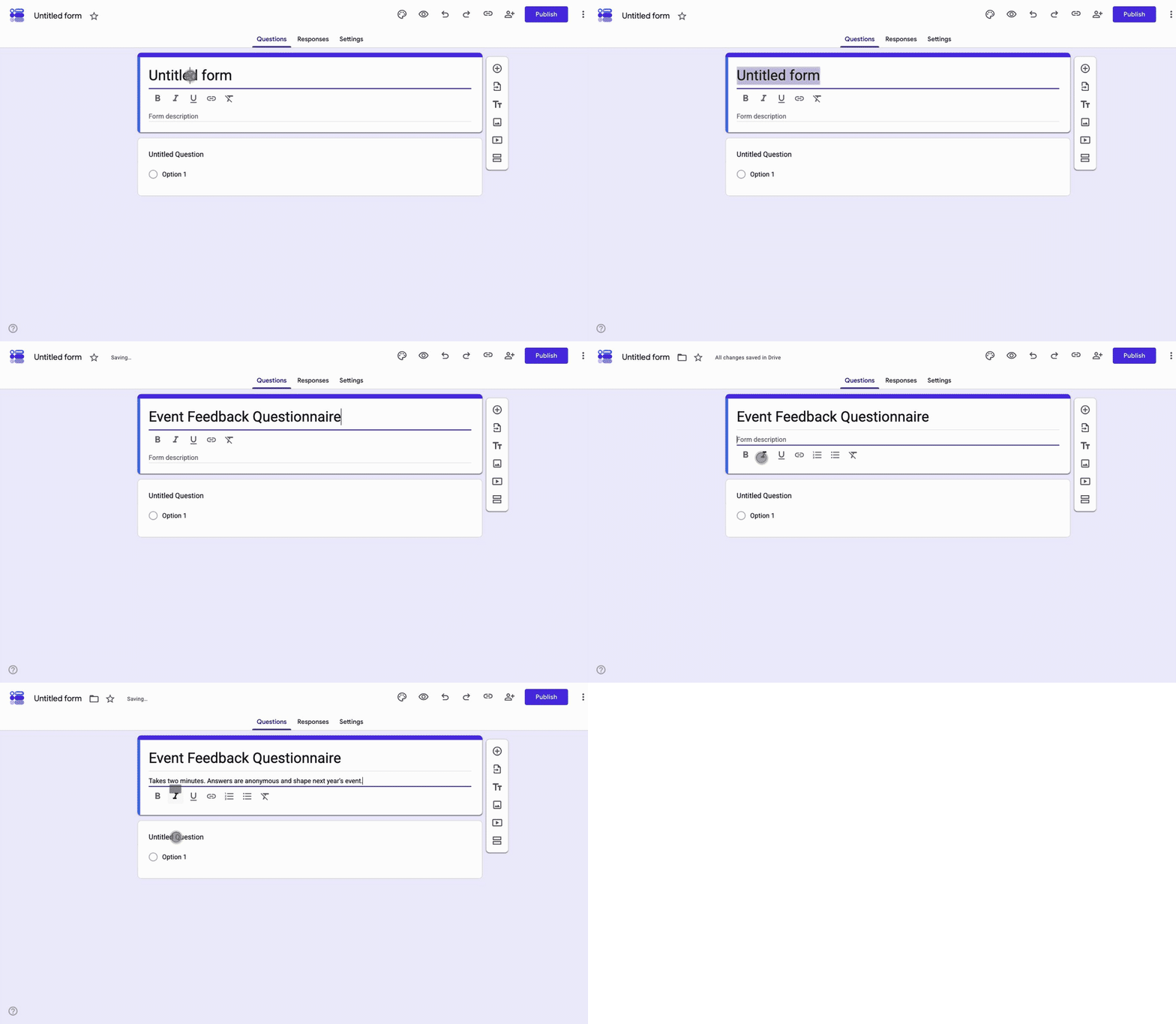
The title says what the questionnaire is for. The description says how long it takes, whether it is anonymous and what happens to the answers. People decide whether to finish in those two lines.
-
Add the questions and type them to the answers
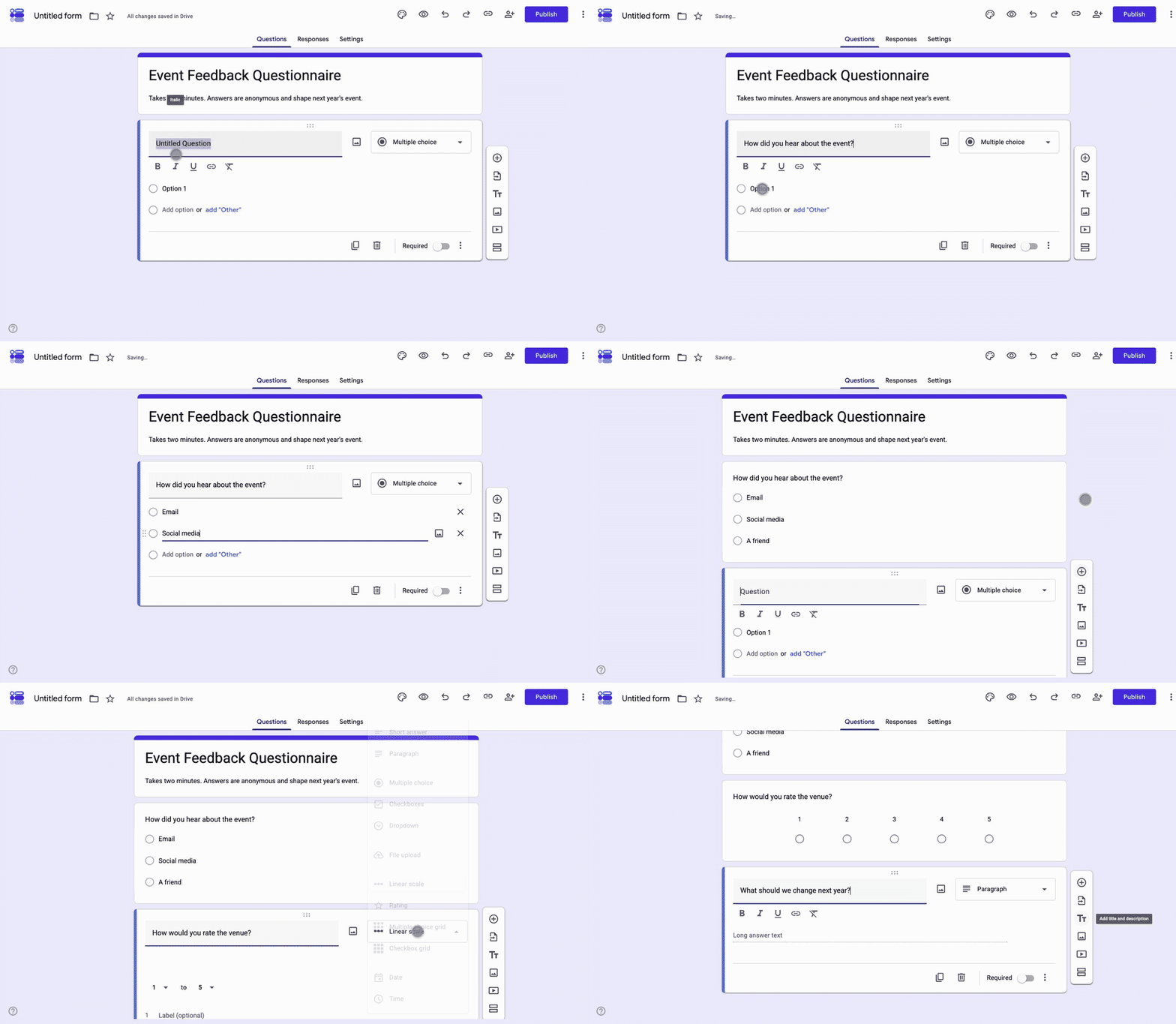
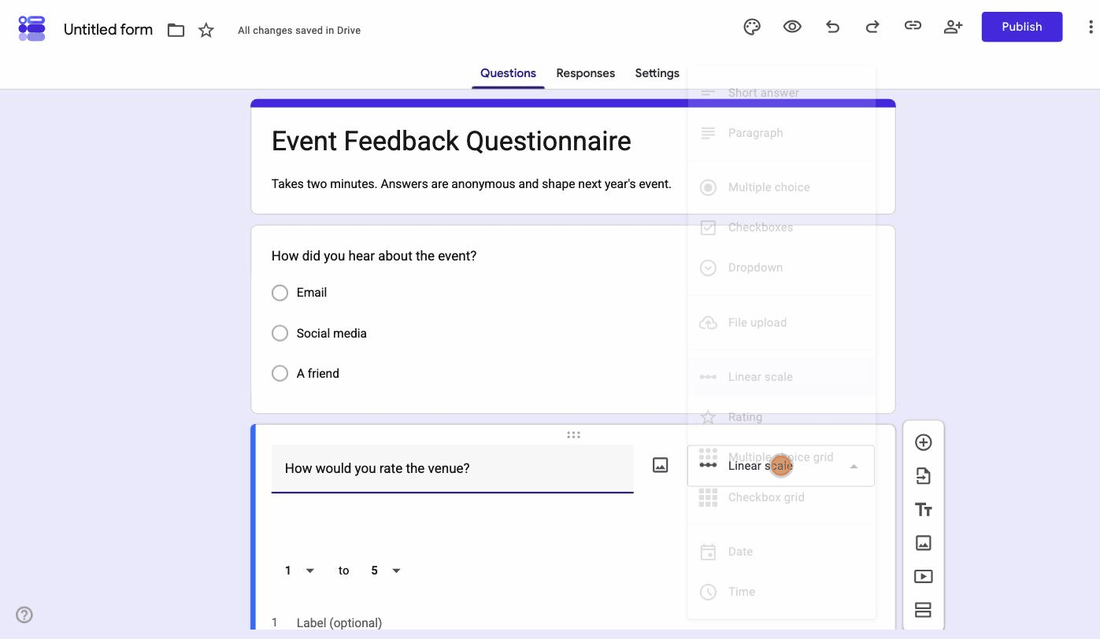
Click the plus icon for each question and pick the type from the dropdown. The type decides what the answer looks like in your results, so choose it for the analysis you want, not for the way the question reads. The table below covers every case.
-
Split it into sections
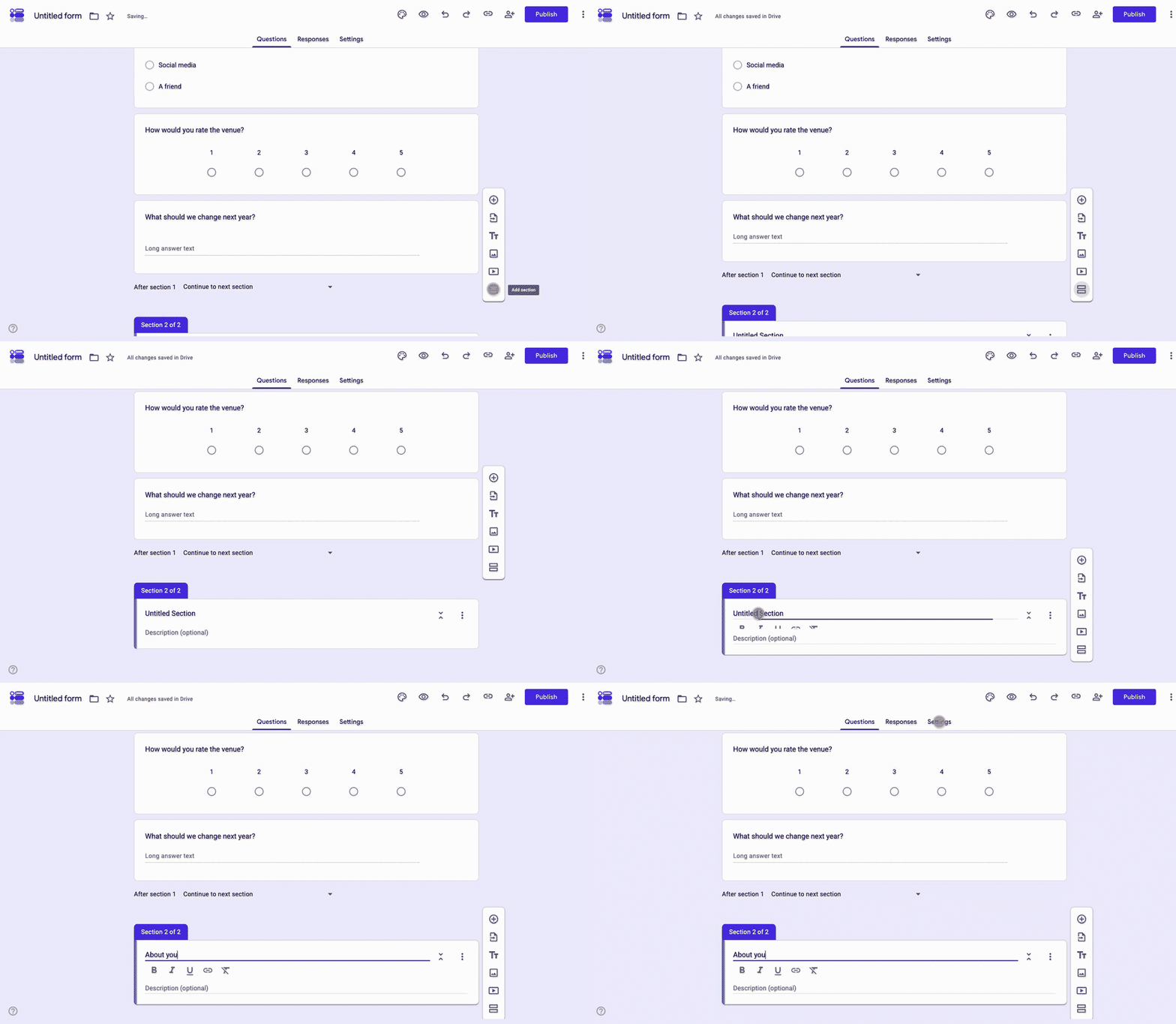
Past ten questions, add a section from the toolbar so the form becomes pages. Sections also let you branch: on a Multiple choice or Dropdown question, Go to section based on answer sends people past questions that do not apply to them.
-
Set who can answer and how
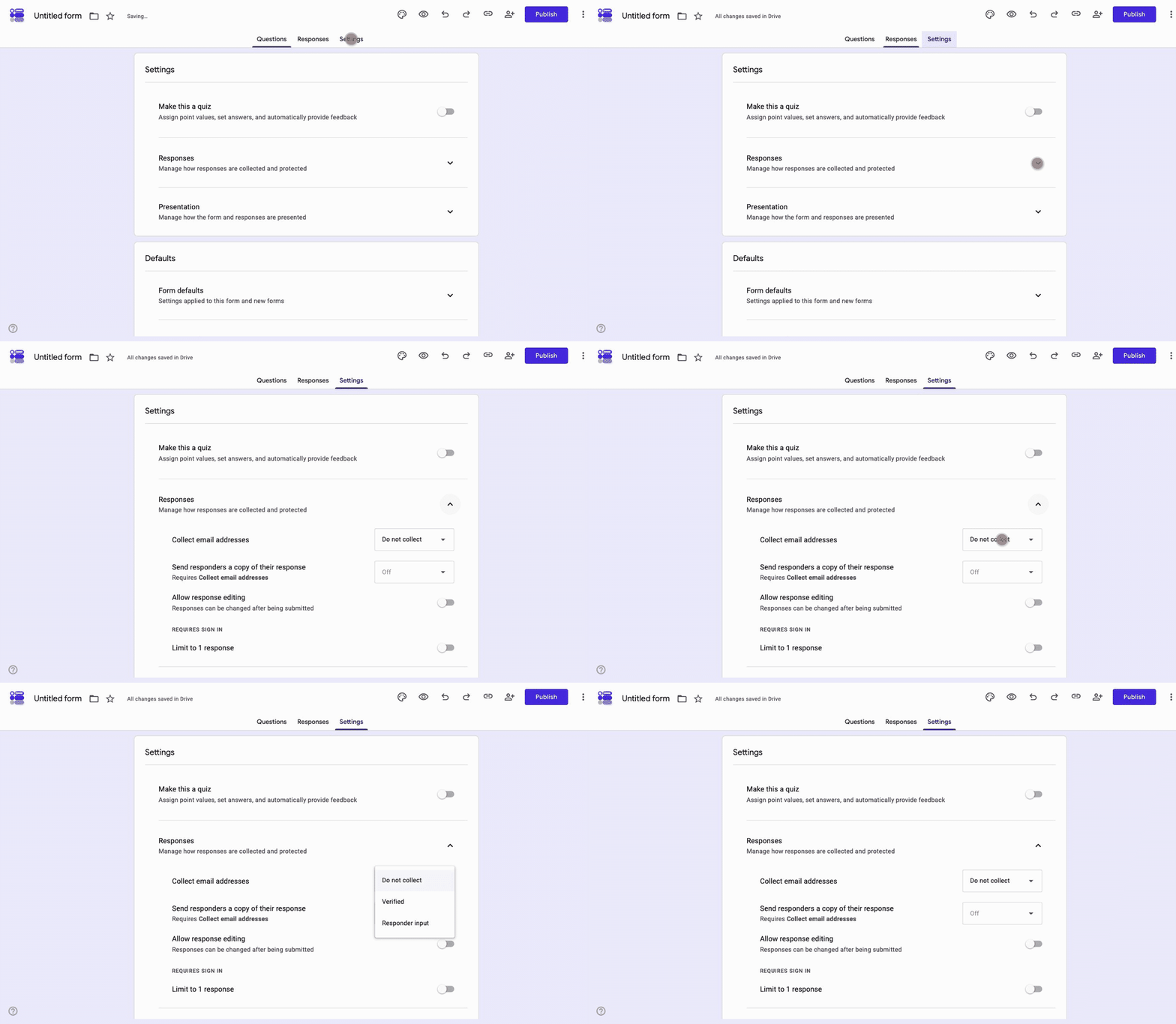
In Settings, leave Collect email addresses off for an anonymous questionnaire. Switch on Limit to 1 response only if you accept that it forces a Google sign-in. Once it is published, Set close date or response limit under the Published button ends the questionnaire on a date or at a number.
-
Preview, publish and share
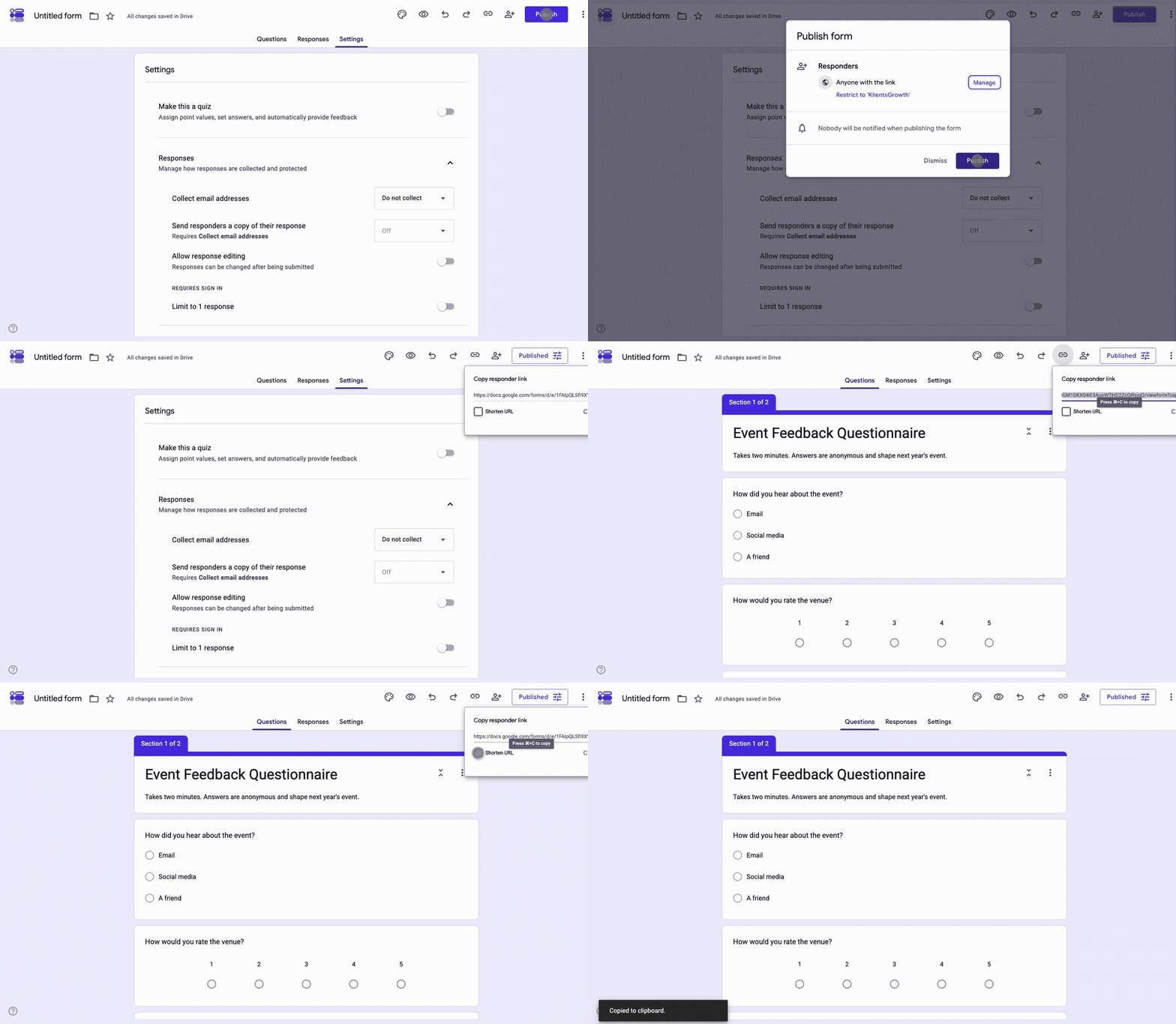
Click the eye icon to answer the questionnaire once yourself on a phone, then Publish. Copy the responder link with Shorten URL ticked. Sharing a Google Form covers email, embedding and the other routes.
Which question type should you use for each answer?
| What you want to learn | Google Forms type | What you get back |
|---|---|---|
| One choice from a list | Multiple choice or Dropdown | A pie chart of picks |
| Everything that applies | Checkboxes | A bar per option |
| A number on a scale | Linear scale (up to 10 points, two end labels) | A bar chart you can average in Sheets |
| A quick star rating | Rating (3 to 10 stars, hearts or thumbs) | A bar chart of levels |
| Agreement with several statements | Multiple choice grid | One row per statement, the Likert pattern |
| A short fact | Short answer, with response validation for numbers or emails | A list |
| An explanation in their words | Paragraph | Text you read one by one |
| A date or a time | Date or Time | Sortable values |
Two mistakes cost the most. A Short answer where a Multiple choice would do gives you fifty spellings of the same thing. And a Linear scale that changes range from question to question gives you numbers you cannot compare. Pick one scale and keep it. The linear scale guide covers the ranges and labels.
How do you make a survey in Google Forms?
The same six steps. What changes is the settings and the discipline, because a survey goes to people who owe you nothing and the answers only mean something when you add them up.
- Keep it anonymous unless you need names: Collect email addresses off, Limit to 1 response off, no name question. Say so in the description.
- Ask fewer questions: five to twelve for feedback, fewer on a phone. Every screen loses people.
- Use closed questions for anything you will count: Multiple choice, Checkboxes and scales. One Paragraph question at the end for the rest.
- Keep every scale the same: 1 to 5 everywhere, or 0 to 10 for a Net Promoter Score question and nothing else.
- Close it on a date: Set close date or response limit, so the results are a fixed set rather than a moving one.
The Event Feedback template in the gallery is a reasonable survey skeleton: a scale, a couple of choices, one open question. Start there if the blank page is the problem.
Questionnaire, survey or form: which do you need?
| Questionnaire | Survey | Form | |
|---|---|---|---|
| What it is | A set of questions one person answers | A questionnaire sent to many people | Fields that collect details for a task |
| What you do with the answers | Read each one | Count and compare them | Act on each one |
| Typical example | Intake, screening, an application | Satisfaction, research, feedback | Registration, order, request |
| Name on it | Usually | Usually not | Always |
In Google Forms all three are the same builder. The words matter for what you switch on: names and one response per person for a questionnaire or a form, anonymity and a close date for a survey.
How do you read the answers?
The Responses tab shows three views. Summary charts every question. Question walks through one question at a time. Individual shows one person's whole questionnaire. For anything beyond a glance, click Link to Sheets and every response becomes a row in a spreadsheet you can filter, average and chart.
Google Forms does not average a scale, cross one question against another or export a report. The pie chart guide covers what the Responses tab draws, and the spreadsheet covers everything else.
What Google Forms cannot do for a questionnaire
- Branch on a scale: Go to section based on answer works on Multiple choice and Dropdown questions only.
- Reuse an answer later: there is no way to show someone's earlier answer inside a later question.
- Score without a quiz: points only exist in quiz mode, and only for questions with a right answer.
- Go past 10 on a scale: the Linear scale stops at 10 and labels only its two ends.
- Look like yours: a header image, a theme colour and Google's fonts, with the Google Forms footer on every page.
Where Formester fits
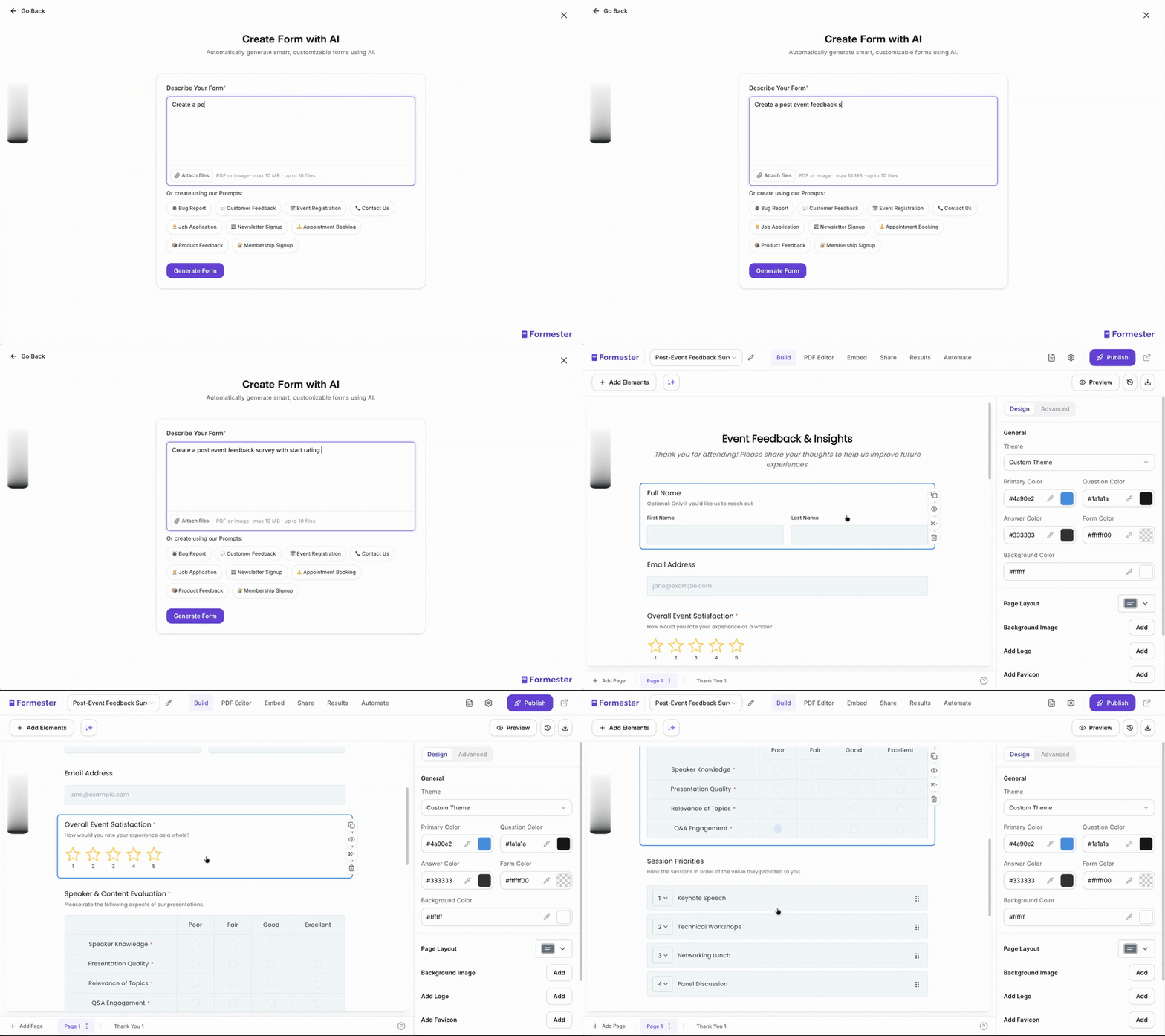
Describe the questionnaire instead of building it. The questionnaire maker takes a sentence, a pasted list of questions or a PDF and writes the form, with the answer types chosen for you and rating scales where they belong. Every question arrives as a suggestion you can edit.
The results side does what the spreadsheet does in Google Forms: completion rate, drop-off by page, a summary per question and a CSV export. Branching works on rating fields as well as choices, and the form carries your logo rather than a footer.
For a survey specifically, the AI survey generator starts from the established formats, so a satisfaction or NPS survey comes out with the standard questions and scales already in place.
A questionnaire the AI writes for you
Describe who you are asking and what you want to learn. The questions, the answer types and the scales arrive built.
Try Formester freeFree forever · No credit card · 56,000+ teams
Related reading
- Survey questions worth asking, for the wording of the questions themselves.
- How to make a Google Form anonymous, for the settings that decide whether answers are honest.
- Conditional questions in Google Forms, for the branching in step four.
- Sections in Google Forms, for splitting a long questionnaire into pages.
- How to make an NPS survey, for the one scale question with its own rules.
- How to use Google Forms, for the parts of the builder this page assumes.