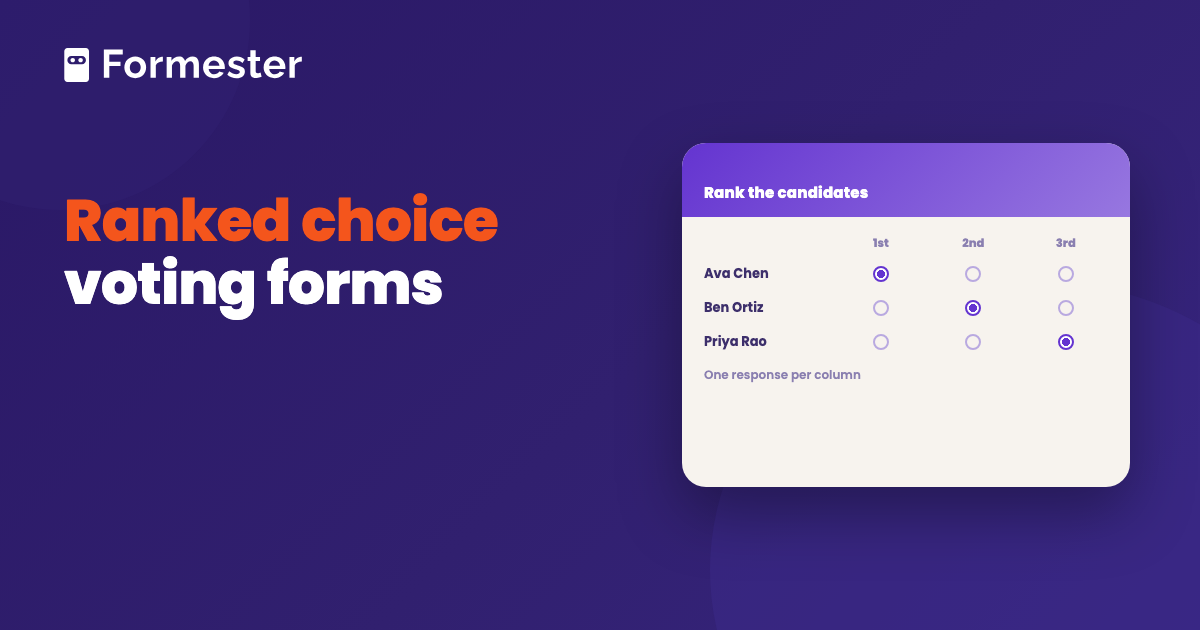
Google Forms has no ranking question. A Google Forms ranked choice vote uses a multiple choice grid instead, with the candidates as rows and the ranks as columns, and two settings that keep each ballot valid. The counting happens in Google Sheets. The worked example below walks a four-candidate vote through every round.
Quick answer
- You want a ranking question: Google Forms does not have one. Use a multiple choice grid with candidates as rows and ranks as columns. Turn on Limit to one response per column and Require a response in each row.
- You want to run a ranked choice vote: collect the grid responses and link them to Google Sheets. Count the rounds there. The worked example below shows every round.
- You have more than about fifty ballots: counting by hand gets slow and error-prone. Use a counting tool such as RankedVote, or a form builder with a real ranking field.
Does Google Forms have a ranking question?
No. Google's list of question types has no ranking type. The Rating question, which is newer, asks for a score with stars or hearts. Two candidates can get the same score, so it cannot produce an order.
The workaround is the multiple choice grid. Each row is a candidate and each column is a rank, so a voter marks one cell per row. The grid has a rule that limits each column to one response. With it on, every rank gets used once and the result is a ranking. It is less pleasant to fill in than a drag-and-drop field, but it collects the same information.
How does ranked choice voting work?
Ranked choice voting lets people rank the candidates instead of picking one. The count runs in rounds until one candidate has more than half of the votes still in play.
- Count everyone's first choice. If a candidate has more than half, they win and the count stops.
- If nobody has more than half, remove the candidate with the fewest first-choice votes.
- Give each of that candidate's ballots to the voter's next choice who is still in the race.
- Count again, and repeat until someone passes half.
A candidate can lead the first round and still lose once other candidates' votes move. That is the point of the system. The winner is the candidate most voters can accept, not the one with the biggest first-round group.
How do you make a Google Forms ranked choice ballot?
Set the candidate list before you share the form. Adding a candidate after some people have voted makes their ballots incomplete, and you cannot fix that afterwards.
-
Create the form and explain the rules
Open a new form at forms.google.com and give it a title. In the description, tell voters to rank every candidate once and not to skip any rank.
-
Add a multiple choice grid
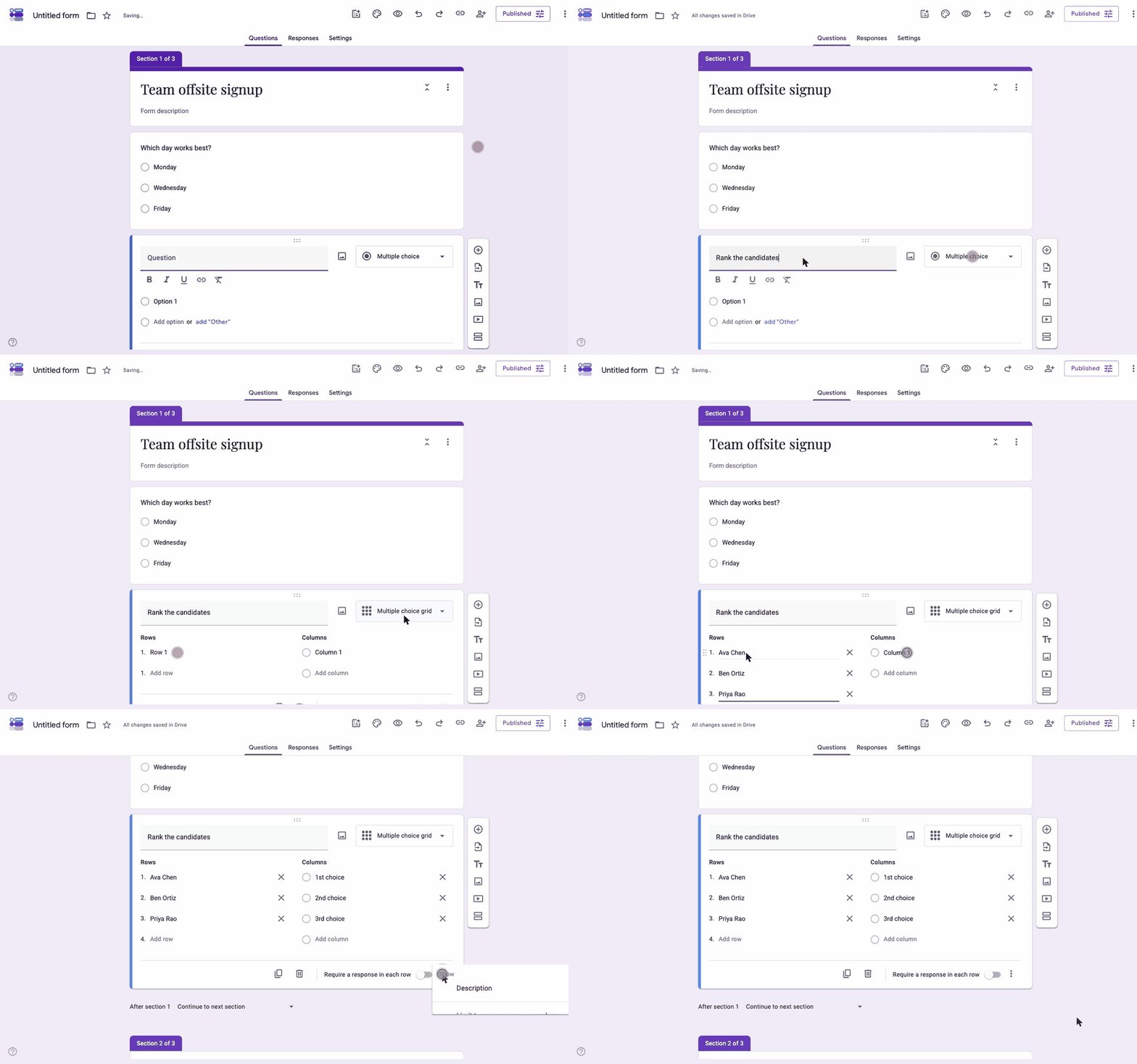
Click Add question and change the type to Multiple choice grid. Type one candidate per row. Type one rank per column, starting with 1st choice, with as many columns as there are candidates.
-
Turn on the two grid rules
Switch on Required, which on a grid becomes Require a response in each row, so every candidate gets a rank. Then open the three-dot menu at the bottom right of the question and turn on Limit to one response per column. Without it, a voter can mark two candidates as their first choice and the ballot cannot be counted.
-
Decide whether voters sign in
Open Settings and expand Responses. Turn on Limit to 1 response for a team vote where one ballot per person matters. It requires a Google sign-in. Leave it off for an anonymous vote, and accept that the same person could submit twice.
-
Publish and share the responder link
Click Publish, then copy the responder link and send it out. A QR code works well for an in-person vote.
If the grid looks cramped, you can ask one multiple choice question per rank instead, with the candidates as the options. It is easier to read on a phone. Nothing stops a voter picking the same candidate for first and second choice in that layout, so you check for duplicates in the spreadsheet before you count.
What do the ballots look like to voters and in the spreadsheet?
Voters see a table with one row per candidate and one radio button per rank. Once they pick 1st choice for one candidate, that column is unavailable for the others, which is what stops duplicate ranks.
In the linked spreadsheet, Google turns each grid row into its own column. The header reads like the question followed by the candidate's name in square brackets, and each cell holds the rank the voter gave that candidate, such as 2nd choice. One spreadsheet row is one ballot.
How do you count ranked choice votes in Google Sheets?
The example below has 18 ballots and four candidates named Alex, Bo, Casey and Devi. If the responses are not in a sheet yet, link the form to Google Sheets first. Then make a copy of the response sheet, so the original stays untouched.
-
Work out the threshold
The threshold is more than half of the ballots. With 18 ballots, a candidate needs 10.
-
Count the first choices
On a new tab, count how many ballots gave each candidate 1st choice. With Alex's column in B on the response tab, the formula is
=COUNTIF('Form Responses 1'!B:B, "1st choice"). Repeat the formula for each candidate's column.Candidate Round 1 Alex 7 Bo 5 Casey 4 Devi 2 Nobody has 10, so Devi, with the fewest, is out.
-
Move the eliminated candidate's ballots
Find the two ballots that ranked Devi first and look at their 2nd choice. Say one went to Bo and one to Casey. Add them to those candidates.
Candidate Round 2 Alex 7 Bo 6 Casey 5 Devi out Still nobody reaches 10 votes. Casey is now the lowest and is out.
-
Repeat until someone passes the threshold
Take Casey's five ballots and move each one to its highest-ranked candidate still in the race. A ballot that ranked Devi second skips Devi, because Devi is already out. Say three go to Alex and two to Bo.
Candidate Round 3 Alex 10 Bo 8 Casey out Devi out Alex reaches 10 and wins.
Ties and exhausted ballots
Two candidates can tie for last place in a round. Decide the tie rule before the vote opens and write it in the form description. Common rules are to eliminate the one with fewer votes in the previous round, or to draw lots.
A ballot that only ranked candidates who are now out has nowhere to go. It is called an exhausted ballot and it drops out of later rounds. Requiring a response in each row avoids this, because every ballot then ranks every candidate.
Which tools count ranked choice votes for you?
Counting by hand is fine for a team vote with a few dozen ballots. Past that, each round is another chance to miscount, and a recount means starting over.
- RankedVote for Google Sheets is a Chrome extension that runs the rounds on a linked response sheet and shows the result per round.
- RCV123 has a free web calculator for Google Forms grid responses. You download the response sheet as an .xlsx file and upload it, or paste a public link to the sheet, and it runs the eliminations for you.
Both expect the grid layout from this guide, with one column per candidate and the rank as the cell value.
Which mistakes break a ranked choice count?
- Leaving Limit to one response per column off. Ballots with two first choices cannot be counted. Turn it on before anyone votes.
- Adding a candidate after voting starts. Earlier ballots never saw that candidate. Lock the candidate list before you send the ballot.
- Not stating the threshold. Without the more-than-half rule, people expect the round-one leader to win. Put the rule in the form description.
- Deciding the tie rule after a tie happens. Whatever you pick then looks like favoritism. Decide it before the vote.
Ranked choice voting with a real ranking field
Formester has a Ranking question, so voters put the candidates in order and each position is used exactly once. There is no column rule to remember and no duplicate ranks to clean up. The poll maker can also make the vote anonymous and cap the number of responses. It can close the poll on a date, and voters never need to sign in.
The count is still yours to do. Formester's summary analytics break a ranking question down like a poll result, so you can see which candidates are most popular. The round-by-round elimination still happens in a spreadsheet, the same as with Google Forms.
Run the vote with a ranking question
Voters put the candidates in order, each position used once. Keep it anonymous and cap the responses. Close it on a date. Voters never need to sign in. Free plan with unlimited forms and responses.
Try Formester freeFree forever · No credit card · 56,000+ teams
Related reading
- Make a poll on Google Forms, for a plain one-choice vote when ranking is more than you need.
- Make a Google Form anonymous, for the email and sign-in settings behind an anonymous ballot.
- Link Google Sheets to Google Forms, if the response sheet is not showing up.
- Best poll makers, for tools with a ranking question built in.