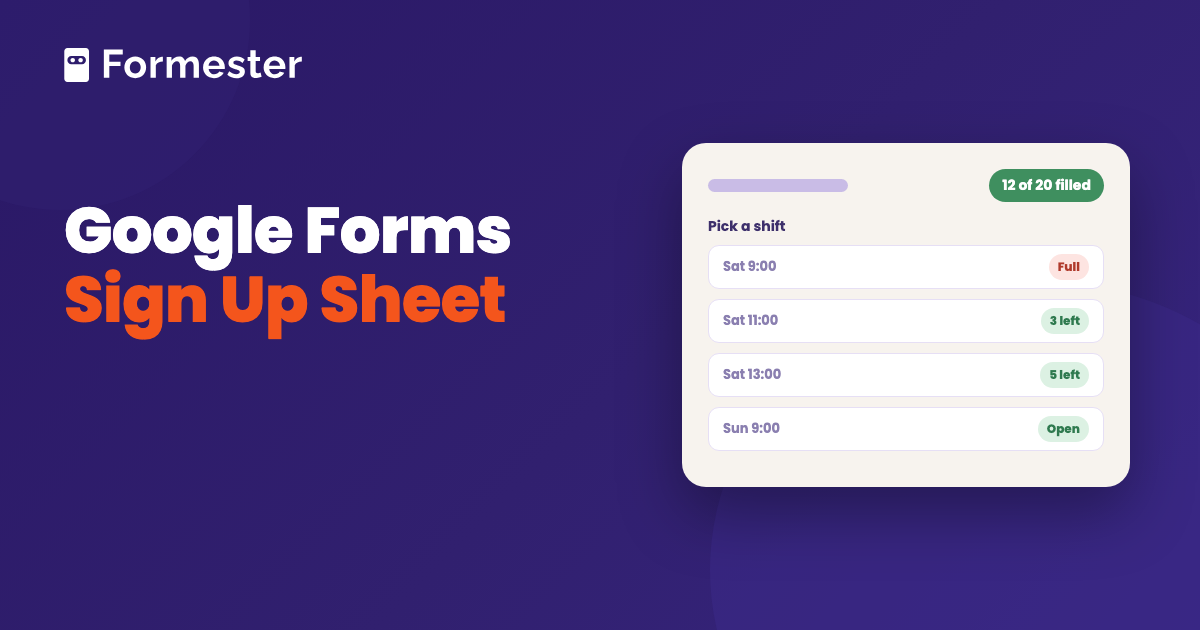
A sign up sheet in Google Forms is a form with three questions: a name, an email address and the slot the person is signing up for. Build it in about ten minutes, publish it and share the link. Google Forms now closes the form by itself once it has the number of responses you set, which is new this year.
The one thing it still cannot do is cap a single slot. When the 9:00 shift is full, the 9:00 option stays on the list. This page covers the build, the cap and the three ways around that limit.
Quick answer
- Build it: Blank form, a Short answer for the name, Collect email addresses in Settings, then a Dropdown or Multiple choice question with one option per slot. Publish and copy the responder link.
- Cap the total: after publishing, open the Published button's options and click Set close date or response limit. The form closes on its own at the number you type or on the date, and shows a message you write.
- Cap a slot: Google Forms cannot. Use one form per slot, a Marketplace add-on that hides full options, or a form builder with a limiter built in.
How do you make a sign up sheet in Google Forms?
-
Start a blank form and name it
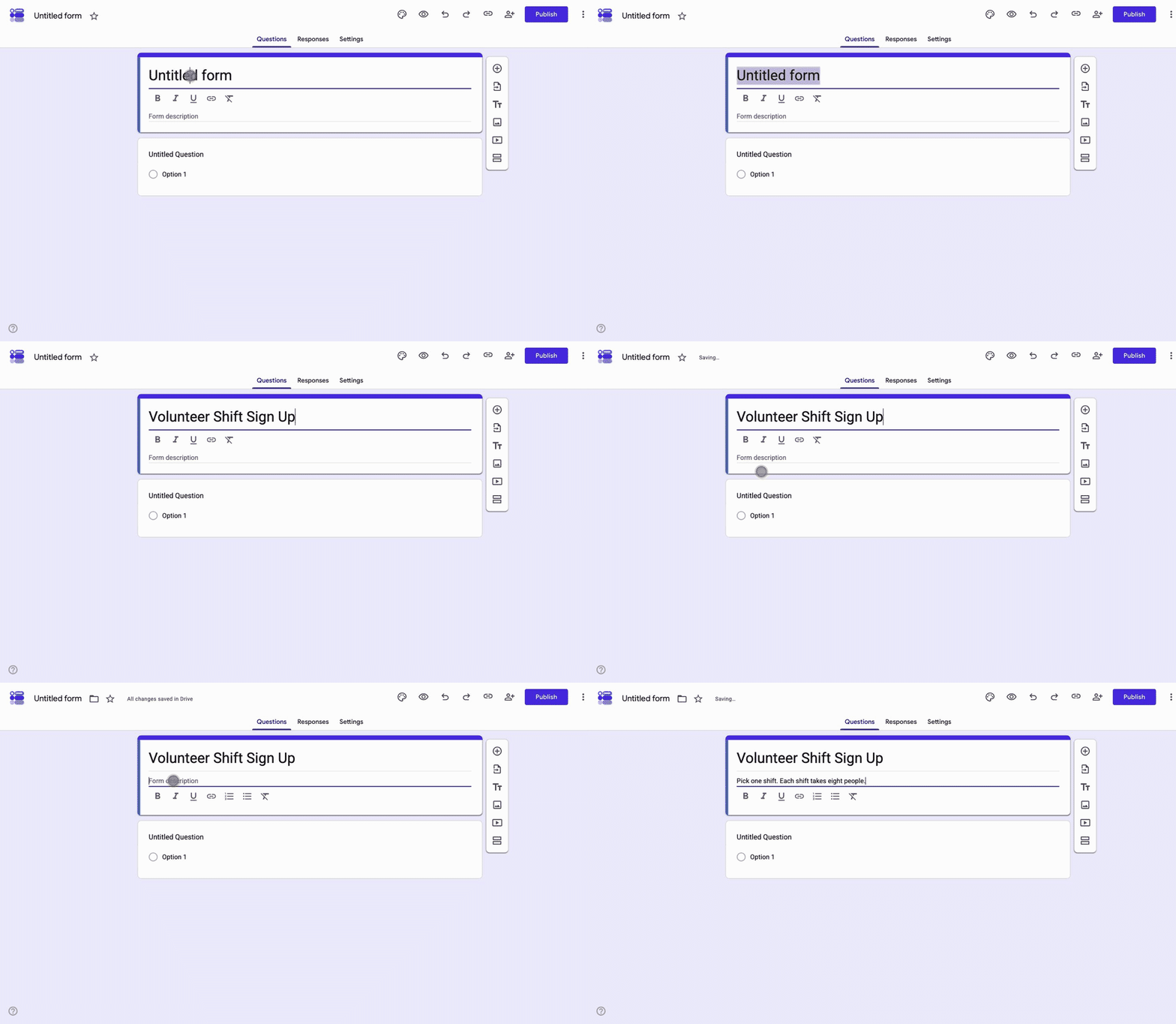
Open forms.google.com and click Blank form. Put what people are signing up for in the title and the rules in the description: how many places, whether they can pick more than one, and when the sheet closes.
-
Ask for a name
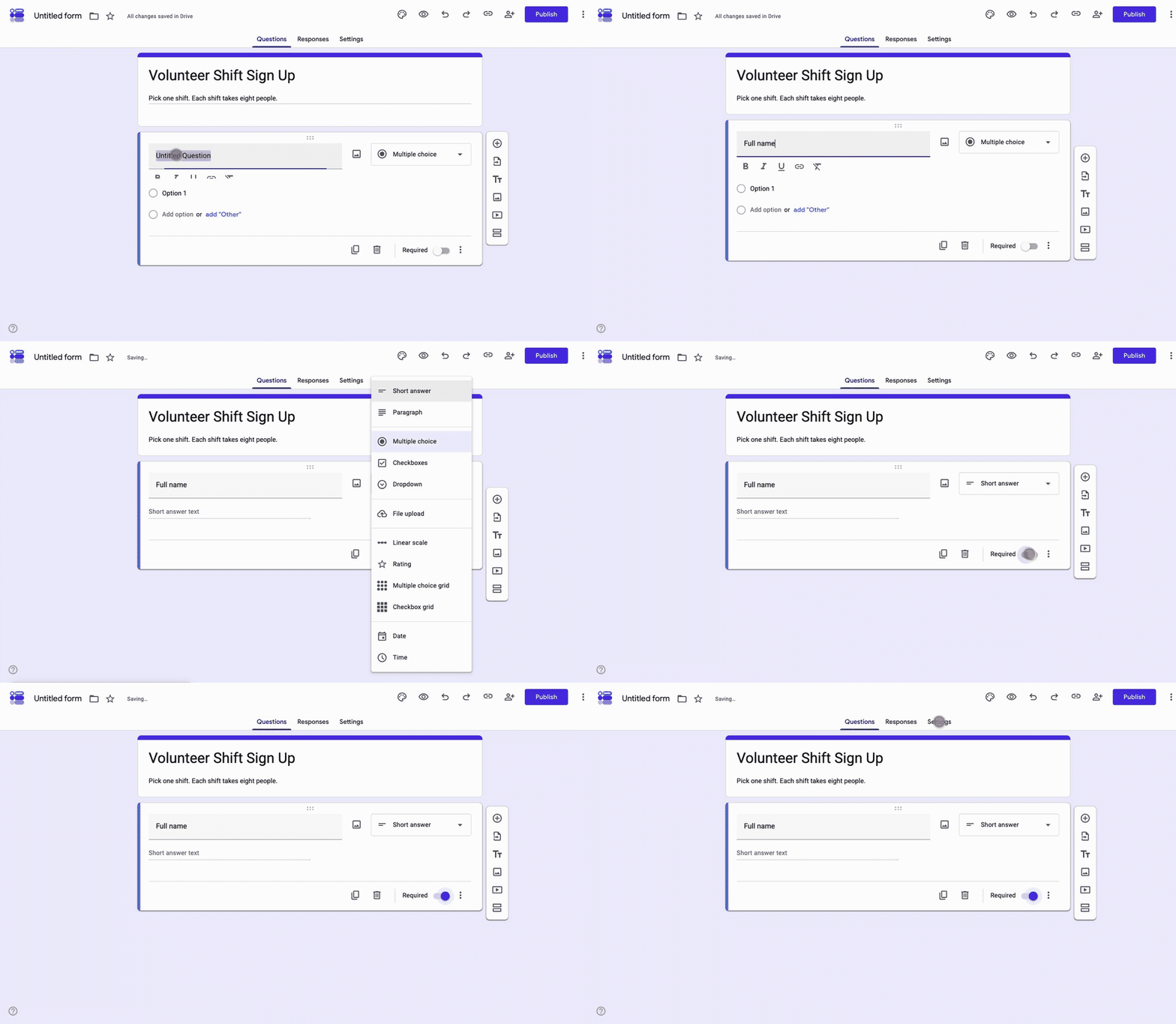
Click the first question, type Full name and change the type to Short answer. Switch on Required. A sign up sheet without a required name fills with entries you cannot use.
-
Collect the email address in Settings
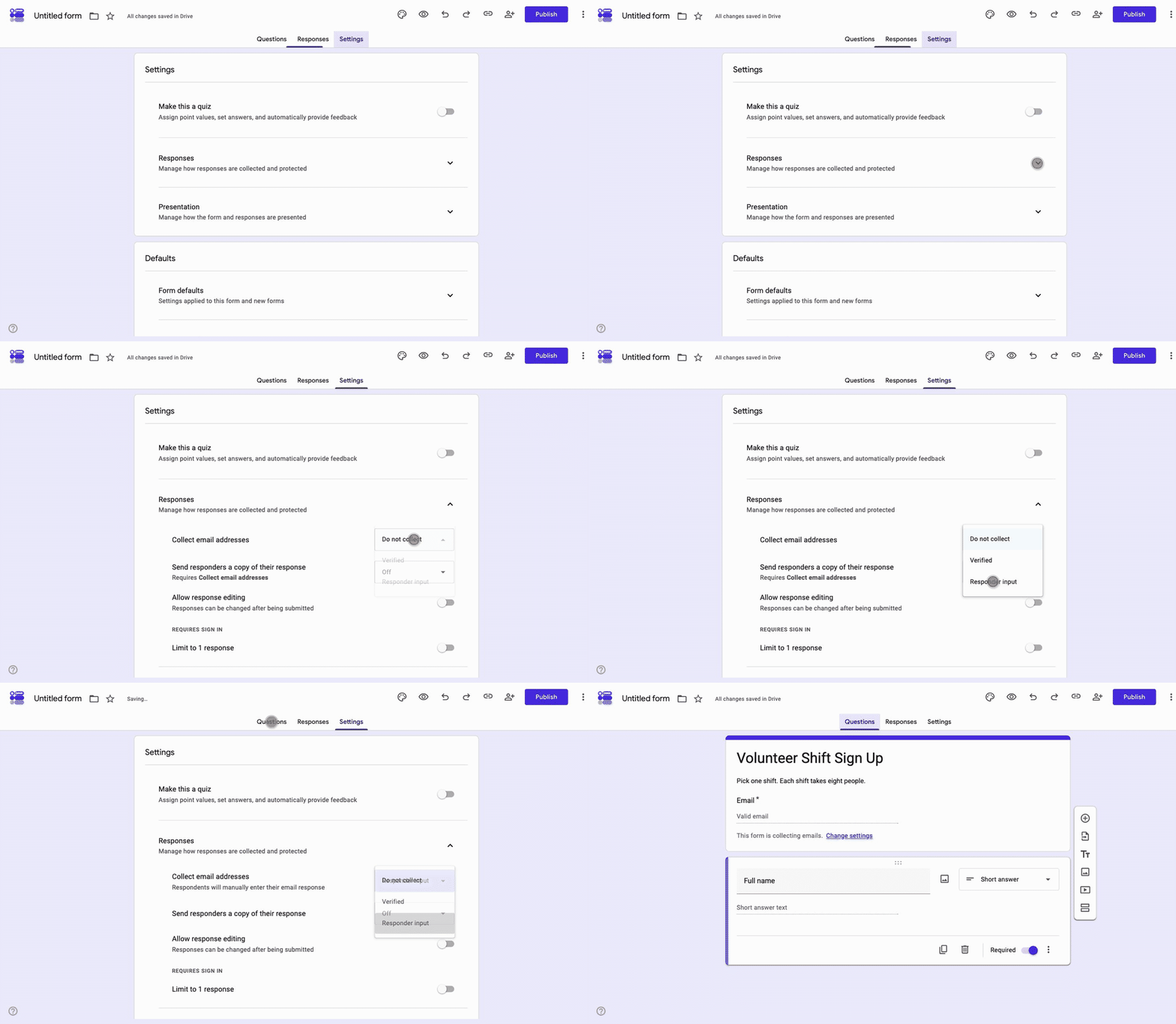
Open the Settings tab and set Collect email addresses to Verified or Responder input. Verified takes the address from the signed-in Google account and needs a sign-in; Responder input lets anyone type one. Pick Responder input for a public sheet.
-
Add the slot question
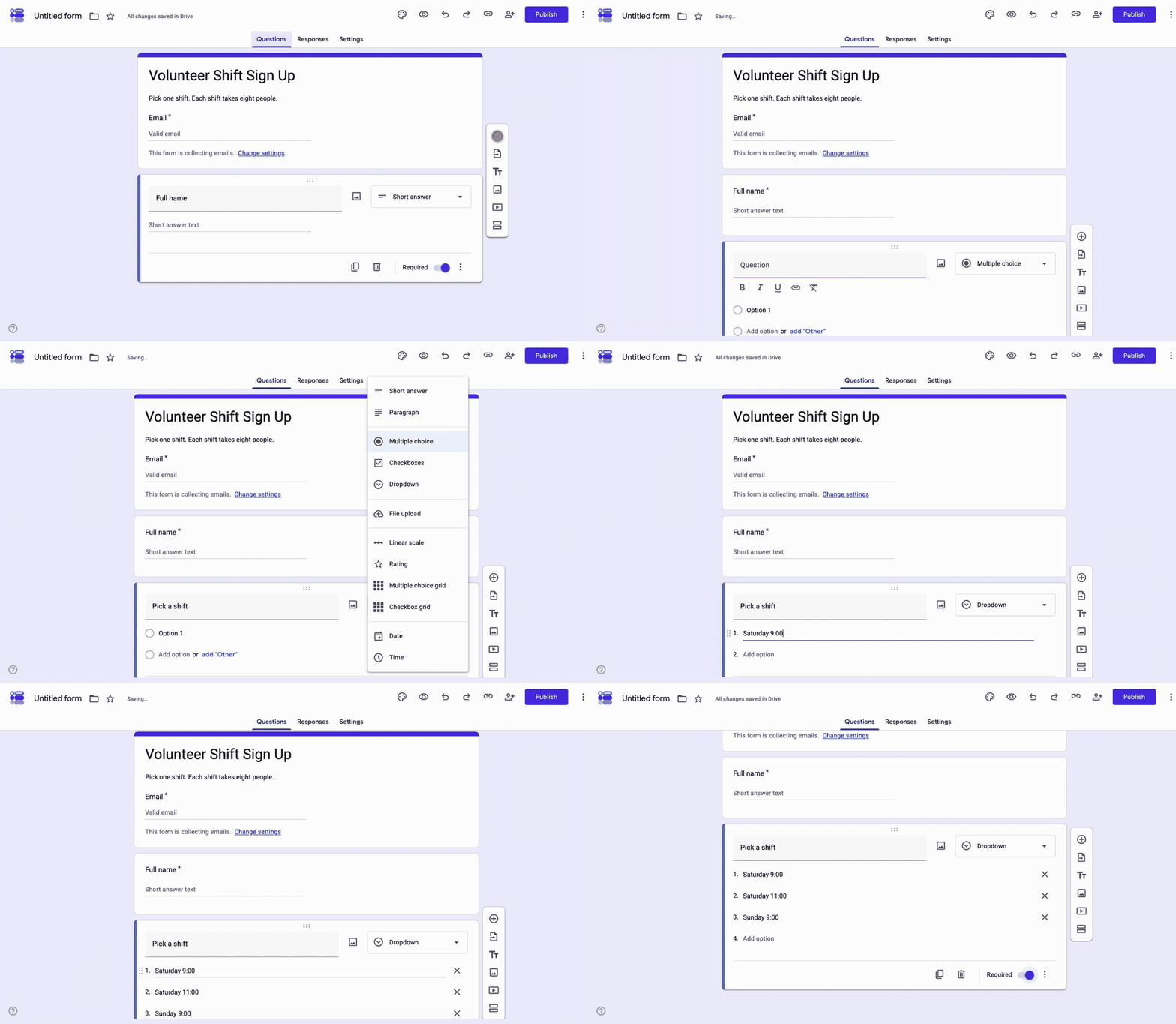
Add a question, name it Pick a shift and choose Dropdown for a long list or Multiple choice for a short one. One option per slot, with the day and time in the option text. Use Checkboxes only if one person may take several slots.
-
Publish and share the link
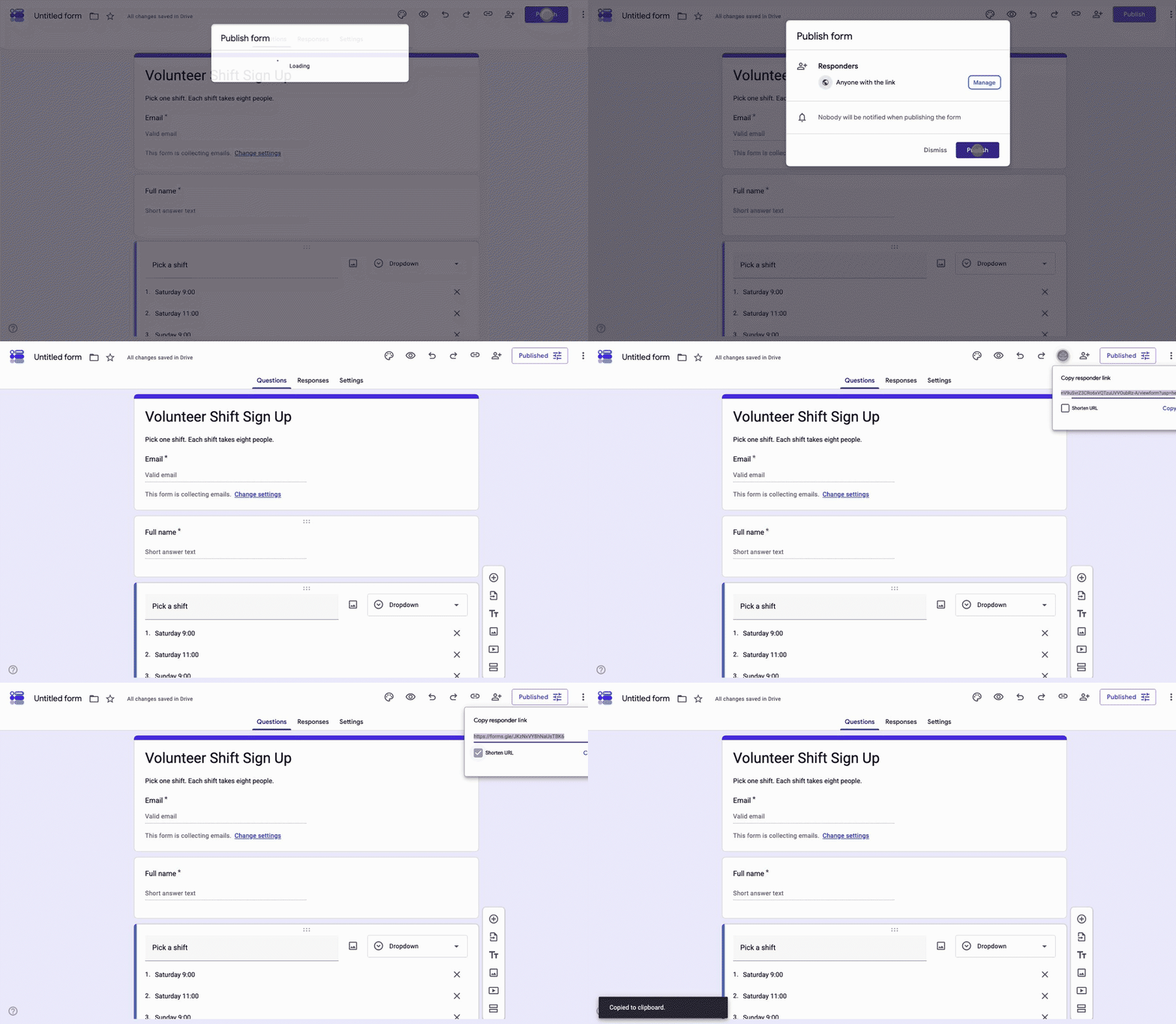
Click Publish, confirm that anyone with the link can respond, then use the link icon to Copy responder link with Shorten URL ticked. Responses arrive in the Responses tab, and Link to Sheets gives you the list in a spreadsheet.
-
Set the response limit
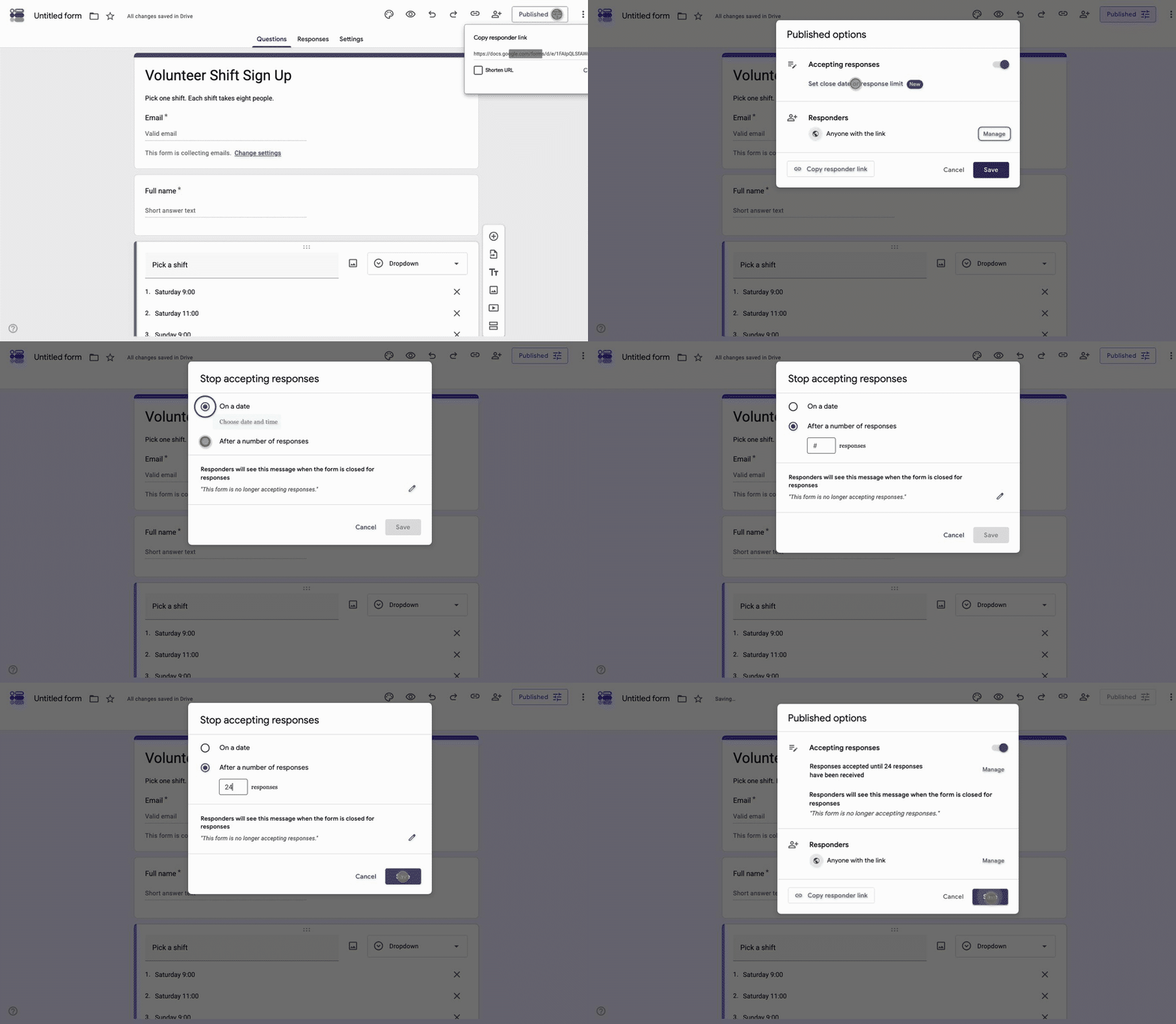
Click the slider icon on the Published button to open Published options, then click Set close date or response limit. Pick After a number of responses and type the total number of places, or On a date if the sheet has a deadline. Save the dialog, then Save again. The form stops accepting responses at that point.
How do you make a sign up sheet with time slots?
The build above is the time slot sheet. Each option in the Dropdown question is one slot, so a Saturday with three shifts is three options. What people ask about is the part Google Forms does not do: taking a slot off the list once it is full.
Google Forms has no per-option capacity. The response limit in Published options caps the whole form, so twenty places across four shifts can all land on the first shift. There are three ways around it.
- One form per slot: duplicate the form, leave one slot in each copy and set the response limit on each one. Clean, and the sign up page becomes a list of links.
- A Marketplace add-on: Form Choice Limiter and similar add-ons hide an option once it reaches the count you set. They ask for access to the form, and each one works a little differently, so test with a spare form first.
- A builder with a limiter: covered under Formester below. The cap sits on the form and the slot list can close by itself.
How do you limit the number of signups?
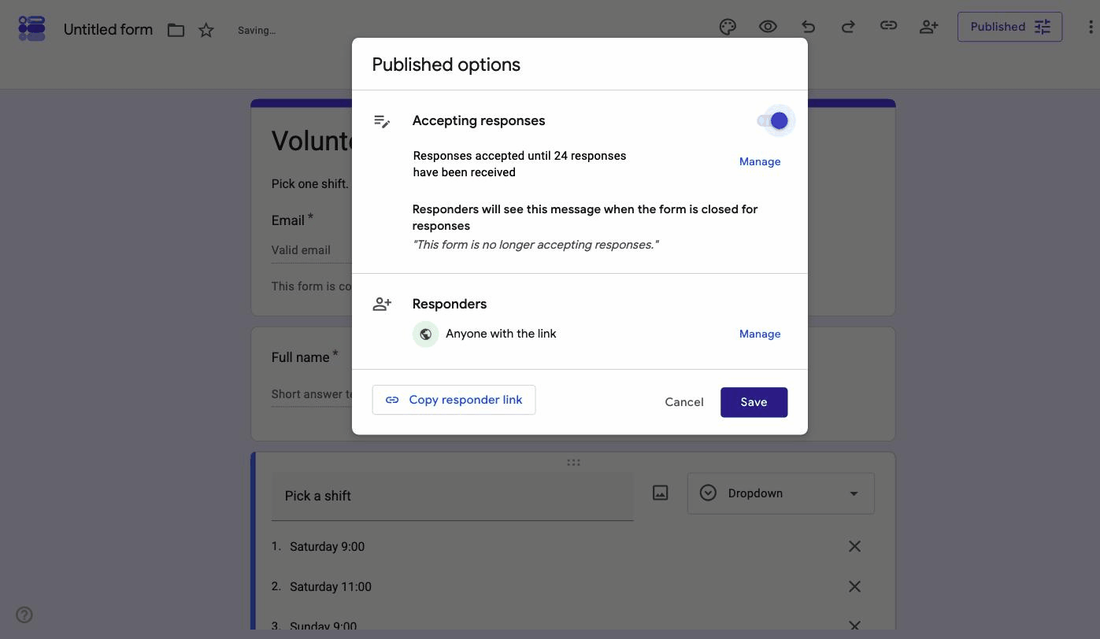
Publish the form, then click the slider icon on the Published button and choose Set close date or response limit. There are two options and you pick one: a date and time, or a number of responses. When it is reached the form stops accepting responses and shows the message you wrote.
Switch on Limit to 1 response in Settings to stop one person taking two places. It requires a Google sign-in, which is the trade: on a public sheet it turns some people away at the door. Leave it off and handle duplicates in the spreadsheet instead.
A closed form and an unpublished form look different to the person arriving late. A closed form shows your message. An unpublished form shows a blank page with no explanation, so close the form rather than unpublishing it.
What should a sign up sheet ask?
Ask for what you need to run the thing and nothing else. Every extra field costs signups.
| Field | Question type | Required | Why |
|---|---|---|---|
| Full name | Short answer | Yes | The list is useless without it |
| Email address | Collect email addresses (Settings) | Yes | The only way to send a reminder |
| Slot, shift or date | Dropdown or Multiple choice | Yes | One option per slot |
| Phone number | Short answer | No | Only if you will call on the day |
| Bringing a guest, a dish, equipment | Checkboxes or Short answer | No | Potlucks, kit lists, plus-ones |
| Anything we should know | Paragraph | No | Access needs, allergies, availability |
What Google Forms cannot do for a sign up sheet
- Cap a single slot: a full shift stays selectable until you edit the form by hand.
- Run a waitlist: when the form closes, the next person gets the closed message and nothing else.
- Show places left: the form never displays a count. Only you see it, in the Responses tab.
- Send a reminder: the confirmation copy goes out once, if you switched it on. Reminders are a job for the spreadsheet and your email.
- Let people change their slot: only if you turn on Allow response editing, and then only from the confirmation link they kept.
Where Formester fits
Start by describing the sheet. The AI generator takes a sentence like "volunteer sign up for three Saturday shifts with name, email and phone" and writes the form, options included. Edit anything, then publish.
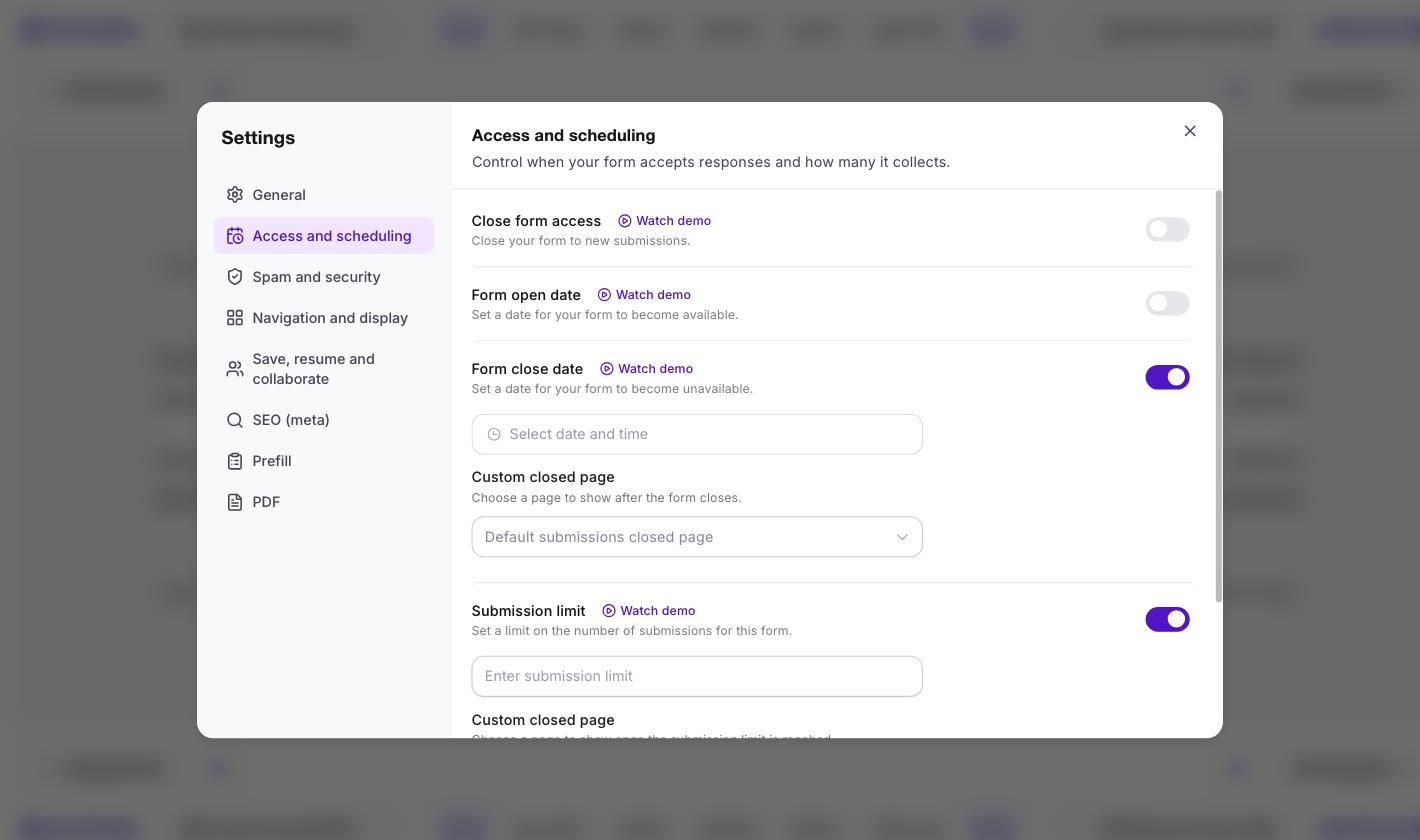
The difference is what happens at capacity. Form Limiter sets a maximum number of responses and the dates the form stays open, counts every entry and closes the form by itself with a message when the cap is hit. For a signup that is really a booking, the appointment scheduler gives each slot its own availability.
Respondents never sign in to anything, every signup gets a confirmation email if you want one, and the list lands in your dashboard or a connected Google Sheet. There are ready-made sheets to start from, such as the committee sign up sheet and the 5K sign up form.
A sign up sheet that closes itself
Set the number of places and the dates. Formester counts the signups and shuts the door when the last one goes.
Try Formester freeFree forever · No credit card · 56,000+ teams
Related reading
- Google Forms for event registration, when the sheet is really a registration with a headcount.
- The form limiter add-on for Google Forms, for the add-on route in detail.
- How to share a Google Form, for every way to get the link out.
- Make a QR code for a Google Form, for a sheet on a noticeboard.
- Send respondents a copy of their response, the closest thing Forms has to a confirmation.
- How to use Google Forms, for the parts of the builder this page assumes.