You want to take orders. Google Forms is what you have, it's free, and your team already uses it. So you open a blank form, drop in a product list, and start typing. Within about ten minutes you hit the question every small seller asks: how does the customer actually pay?
This guide walks the real workaround for using Google Forms as an order form, the parts that work fine, and the wall you will hit. Then it shows what to do if the actual job is taking orders and getting paid in the same flow, not just collecting names and addresses.
Quick answer
Google Forms does not take payments. You can build the order intake (products as multiple-choice or checkboxes, sections for variants, a quantity field, contact and delivery fields) and then either email a payment link by hand or wire an Apps Script onFormSubmit trigger. If the job is "take orders and get paid in one flow", use a form builder with native Stripe and PayPal instead, the Google Forms workaround breaks at any real volume.
The workaround: Build the order intake in Google Forms, take payment outside
Six steps for the cleanest way to run an order form through Google Forms today.
-
Build the product list as multiple-choice or checkboxes
One question per product category. Use checkboxes if a customer can pick more than one item, multiple-choice if they pick one. Put the price next to each option in plain text, for example "Chocolate cake, 12 inch, $35".
-
Use sections for variants
If a product has sizes, flavors, or colors, add a new section after the product question and use "Go to section based on answer". Pick "Chocolate cake" and the form sends them to the chocolate variants section. Pick "Vanilla" and they go to the vanilla section. It is clunky but it works for a handful of products.
-
Add a quantity field
Use a short-answer question with response validation set to "Number, greater than 0". Add a description line telling the customer the per-unit price so they can do the math themselves.
-
Add contact and delivery fields
Name, email, phone, delivery address, preferred delivery date. Mark all required. Use the email field with response validation set to "Text, email" so you don't lose orders to typos.
-
Send the order confirmation manually, or via Apps Script
Google Forms can send a generic "your response has been recorded" email, but it cannot include the order details or a payment link by default. The real fix is a Google Apps Script trigger on form submit that reads the row, formats the order summary, attaches a Stripe or PayPal payment link, and emails the customer. Without this, you are sending confirmations by hand.
-
Track payment status in the Sheet manually
Add two columns to the linked Google Sheet: "Payment status" and "Payment received on". Update each row by hand as money lands in your account. This is the part that breaks at volume.
The 4 limitations you'll hit immediately
Where the Google Forms order-form workaround stops scaling, in the order most sellers hit them.
No inline payments
The customer fills the form, hits submit, and is then sent a payment link by email. Every extra step loses orders. Industry checkout drop-off benchmarks from the Baymard Institute sit around 70%, and a two-step checkout is worse than one.
No real stock tracking
Google Forms cannot decrement a count when someone orders the last cake. Two customers can buy the same single item at the same time and you only find out when you read the Sheet.
No auto-confirm with receipt
The default confirmation email is generic. To send a real receipt with line items, totals, and a payment link, you need Apps Script or a third-party add-on like Form Publisher or Autocrat.
No variants per product
Google Forms has no concept of a product with variants. Every size, flavor, or add-on has to be modeled as a separate question and a separate section. Past five or six products this gets unmanageable, and any pricing change means editing every section.
If the job is "take orders and get paid", build the form once on a tool that ships payments.
If the actual job is "take orders and get paid", the right tool is a form builder with native payments and a product catalog, not a survey tool plus a payment link plus a spreadsheet plus Apps Script. The whole point of an order form is the customer picks what they want, sees the total, and pays in one flow. Anything that breaks that flow into multiple emails costs you orders.
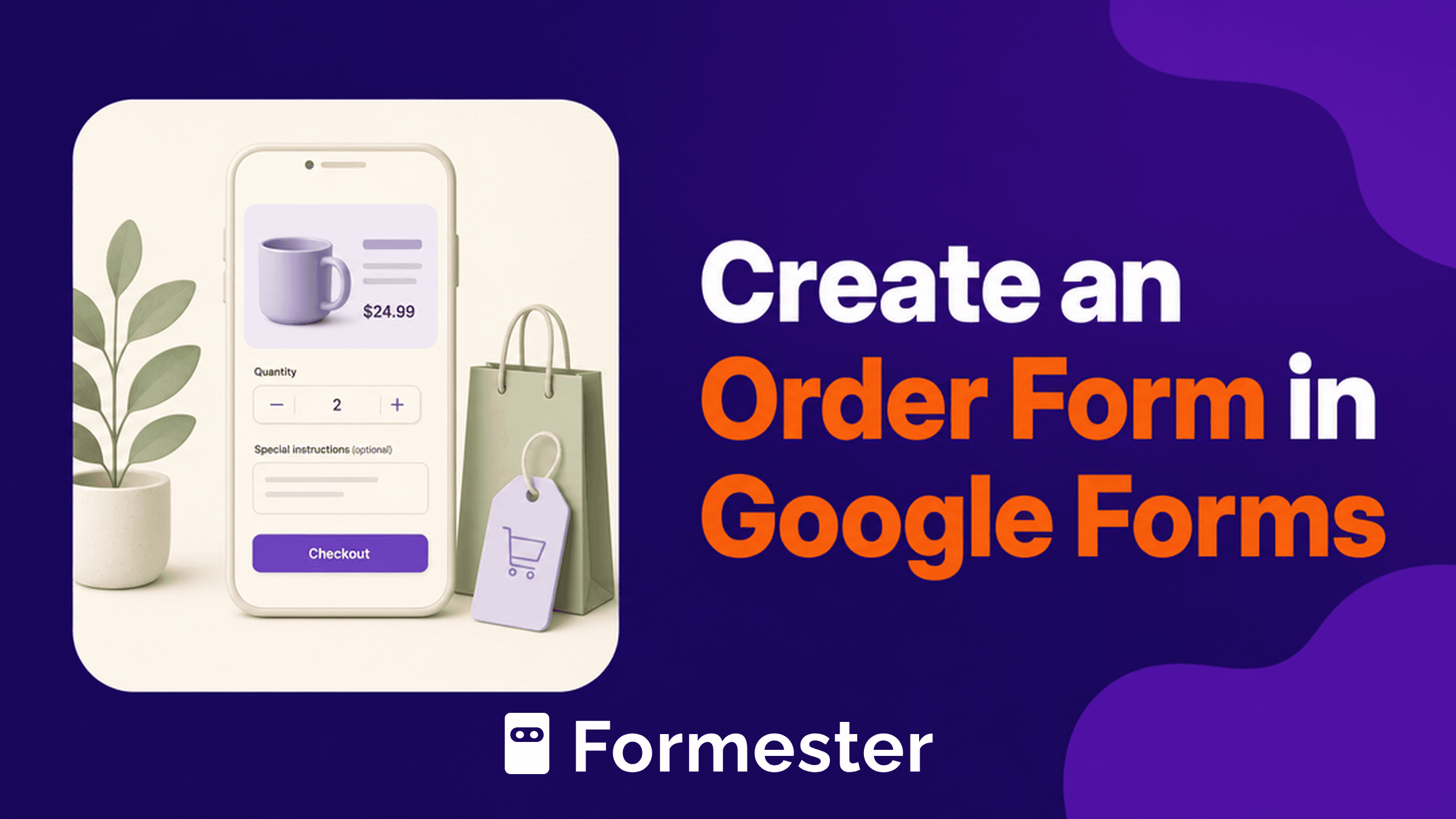
Formester ships this natively. The Product Order Form supports a product list with images and prices, quantity controls, and a running total that updates as the customer picks items. Payments go through Stripe or PayPal inside the same form, and the customer gets an automatic receipt the second the charge clears. There is a free plan, so you can rebuild the Google Form, point your existing link to the new one, and keep moving.
Compare: Google Forms order form vs Formester order form
Six capabilities that decide whether the Google Forms workaround is enough or breaks at volume.
| Capability | Google Forms | Formester |
|---|---|---|
| Native Stripe / PayPal payments | No | Yes |
| Product variants (size, color, flavor) | Section workaround per variant | Built-in variant fields |
| Stock / inventory limits | No | Yes, per-option response limits |
| Auto-confirmation email with order details | Apps Script required | Yes, native |
| Product catalog with images and prices | No | Yes |
| Free plan order limit | Unlimited responses, no payments | Free plan with limited monthly submissions, payments included |
Templates ready to use
Skip the Google Forms rebuild. Each of these ships with payments, variants, and an auto-receipt.
Bakery Order Form
Cakes, cupcakes, custom orders with delivery date.
Use template ApparelT-Shirt Order Form
Size and color variants, quantity, payment.
Use template EventsEvent Ticket Order Form
Paid tickets with tier selection.
Use template RestaurantRestaurant Takeout Order Form
Menu list, modifiers, pickup time.
Use template ServicesArt Commission Order Form
Brief, reference uploads, deposit payment.
Use template GeneralProduct Order Form
General-purpose catalog with quantity and total.
Use templateTake orders on a form that handles stock and payments, without Google Forms
Product catalogue with stock per variant, Stripe payments, automated confirmations. Free plan included.
Start free on FormesterFree forever plan•No credit card•Setup in 2 minutes
Related reading
Companion guides, features, and comparisons for selling through forms.
Product Order Form
Catalog, variants, quantity, running total, and Stripe / PayPal in one flow.
Read more FeatureOnline Payments
Native Stripe and PayPal inside the form, with automatic receipts.
Read more AlternativeGoogle Forms alternative
Where Google Forms stops working for revenue, and what to replace it with.
Read more GuideHow to accept payments on Google Forms
The full add-on, Apps Script, and external-link workarounds, side by side.
Read more ComparisonGoogle Forms vs Formester
Branded forms, payments, conditional logic, and analytics compared end to end.
Read more TemplateProduct Order Form template
Free, editable, payments included. Point your existing link to it and keep moving.
Use template