
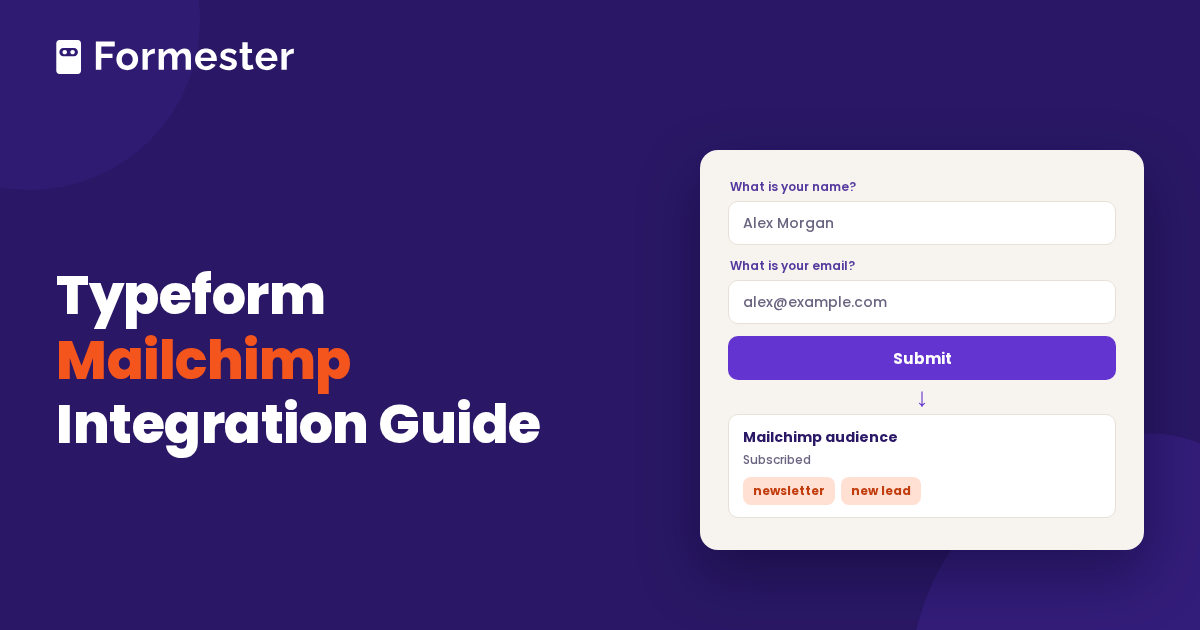
You built a Typeform and you want every respondent to end up in your Mailchimp audience. Typeform has a native Mailchimp integration for this, and it takes a few minutes to set up. A few details can trip you up, mostly around email fields, updating existing contacts, and tags.
Below are the setup steps from Typeform's help center, the limits to know about, and a simpler alternative if you are still choosing a form tool.
Quick answer
- Where to find it: Open your form in Typeform, go to Connect, search for Mailchimp, and click Connect.
- What it needs: A published form and a required email question. Updating existing contacts also needs an email URL parameter.
- What to watch: One Mailchimp account per form, tags tied to specific question types, and a Free plan limit of 10 responses per month.
- Alternative: Formester has a native Mailchimp integration with field mapping, tags, and double opt-in.
How the Typeform Mailchimp integration works
When someone submits your Typeform, the integration sends their answers to a Mailchimp audience. Typeform's help article lists three uses: adding new subscribers, updating existing subscriber data, and personalizing a Typeform that you embed in a Mailchimp survey.
You need three things before you start. Publish the form. Add an email question and set it to required if you want to create new contacts. Create an email URL parameter in the logic tab if you want to update contacts that already exist in Mailchimp.
How to connect Typeform to Mailchimp
Typeform's own steps run longer than most connectors because of the tag and consent options. Skip the ones you do not need.
Open the Connect panel
Open the form from your workspace, go to Connect, search for Mailchimp, and click Connect.
Sign in to Mailchimp
Log in to Mailchimp, or pick an account you already linked, and click Allow to authorize Typeform. You only do this once per account.
Choose an audience
Pick the Mailchimp audience that should receive the contacts.
Choose the email question
Pick the email question or the email URL parameter that sends data to Mailchimp. If you use the Contact Info question, you can map its email field instead.
Map other questions to fields
Click Map to Property. Choose a question on the left and a Mailchimp field on the right. Repeat for each question you want to send, such as names or phone numbers.
Set tags, if you use them
Tag responses from choice questions, add one tag to every response, or (on a quiz) tag each ending. See the tag limits below.
Add a consent question, if you need one
For GDPR, pick a Legal or Yes/No question from your form. Then choose what happens when someone declines.
Save and test
Click Save. Submit a test response and check that the contact appears in Mailchimp. A switch in the Connect panel turns the integration on or off, and the three-dot menu lets you edit or delete it.
Tags and consent in Typeform
Typeform maps tags to answers, not to a plain list of tags. Say you run a wine club and ask which wine each person prefers. You can send each answer to a matching Mailchimp tag. Typeform's help article says tags can be connected to Dropdown, Legal, Matrix, Picture or Multiple Choice, Ranking, and Yes/No questions, and to quiz outcomes. It also lets you apply one tag to every response, such as a tag named after the form.
For consent, the integration works with a Legal or Yes/No question that is already in your form. If someone does not opt in, you choose between not creating the contact (and unsubscribing an existing one) or creating the contact with an unsubscribed tag.
Limits of the Typeform Mailchimp integration
The integration does what it says. These are the places people get stuck, all from Typeform's own help article.
- Email is required. Mailchimp contacts are created or updated only when the respondent gives an email address.
- Updating existing contacts takes extra setup. If you only want to update contacts already in Mailchimp, you must add a URL parameter to the form and map it to the Mailchimp email field. That means the respondent has to arrive from a link that carries the parameter, for example a link in a Mailchimp email.
- One Mailchimp account per form. You can link several accounts to your Typeform account, but a single form connects to only one.
- Tags depend on question type. You cannot attach tags to a plain text answer. The list above shows what is supported.
- Double opt-in is not in the setup steps. The help article does not list a double opt-in setting. Its consent option is the Legal or Yes/No question described above. If you rely on Mailchimp's double opt-in email, test what happens before you launch.
Does the Typeform Mailchimp integration cost extra?
There is no separate fee for the Mailchimp integration. Typeform's help page on the Free plan lists Mailchimp among the integrations you can set up, with a cap of 10 responses per month across all your typeforms. Typeform's pricing page shows the paid tiers at the time of writing:
| Plan | Responses per month | Price |
|---|---|---|
| Free | 10 | $0 |
| Basic | 100 | $39 per month, or $28 per month billed yearly |
| Plus | 1,000 | $79 per month, or $56 per month billed yearly |
| Business | 10,000 | $129 per month, or $91 per month billed yearly |
Prices change, so check the pricing page before you decide. The point to notice is the response cap. A Mailchimp sign-up form that does well can pass 10 or 100 responses quickly, and the cap applies to the form, not to the integration. Our Typeform review goes through the plans in more detail.
Another route: Typeform to Mailchimp with Zapier
Typeform's Mailchimp connect page also lists Zapier templates, such as one that creates Mailchimp subscribers from Typeform entries. Zapier adds a second account and its own task limits, and it makes sense when you need filters or extra steps. If you only need contacts in an audience, the native integration is the shorter path. See how to use Zapier to automate online forms for how that works.
Where Formester fits: a simpler alternative
If your main goal is a clean Mailchimp audience, Formester's Mailchimp integration covers the same ground with fewer moving parts. According to the integration page:
- You connect with Mailchimp OAuth from Automate, then Integrations, then Mailchimp, inside the form.
- You choose the audience and the email question, then map answers such as name, phone, company, birthday, or address to audience fields.
- You pick one or more existing Mailchimp tags, and Formester applies them to every contact that integration syncs.
- You choose immediate subscription or Mailchimp's double opt-in email.
- An existing contact is updated through the submitted email address, without silently resubscribing someone who opted out. You do not need a URL parameter for that.
- You can turn on Sync existing submissions, or run Sync now later. A manual sync covers up to the latest 10,000 eligible submissions.
There are trade-offs. Formester tags are chosen once at setup and apply to every contact from that integration, rather than varying by answer the way Typeform's choice-question tags do. If you want a different tag for each answer, Typeform handles that better. Formester's integration also only works for forms built in Formester, so moving means rebuilding your form. The newsletter sign-up template and lead generation form template make that quick. Formester also supports conditional logic if you want a longer form that adapts to answers.
For a wider look at the switch, read Formester as a Typeform alternative or our list of the top Typeform alternatives. Check the pricing page for which plan includes the Mailchimp integration.
Connect your form to Mailchimp without the workarounds
Choose an audience, map your fields, apply tags, and pick immediate subscription or double opt-in. Start on the free plan.
Try Formester freeFree forever · No credit card · 56,000+ teams