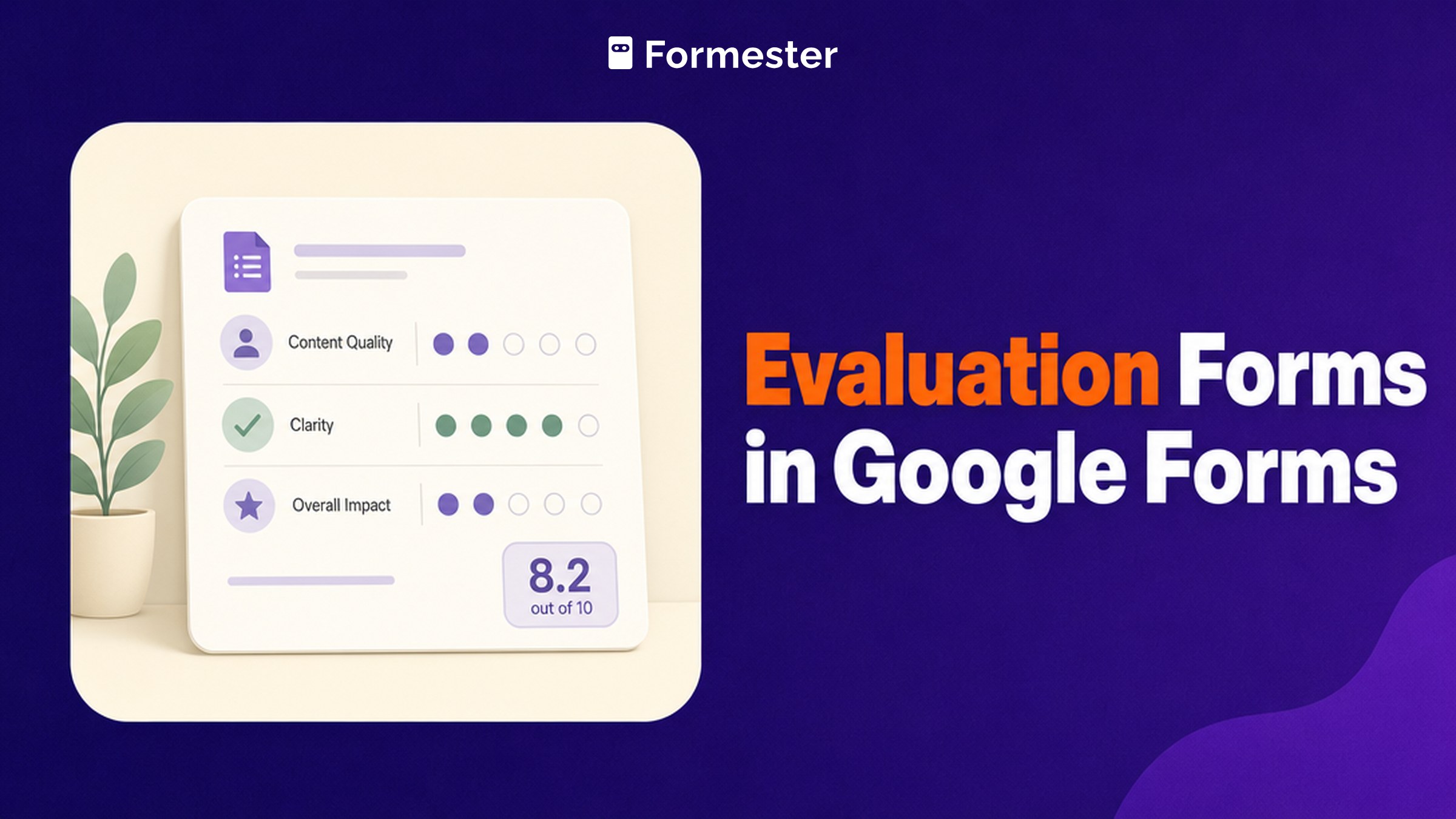
An evaluation form in Google Forms is a rating sheet: a set of criteria, a scale to score each one against, and a box for the comment people actually read afterwards. It suits a manager running a review cycle, or an instructor collecting course feedback at the end of term. Coaches use it too, for scoring things they can watch happen. Where it stops suiting you is the moment the evaluation needs a total, because Google Forms has no field that works one out.
Key facts
Google Forms will collect an evaluation. It will not score one. Build the criteria as a Multiple choice grid, add a Linear scale for the overall rating and a Paragraph field for comments, then work out any weighted total in the linked Google Sheet. On anonymity you get one or the other: an anonymous form, or one response per person.
- 4 question types built for rating: Linear scale, Rating, Multiple choice grid and Checkbox grid (Google Docs Editors Help)
- Linear scale range: starts at zero or one, ends on any whole number from 2 to 10 (Google Docs Editors Help)
- Fields that calculate a total: none. Points attach only to an answer key in quiz mode (Google Docs Editors Help)
- Native evaluation templates: 1. Course Evaluation, under Education
- Blocking repeat submissions forces a Google sign-in, so it cannot coexist with a genuinely anonymous form (Google Docs Editors Help)
Which kind of evaluation form are you building?
Three jobs share the phrase, and they need different setups. The third column is the limit each one hits first, which is usually what sends people looking for another tool.
| Kind | Who fills it in | Where it runs out |
|---|---|---|
| Performance or employee review | A manager rating one person against fixed criteria | No weighting, so a critical criterion counts the same as a minor one |
| Course or instructor evaluation | Many students rating one course anonymously | Anonymous and one-response-per-student cannot both hold |
| Skills or athlete assessment | A coach or assessor scoring observable criteria | No running total, so the score is worked out afterwards |
How do you build a performance or employee review in Google Forms?
One form per review cycle, one response per manager. Fix the criteria before it goes out. Put them in a single grid so every manager rates against the same labels, and keep the whole thing to one screen so it gets finished in the meeting rather than after it.
The problem shows up when you read the results. Every criterion carries equal weight, so a missed deadline scores the same as an untidy desk. And if your review framework already says that accuracy matters three times as much as tidiness, you will find there is nowhere inside the form for that ratio to live, which leaves you accepting a flat average you do not believe in or rebuilding the arithmetic in a spreadsheet. Almost everyone rebuilds it.
Which is why most teams end up doing the arithmetic in the Sheet and pasting the number back into their HR system by hand.
How do you run a course or instructor evaluation in Google Forms?
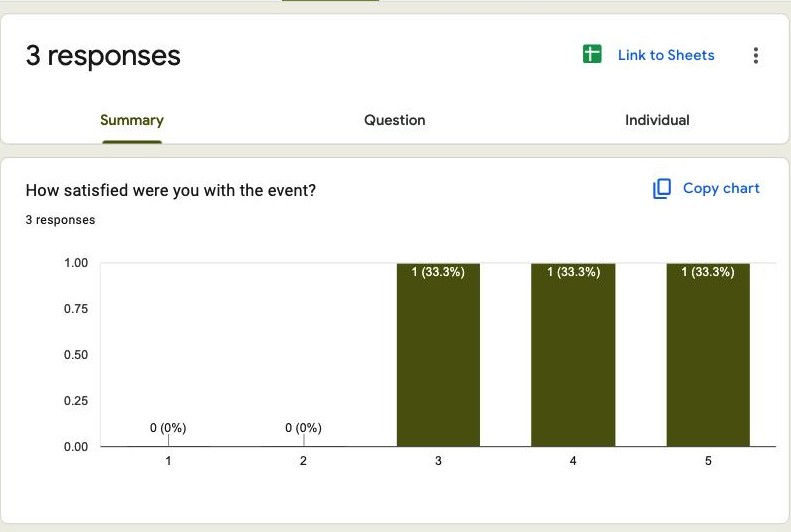
One form shared with the whole cohort, answered anonymously, read as an aggregate. This is the use case Google Forms is genuinely good at: the Summary tab charts each question on its own, which is exactly how you want to read forty students rating the same six statements.
The catch is response integrity. Leave the form open and one student can submit five times, which skews a cohort of forty badly. Lock it down with Limit to 1 response and you have just asked every student to sign in to a Google Account first, which nobody reads as anonymous. Instructors have been asking Google for a way out of this since at least 2020, in threads like this one in the Docs Editors Community, and the answer has not changed.
Most departments pick anonymity and live with the occasional duplicate. That is the right call at forty students and the wrong one at four hundred.
How do you score a skills or athlete assessment in Google Forms?
You are filling this one in while the thing happens, usually on a phone, usually standing up. Grids suit that. The criteria are observable and the scale is short, and a phone taps through a grid far faster than it works through eight separate questions stacked down the screen.
What breaks is the score. An assessment usually ends with a number that decides something: a placement, a squad, a pass mark. Google Forms records the individual ratings and hands you nothing that adds them up, so the assessor finishes the form and then opens a spreadsheet to find out what the result was. On a tryout with sixty athletes that gap is the whole job.
Which question types should an evaluation form use?
Google's question-type documentation lists twelve options. You need three. The rest of the work is wording.
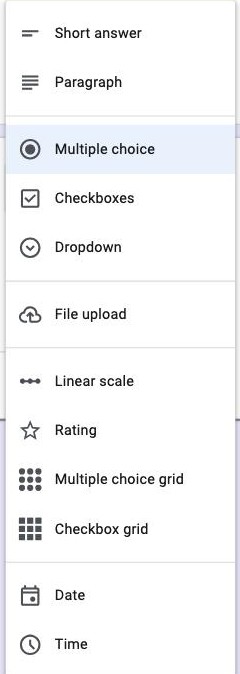
- Multiple choice grid for the criteria block. Rows are your criteria (communication, punctuality, accuracy and initiative). Columns are the rating labels. One grid replaces a dozen separate questions and keeps the scale consistent across all of them.
- Linear scale for a single overall rating. Google allows a scale starting at zero or one and ending anywhere from 2 to 10, so 1 to 5 is a choice rather than a default. Label both ends, because an unlabelled 3 means different things to different people.
- Paragraph for the comment. This is the field people actually read afterwards, so give it a prompt rather than leaving it blank: "one thing to keep doing, one thing to change" gets better answers than "comments".
Set the grid and the overall scale to required. Leave the comment optional, or you will get "n/a" instead of nothing, which is worse because it looks like data.
Can Google Forms score an evaluation automatically?
No. There is no calculation field anywhere in Google Forms, so nothing multiplies or averages across questions. This is the one fact that pushes evaluation forms out of Google Forms altogether, and you will usually discover it at the worst moment: the responses are in, the review meeting is tomorrow, and you are looking at forty rows with no total column anywhere in sight.
- Quiz mode does not fill the gap. Turning on Make this a quiz lets you build an answer key and attach points to the answers you mark correct. An evaluation has no correct answer, so there is nothing for the points to attach to.
- Weighting is manual. If accuracy matters three times as much as tidiness, that ratio lives in a spreadsheet formula, not in the form.
- Respondents see nothing. Google Forms cannot show a computed result on the confirmation screen of a non-quiz form, so the person being evaluated learns their score only if you email it.
Twelve question types, none of them arithmetic.
How do you weight evaluation criteria in the linked Google Sheet?
Link a Sheet from the Responses tab and the weighting becomes a one-line formula. Each grid criterion arrives as its own column, so put your weights in a row above the data and let SUMPRODUCT do the arithmetic.
With criteria in columns D to G and their weights sitting in $D$1:$G$1, the weighted score for the row is:
| What you want | Formula |
|---|---|
| Weighted total | =SUMPRODUCT(D2:G2,$D$1:$G$1) |
| Weighted average out of 5 | =SUMPRODUCT(D2:G2,$D$1:$G$1)/SUM($D$1:$G$1) |
| Flat average, no weighting | =AVERAGE(D2:G2) |
Two things to watch. Grid answers land as text labels, not numbers, so either label your columns 1 to 5 in the form or convert them in the Sheet before the formula will run. And new responses append below your formula rather than inheriting it, so wrap it in ARRAYFORMULA or the totals stop appearing after row two.
Worth being clear-eyed about what this means: whoever owns the Sheet now owns the scoring rubric. Fine until they leave.
Can a course evaluation be anonymous and still block repeat submissions?
No, and this is the second reason evaluation forms leave Google Forms. Blocking repeats needs Limit to 1 response, and Google's documentation is explicit about the cost: to fill in the form, users must sign in to a Google Account.

Google does add one nuance worth knowing: with Collect email addresses left off, it does not record the usernames of people who sign in. So the submission is not technically identified to you. It is still not anonymous in the way that matters, for two reasons. Anyone without a Google Account cannot respond at all, which quietly excludes part of your cohort. And a form that demands a login before it will accept honest feedback about a manager or an instructor does not get honest feedback, whatever the privacy notice says.
The usual workaround is a private link plus trust. Fine for a friendly cohort, useless for a contested review.
Is there an evaluation form template in Google Forms?
One, and only for the education use case. The native gallery ships Course Evaluation under Education, which gives you a rating grid and a comment box to edit down. There is no employee performance review template and no skills assessment template, so those start from a blank form or a copy of last cycle's.
Copying last cycle's is the faster route and carries a trap: Make a copy duplicates the questions and settings and leaves the responses behind, which is what you want for a new cycle and a shock if you assumed the history travelled with it.
One template out of the seventeen in the gallery, and it is pointed at courses rather than people.
How do you read evaluation results in Google Forms?
The Summary tab charts each question on its own. If you are reading a whole cohort that is exactly what you want. If you are reading one person, it is close to useless, because you cannot filter the summary down to a single evaluatee.
For anything per-person, work in the linked Sheet. Filter by the name column and keep the weighted total from the formula above beside it. The Individual tab will show you one submission at a time, which helps when you want to read a single manager's comments and not when you want to compare six of them.
Why Formester's evaluation forms are the better choice
The scoring and the anonymity both stay inside the form.
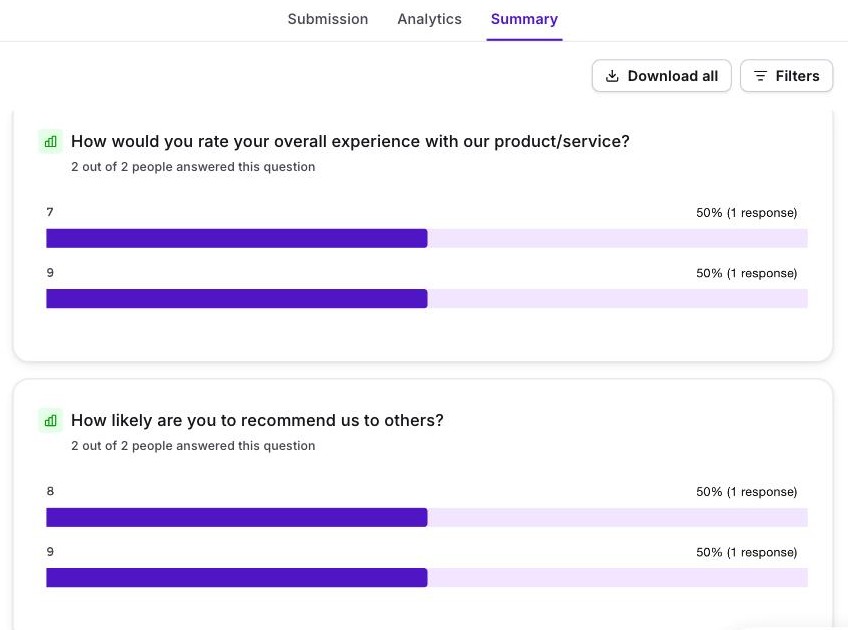
- Rating, scale and ranking answers roll up into per-question summaries with filters, so you can look at one cohort or one reviewer without exporting
- Anonymous submissions that still block duplicates by IP, so honest feedback and one-response-per-person hold at the same time
- Start from the Course Evaluation Form rather than building the criteria grid from scratch
- Conditional logic can skip whole criteria blocks that do not apply to a role (Personal plan)
Related reading
- View responses in Google Forms - the five places evaluation answers land, and which one to read.
- All 17 Google Forms templates - including Course Evaluation, and what each one stops short of.
- Make an anonymous Google Form - the setting behind the anonymity trap above.
- Conditional questions in Google Forms - why criteria blocks cannot be skipped per role.
- Send a copy of Google Form responses - how to get the evaluation back to the person who filled it in.