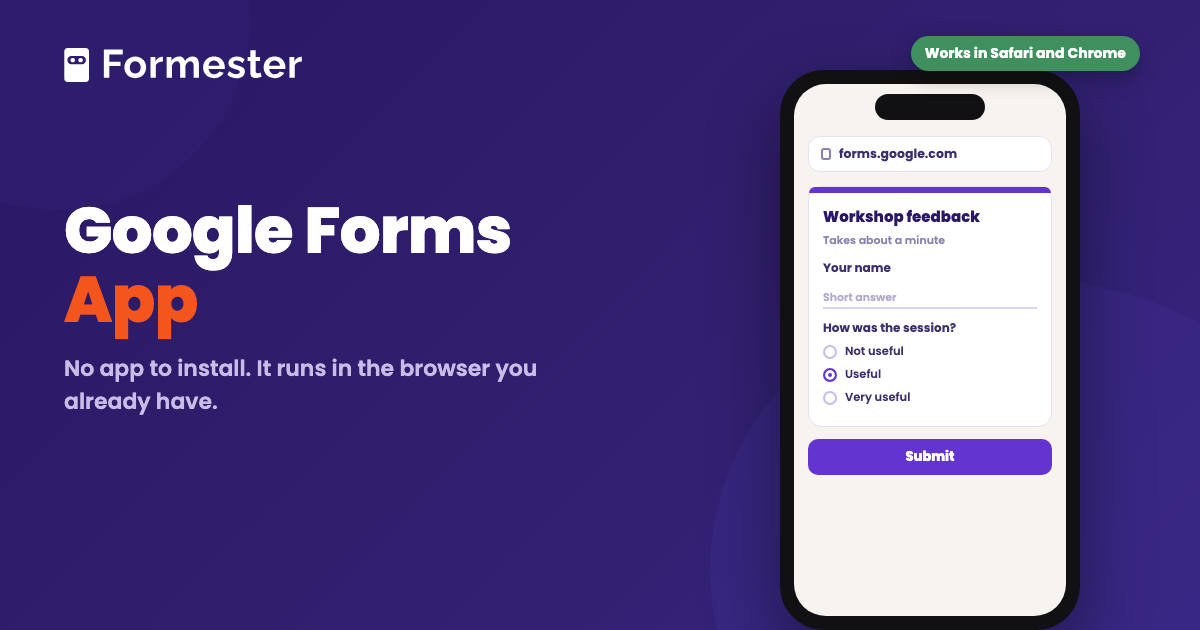
No, there is no Google Forms app. Google has never released an official one for iPhone or Android. The apps you see in the App Store and Google Play are made by other companies and work by connecting to your Google account.
The official way to use Google Forms on a phone is through your browser. Open forms.google.com in Safari or Chrome, sign in and you get the same editor you use on a computer, with one documented limitation.
For most people, that works just fine. Below, we'll explain how to make Google Forms feel more like an app, what those third-party apps are actually doing, how to build and answer forms on a phone, and what you can't do from mobile.
Quick answer
- No official app: Google's own help guidance tells you to open Google Forms in a mobile browser. If you already have a form, you can also find it in the Google Drive app, which opens it in the browser editor.
- The apps in the stores: Forms for Google Docs, Forms+, FormsApp, and the app called "Google Forms App" are all third-party apps. They ask you to sign in with your Google account and access your forms through that connection.
- You can add Forms to your home screen: Open forms.google.com, then use Add to Home Screen on your phone. It opens from an icon and can feel much like a normal app.
Is there a Google Forms app?
No. Google has phone apps for Docs, Sheets, Slides, Drive, Keep and Calendar, but it does not have a Google Forms app.
Google's own help instructions for iPhone, iPad and Android start with opening a mobile web browser such as Safari. There is no step telling you to install a Forms app because there isn't one to install.
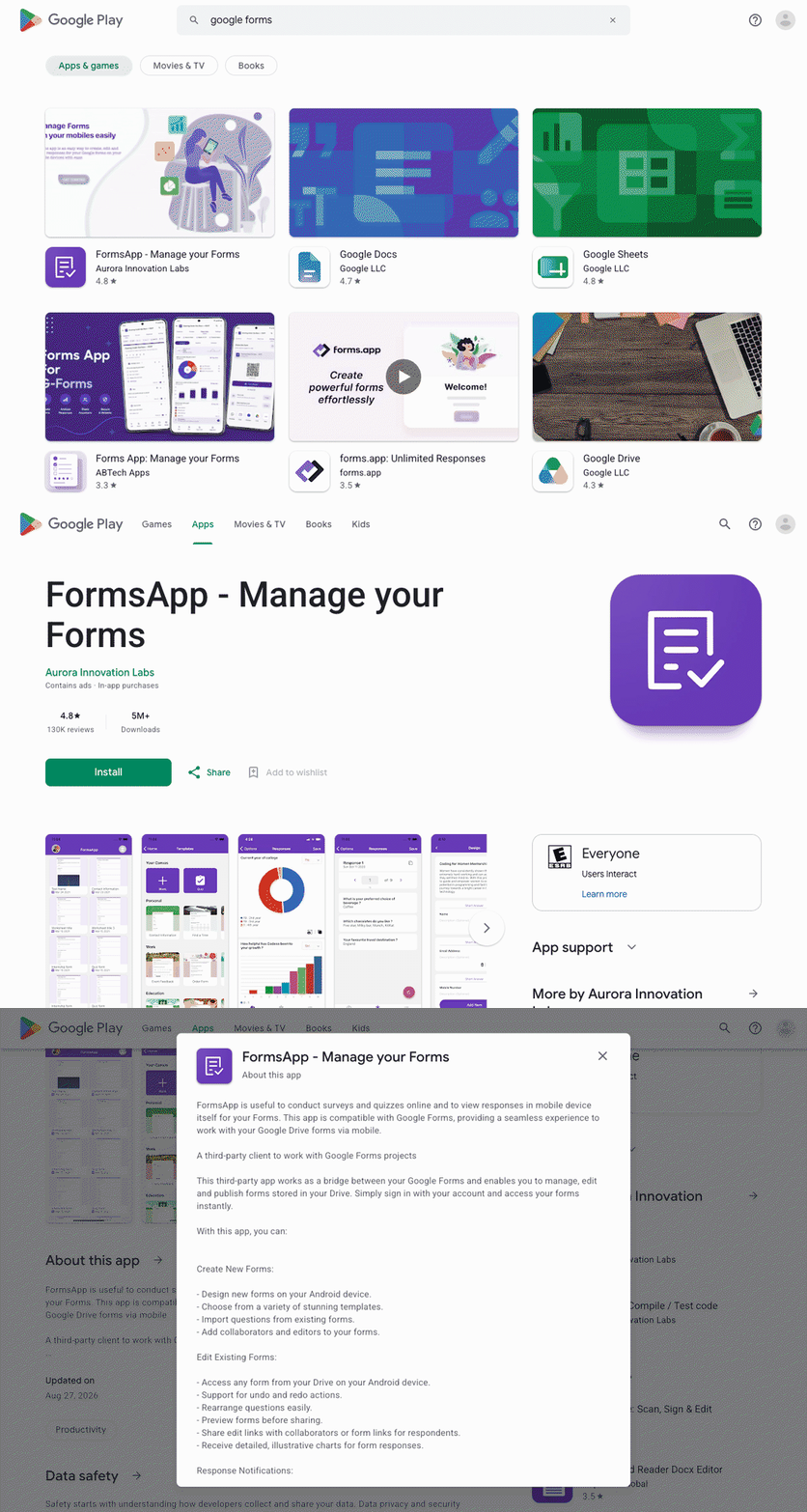
The confusion mostly comes from the app stores. Search "google forms" in Google Play and FormsApp can appear near Google's own apps. Search the App Store and you may even see an app literally called "Google Forms App." Neither is made by Google.
If you already have a Google account and a phone, you already have access to Google Forms. When you're signed out, forms.google.com takes you to Google's sign-in page. Once you're signed in, you can open the form editor with the same question types, Publish button and Responses tab you see on desktop.
What are the "Google Forms" apps in the App Store and Google Play?
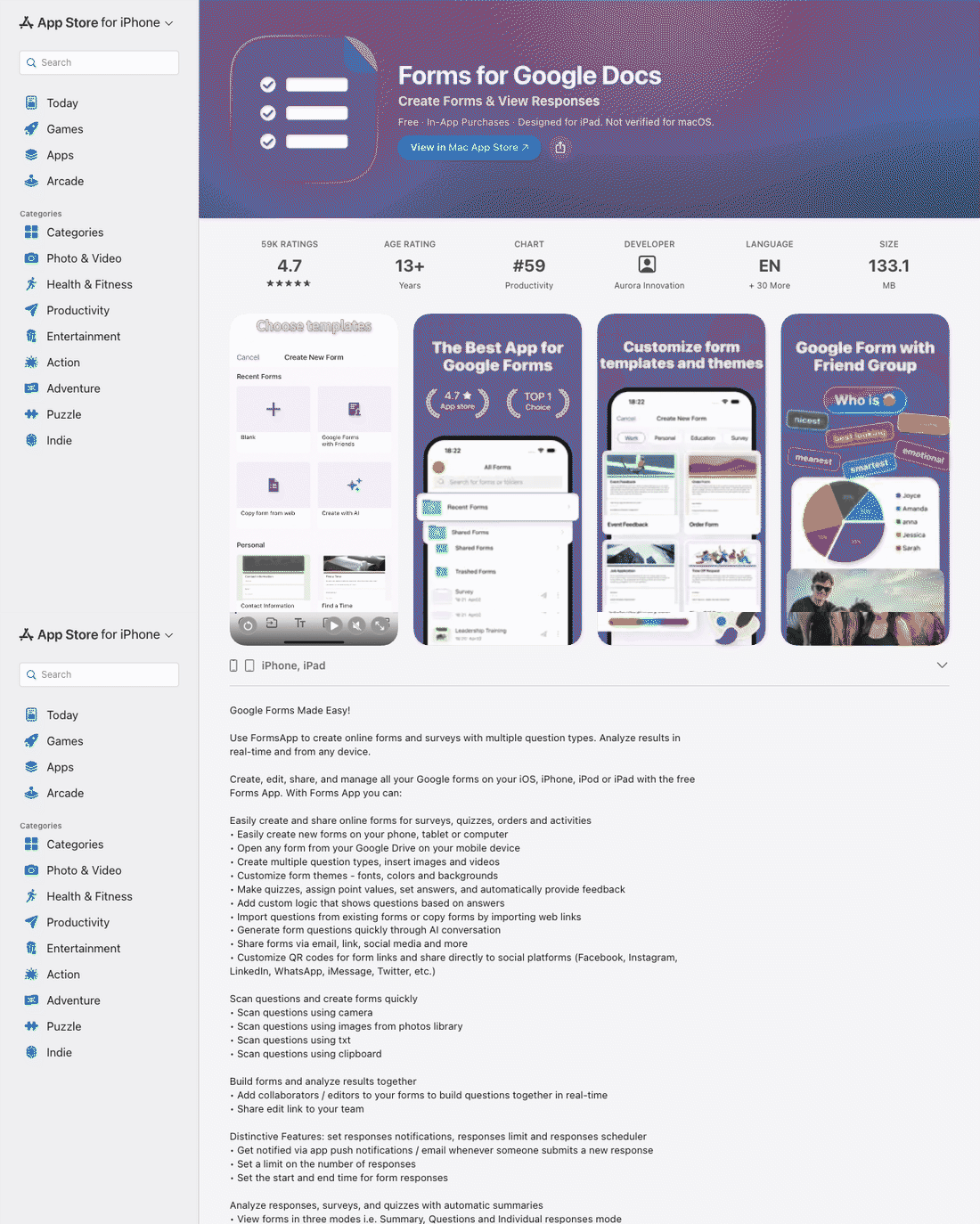
They're third-party clients. Each one asks you to sign in with your Google account. With that permission, the app can read, edit and create forms in your Google Drive through its own interface.
Some of these apps are well made and have strong ratings. The important thing to understand before you install one is the access you're giving it. You're giving another company access to your forms in exchange for a native-looking interface around a website that already works on your phone.
| Listing | Developer | Price | What it is | What it asks for |
|---|---|---|---|---|
| Forms for Google Docs (App Store) | Aurora Innovation | Free, in-app purchases | Third-party client. Listing says it is not associated with Google. | Google account sign-in |
| Forms+ (App Store) | Amad Marwat | Free, in-app purchases | Third-party client with the same disclaimer. | Google account sign-in |
| Google Forms App (App Store) | App Training | Free, in-app purchases | Third-party client despite the name. | Google account sign-in |
| FormsApp (Google Play) | Aurora Innovation Labs | Free, ads and in-app purchases | Third-party client. Listing says it is not associated with Google Forms. | Google account sign-in |
There's nothing these apps do that you can't do in the browser. What they add is a more native-feeling layout, a response list designed for a phone screen, and, on paid plans, things such as response notifications.
If you decide to use one, check that the listing clearly says it is a third-party app, review its data safety information, and remove its access when you stop using it. You can manage that access through your Google account security settings.
If you don't need the native app-style interface, the browser route costs nothing extra and does not require you to give a third-party app access to your forms.
How do you use Google Forms on a phone?
Pretty much the same way you use it on a computer, just in a smaller window. Google's instructions cover iPhone, iPad and Android and the basic steps work in Safari, Chrome and Samsung Internet.
-
Open forms.google.com and sign in
Type forms.google.com directly into your browser. If you're signed out, you'll see the Google sign-in page. Once you're signed in, you'll see your Forms home, recent forms and the template gallery.
If your phone has both a work and personal Google account signed in, check the account avatar before creating a form. The form is saved to the Drive connected to the account you're using.
-
Start a form, or open one from Drive
Tap Blank form to start from scratch, or choose a template. If you're opening a form you already created, the Google Drive app can be quicker. Find the form in Drive, tap it and it will open in the browser editor.
-
Build the form
The mobile editor includes the same main tools as desktop, including the plus button, question type menu, sections, images and Settings. There are two things to keep in mind on a phone.
Dragging questions into a new order can be fiddly, so use the three-dot menu on a question to move it. Also, Google says the date and time picker is not currently supported on iPhone and iPad. If you add a Date question from an iPhone, check it on a computer before relying on it.
-
Publish and copy the responder link
Tap Publish in the top right and confirm who can respond. Then use the link icon to copy the responder link. If you're sending it in a message, you can select Shorten URL. The same link can also be used to share the form or make a QR code.
-
Add Google Forms to your home screen
This is the closest thing Google offers to an app. On iPhone, open forms.google.com in Safari, tap Share, then Add to Home Screen. On Android, open the Chrome menu and choose Add to Home screen.
You'll get a Forms icon that opens the site full-screen without the browser bar and stays signed in. It isn't a store-installed app, but it behaves like one for most everyday use.
How do people answer a Google Form on a phone?

They don't need an app. In most cases, they don't even need a Google account. The responder link opens in the phone's browser, the form stacks into a single column, and submitting it takes one tap.
Most responses to most forms arrive this way, so it's worth opening Preview on your own phone before you share the link.
Respondents only see a sign-in screen if your form requires one. A File upload question, the Limit to 1 response setting, or restricting responses to people in your organisation all require a Google account. If the form is public, leave those settings off if you want people to respond without signing in.
What can you not do from a phone?
Pick a date on an iPhone or iPad
Google says its date and time picker is not currently supported on iPhone and iPad. Build date questions on a computer, or use a Short answer question with response validation instead.
Work offline
The editor and responder page both need a connection to load and submit. If you lose your connection, there is no queued submission waiting to send later.
Use add-ons or Apps Script
The add-ons menu and script editor are desktop features. Things such as response limits, PDF generation and notifications from add-ons can be set up on a computer and then run on their own.
Read results comfortably
The Responses tab can show charts and individual responses on a phone, but a form with 20 questions means a lot of scrolling. For easier analysis, link the form to Sheets and use the Sheets app.
Print or export
You can print a form or save a response as a PDF through the browser print dialog, but it is awkward on a phone. Saving a Google Form as a PDF is easier on a computer.
Why is there no Google Forms app?
Google hasn't given a specific reason, and people have been asking about it on Google's help forum for years.
The practical explanation is that Forms is part of Drive and Workspace rather than a standalone product. The editor also works reasonably well in a mobile browser, so a native app would largely duplicate what already exists.
Docs and Sheets benefit more from native apps because typing documents and editing spreadsheets in a phone browser can be painful. Building a form is mostly tapping, which the browser handles well.
Whether Google will ever release a native Forms app is something nobody outside Google can answer. For now, the practical approach is to use the browser and add Forms to your home screen.
Where Formester fits
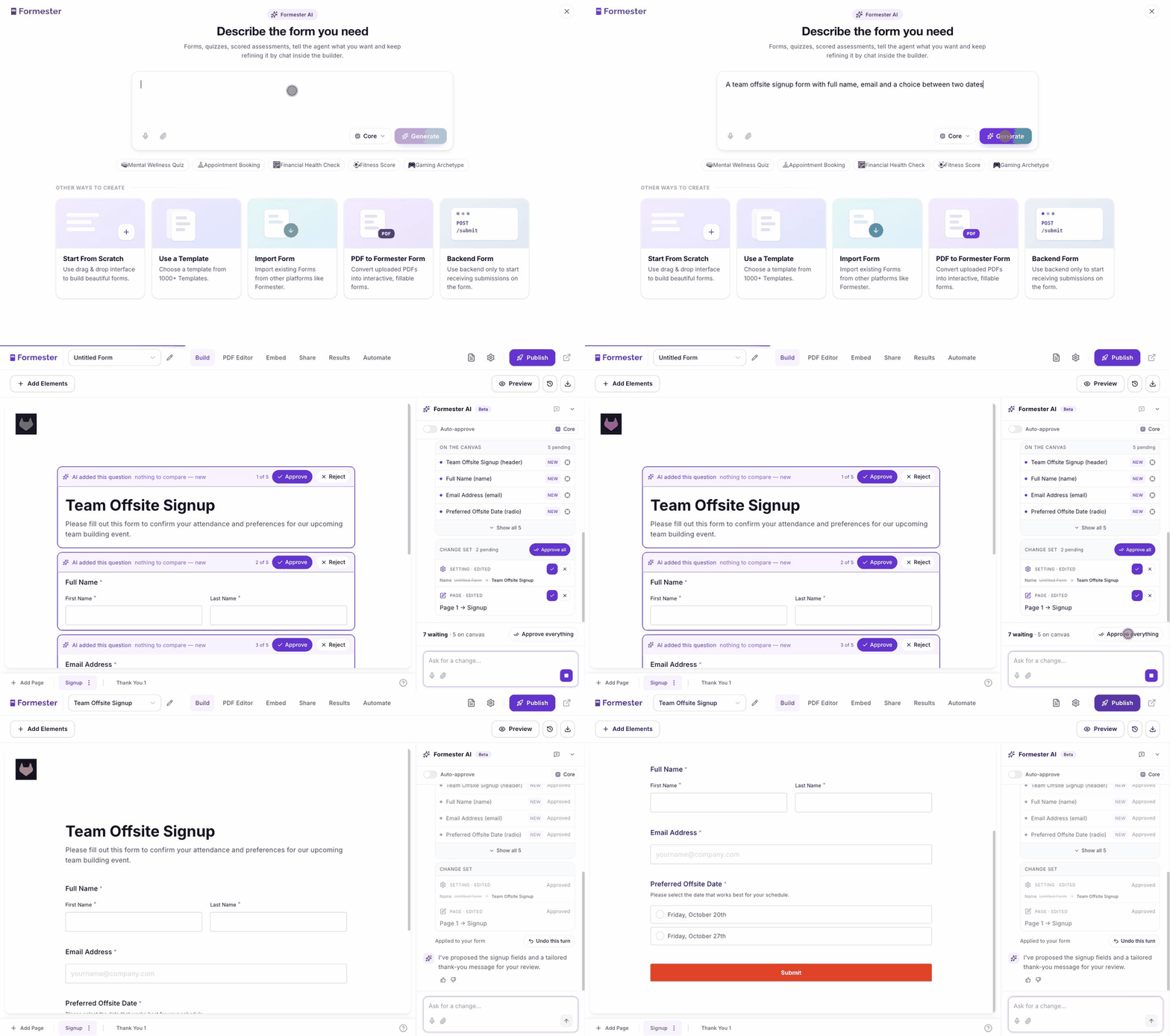
Formester doesn't have a native app either, and that's by design. Its builder works in a phone browser, so there's no app-store detour.
Open Formester, describe the form you need in a sentence, and its AI generator creates the questions, field types and pages for you to edit. Then publish it, copy the link and you're done.
The bigger difference is what happens when you don't have a connection. Formester's offline forms continue working after the form has been opened. Respondents can fill them out without Wi-Fi or mobile data, responses are saved on the device, and they are uploaded automatically when the connection comes back.
You can also add the form itself to your phone's home screen, so it opens like an app and can collect responses anywhere.
That matters in places where the network is unreliable, such as a field inspection, a venue with poor reception, or a clinic in a basement. In those situations, offline collection can be the difference between getting the responses you need and losing the work.
Formester does not put a native Formester app in the App Store. If a store-installed native app is the requirement, rather than simply having a form that works well on a phone, a mobile form builder comparison is the better place to look.
Forms that work on a phone without an app
Build in the browser, add the form to your home screen, and keep collecting even when there's no signal.
Try Formester freeFree forever · No credit card · 56,000+ teams
Related reading
- How to use Google Forms, for the builder itself, on any screen size.
- The best offline form builders, if no-signal collection is the actual requirement.
- Mobile forms versus desktop forms, on what changes when most answers come from a phone.
- How to embed a Google Form, when the form belongs on a page rather than behind a link.
- How to make a Google Form anonymous, for the sign-in settings that can trip up phone respondents.