Giving access to a Google Form means one of two things. A teammate needs to edit the form, or people need to fill it out. Each one has its own link and its own setting.
This guide covers how to share a Google Form editor link with the Share button, and how to open the form to responders with Publish. It also lists the causes of the permission message. Most of them come from mixing the two links up, or from a form that was never published.
Quick answer
- A teammate needs to edit the form: click Share in the top right and add their email. Set the role to Editor and click Send. The editor link is the address ending in /edit.
- People need to fill it out: click Publish, then Manage. Set General access to Anyone with the link, click Done, then Publish. Share the responder link, not the /edit link.
- Someone sees a You need permission message: the form is usually not published, or you sent the /edit link. Check those two first. The full list of causes is below.
How do you share a Google Form editor link?
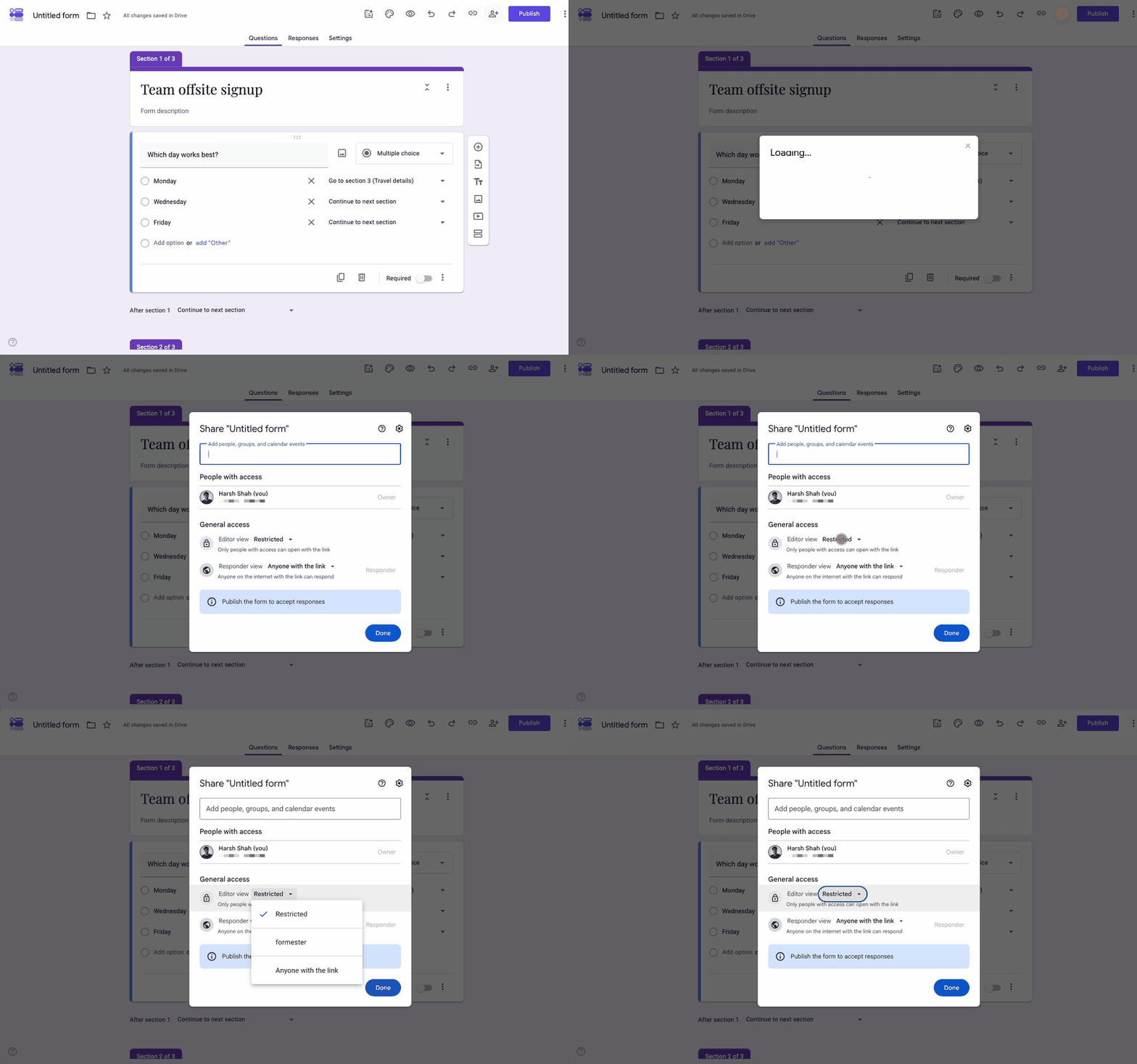
Editor access lets someone change the form. Use it for the people who help you build it, such as a colleague who rewrites the questions or a manager who checks it before it goes out. The steps below follow the current Google Forms editor. If you still see a three-dot menu with Add collaborators, your account has not moved to the new layout yet, and the options are the same.
-
Open the form and click Share
Open the form at forms.google.com. Click Share in the top right, next to the Publish button.
-
Add the people who should edit
Type their email addresses or a Google Group. Each person you add gets their own access, so nobody else can use it.
-
Set the role to Editor
Click the dropdown next to their name and choose Editor. If the access should end on a date, click Add expiration and pick the date. Google removes the access on that day.
-
Click Send
If the form is published, Google emails each person a link to the editor. Untick Notify people if you would rather send the link yourself. If the form is not published yet, copy the address from your browser (it ends in /edit) and send it to them.
If you want one link that anyone can use to edit, open Share. Change General access from Restricted to Anyone with the link. Set the role next to it to Editor.
The link to share is the address in your browser while you are editing. It ends in /edit. Paste it into a private channel only. Anyone who has it can change or delete your questions.
What an editor can do
An editor can do almost everything you can. They cannot delete the form or transfer ownership. They can:
- Add, change, or delete any question.
- See every response.
- Add or remove other editors.
To take access away, open Share and click the role next to the person's name. Choose Remove access. To hand the form over, give the person editor access first. Then click the arrow next to their name and choose Transfer ownership. Google's collaborator guide covers both.
How do you give people access to fill out a Google Form?
People who fill out the form do not need editor access. They need the form to be published, and they need the responder link. A form that is not published cannot be opened by anyone except its editors, no matter which link you send.
-
Click Publish
Click Publish in the top right. This opens a dialog where you choose who can respond. New forms start unpublished. This is the step people miss when the form works in preview but not for anyone else.
-
Set who can respond
This setting is what makes a Google Form public, or keeps it inside your organization. In the Publish dialog, click Manage next to Responders. Under General access, choose Anyone with the link so people do not need to sign in. Personal Google accounts usually have this selected already. Workspace accounts usually default to your organization, which blocks anyone outside it.
If the form must stay restricted, keep General access as it is. Open Share and type the person's email. Set the role next to their name to Responder.
Click Done, then click Publish in the dialog. The button in the top right changes to Published.
-
Copy the responder link
Click Published in the top right, then Copy responder link. The same option is under Preview and Share. Tick Shorten URL if you want a forms.gle address that fits in a message or a QR code.
-
Test it in a private window
Open the link in a private or incognito browser window. If the form loads without asking you to sign in, everyone else can open it too. If it asks for a sign-in or shows a permission message, go through the list in the next section.
Some settings force a Google sign-in even when access is set to Anyone with the link. Limit to 1 response and Verified email collection both require respondents to sign in to a Google account. A file upload question does too. Turn them off if people without Google accounts need to respond.
Why does Google Forms say you need permission to access this form?
The message appears when Google cannot match the person opening the link to anyone allowed to see it. Start with your own settings. They are faster to check than the other person's account. Work through the list in order and stop at the first one that applies.
- The form is not published. Click Publish in the top right. Until you do, only editors can open it.
- Responder access is restricted. Click Published, then Manage. Set General access to Anyone with the link. Workspace forms often start limited to the organization. Or add the person by email with the Responder role.
- You sent the editor link. A link that ends in /edit asks anyone who is not an editor to request access. That request arrives in your inbox. Send the responder link instead, which ends in /viewform or starts with forms.gle.
- They are signed in to the wrong Google account. Someone with a work and a personal account may open the link in the wrong one. Ask them to click their profile picture in the top right and switch accounts, or open the link in a private window.
- The form requires a sign-in and they have no Google account. Limit to 1 response and Verified email collection both need a sign-in. So does a file upload question. Turn the setting off, or accept that only Google account holders can respond.
- Their organization has turned Google Forms off. A Workspace admin can disable Forms for some users. Nothing on your form fixes this. The person needs to use a personal account or a form that does not run on Google.
If the private-window test passes and one person still cannot get in, the problem is their account, not your settings. Ask them to try a different account or a different browser before you change anything on the form.
Why does the linked spreadsheet not follow the form's permissions?
When you link a form to a new spreadsheet, the editors you already added get access to that spreadsheet too. After that point the two are separate. If you remove an editor from the form later, they keep their access to the spreadsheet, and the responses in it, until you remove them there as well.
Keep the two in step by hand. When someone leaves the project, open the form's Share dialog and the spreadsheet's Share dialog and remove them from both. Google notes that changes made on the form do not sync to the sheet on their own.
Where Formester fits
Google ties editor access to Google accounts, and several responder settings force a sign-in too. If your respondents keep getting asked to sign in, or your team needs more than one editor role, a form that does not depend on Google accounts is simpler to run.
Formester forms open for anyone with the link, with no account on the respondent's side. You can add a password to a form when it should only be open to certain people, without asking them to sign in. On the Business plan, collaborative forms let you give each teammate a role, such as Editor or Viewer. A reviewer with the Viewer role can see responses without being able to change the questions.
Share a form without the sign-in wall
Respondents never need a Google account. Add a password when a form should stay private, and give teammates editor or viewer roles instead of one all-or-nothing link.
Try Formester freeFree forever · No credit card · 56,000+ teams
Related reading
- Share a Google Form, for the ways to send the responder link once access is set.
- Make a Google Form anonymous, which covers the same sign-in settings from the privacy side.
- Collect email addresses in Google Forms, including the Verified option that forces a sign-in.
- Embed a Google Form, if the responder link is going on a website.
- CAPTCHA for Google Forms, for keeping an open form free of spam without requiring a sign-in.
- Password-protected forms in Formester, for a private form with no account required.